


Chapter 4
AI CODER chat
Talk to the AI inside your project: choose a model, send a request, attach files, control what the AI may do and review its changes.
Open the chat and choose a model
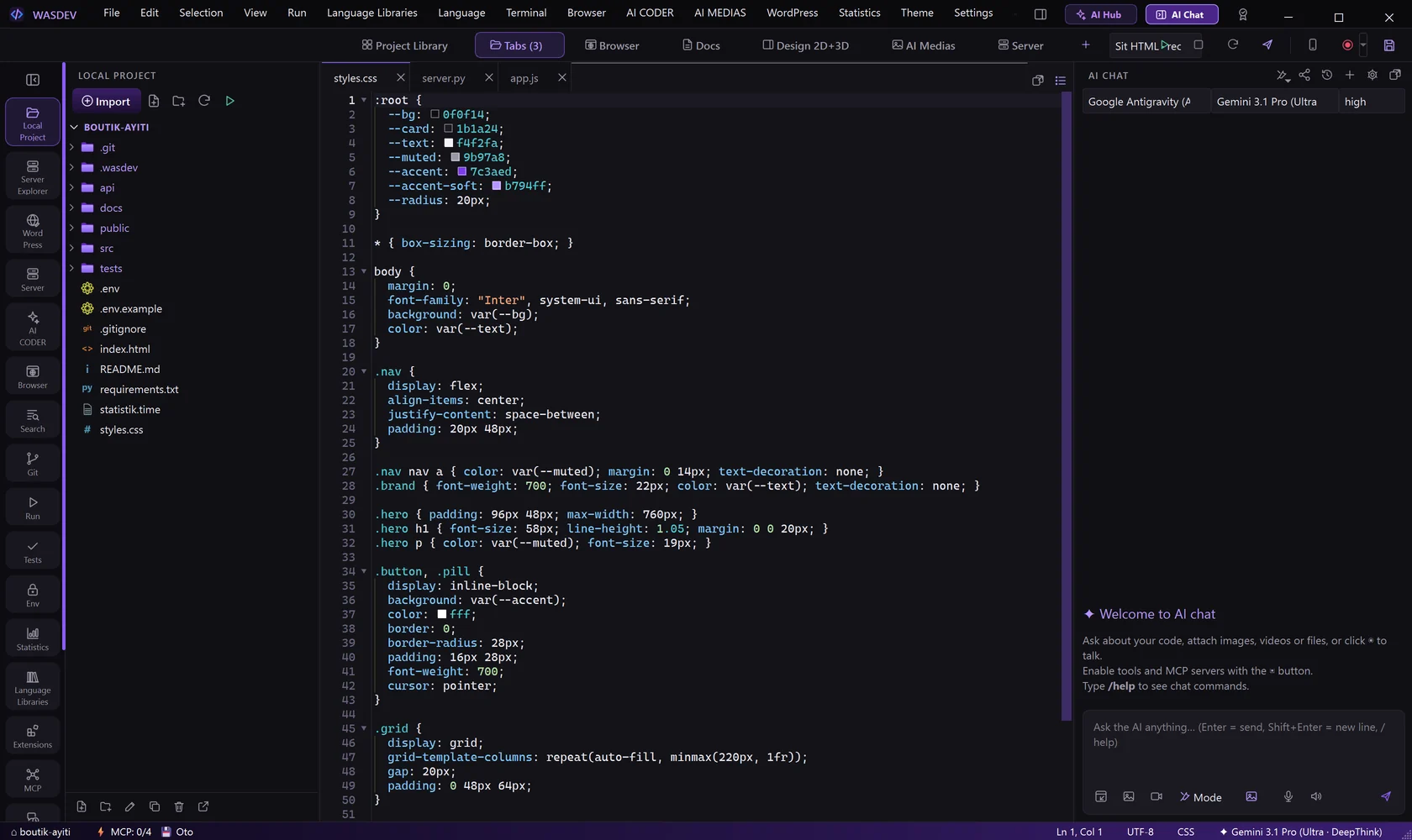
- Press
Ctrl+Alt+I, or click AI Chat at the right of the title bar. The panel AI CHAT opens on the right. - Open the first list, Company, and choose the AI you connected (for example Claude Code, Codex, Google Gemini or Ollama).
- Open the second list, Model, and choose a model.
- For Claude and the four CLIs, the third list sets the reasoning effort: low, medium, high, xhigh or max.
- The four CLIs that use your own account are at the top of the Company list.
- If a company needs a key that is missing, the gear icon API keys and AI settings opens the place to enter it.
Send your first request
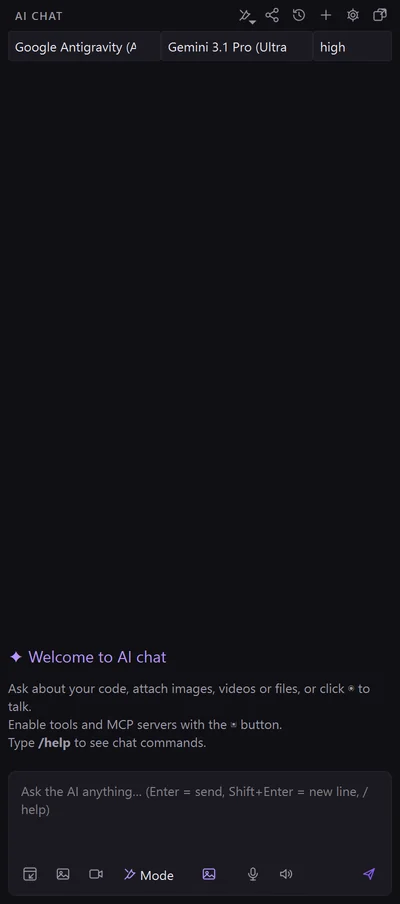
- Click in the input box at the bottom of the panel.
- Describe what you want, for example:
Add a contact page with a form and link it in the menu. - Press
Enterto send.Shift+Entermakes a new line. - Watch the AI work: it lists the files it reads, the edits it makes and the commands it runs.
- Press
Esc, or click Stop, to interrupt it.
- You can keep typing while the AI works: your messages wait in a queue.
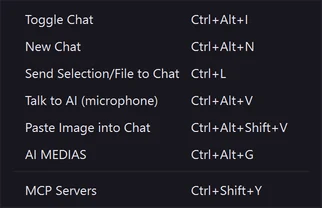
Ctrl+Entersends a waiting message immediately. Ctrl+Lsends the selected code, or the active file, to the chat.
Attach files, images and video
- In the row under the input box, click Attach file for any kind of file: code, PDF, Word, Excel, images or archives.
- Click Attach image for a picture, or drag files from the explorer and drop them on the chat.
- Click Attach video for a video. Right-click it to take a photo or record a video with the camera.
- The attachments appear as chips above the input box. Send your message.
Ctrl+Alt+Shift+Vpastes an image from the clipboard into the chat.- Video analysis works only with the Google Gemini API provider.
- In the explorer, right-click a file and choose Send to AI Chat.
Choose what the AI is allowed to do
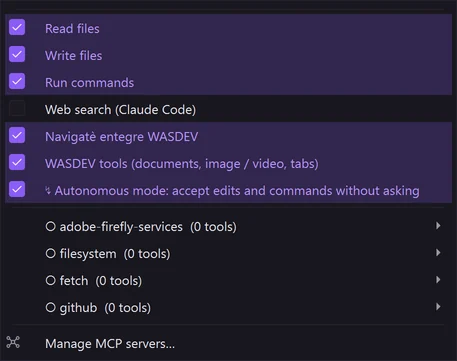
- Click the wrench icon Tools and MCP servers in the header of the chat.
- Tick or untick each group: Read files, Write files, Run commands, web search, WASDEV built-in browser and WASDEV tools (documents, image / video, tabs).
- Below, tick or untick each MCP server.
- Tick or untick Autonomous mode: accept edits and commands without asking.
- Autonomous mode is on by default. With it off, every change and every command waits for your decision.
- You can type the same thing:
/auto off,/auto on,/tools off write.
Review a change before it is written
With autonomous mode off, the AI proposes and you decide.
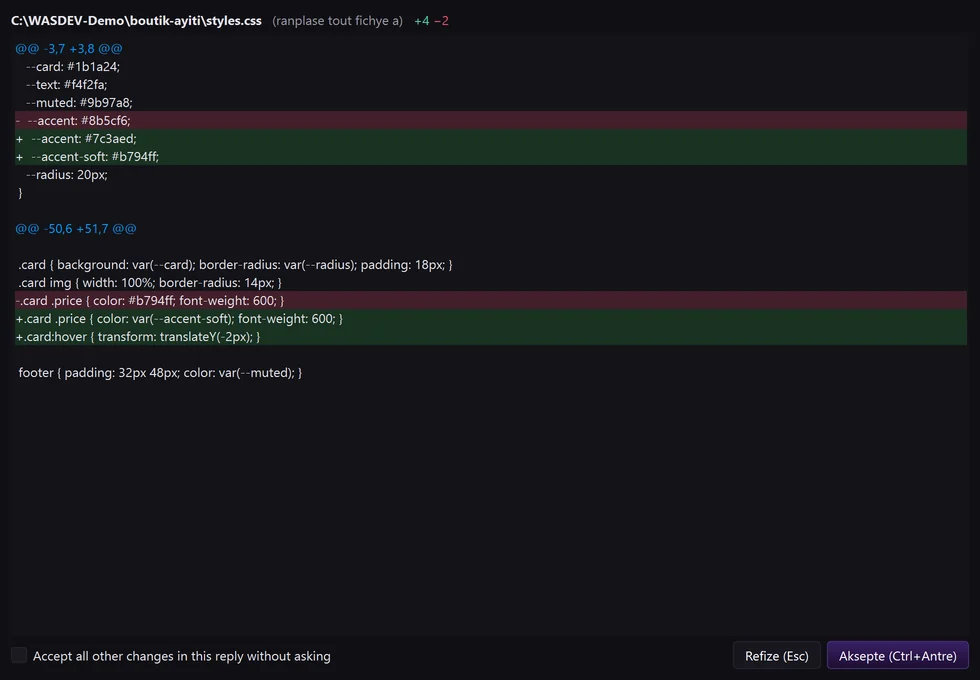
- When the AI wants to edit a file, a window titled with the file name shows the change, with the number of lines added and removed.
- Read the difference: removed lines on one side, new lines on the other.
- Click Accept (
Ctrl+Enter) to write the change, or Refuse (Esc) to reject it. - Tick Accept all other changes in this reply without asking if you trust the rest of this answer.
- When the AI wants to run a command, a question shows the command. Answer Yes or No.
- This review window is used by Claude Code and by the API providers. Codex, Gemini CLI and Antigravity apply their own approval rules.
Use a work mode
A work mode gives the AI a precise role for the next request.
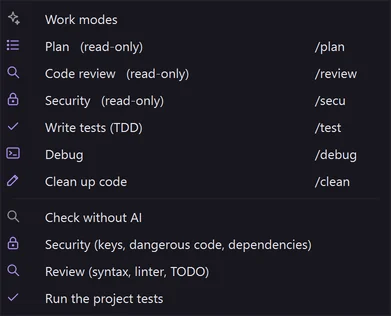
- Click Mode in the row under the input box.
- Choose a mode: Plan (read-only: the AI proposes a plan and changes nothing), Code review (read-only), Security (read-only), Write tests (TDD), Debug or Clean up code.
- Send your request.
- Typed shortcuts:
/plan,/review,/secu,/test,/debug,/clean. - Check without AI runs local checks that cost nothing: security (keys, dangerous code, dependencies), review (syntax, linter, TODO) and running the project's tests. Typed:
/check,/check-secu,/check-test.
Speak to the AI and listen to its answers
- Click the microphone icon, speak, then click it again to finish. Your words are written in the input box.
- Right-click the microphone to choose which microphone to use.
- Click the speaker icon to turn on voice dialogue: the AI reads its answers aloud.
- Right-click the speaker to choose the output device and the voice, and to test it.
- Reading aloud uses the voices installed in Windows and needs no key.
- Speech-to-text needs an OpenAI key or a Google key.
Ctrl+Alt+Vstarts talking to the AI from anywhere.
Generate an image or a video
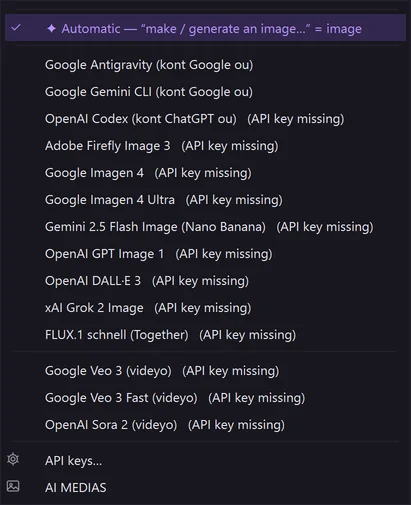
- Click the generate button Generate image / video with AI in the row under the input box.
- Choose Automatic, or pick a model in the Image or Video section. Models whose key is missing are marked.
- Describe the picture in the input box and send.
- The result appears in the chat and is saved in AI MEDIAS.
- API keys… in the same menu opens the place to add the missing key.
Work with a message
- Under any message, use Copy, Reply, Forward or Share.
- Right-click a message for more: Copy code, Edit and resend, Resend, Regenerate response, Quote message, Read aloud, Delete message from chat.
- Forward offers Send to another AI, New AI session with this message, Save as a file in the project (.md) and Copy as Markdown.
Start a new session and find old conversations
Each project has one chat. A new session restarts the AI without the memory of the previous one; the old messages remain in the history.
- Click the + icon New AI session in the header of the chat, or press
Ctrl+Alt+N.
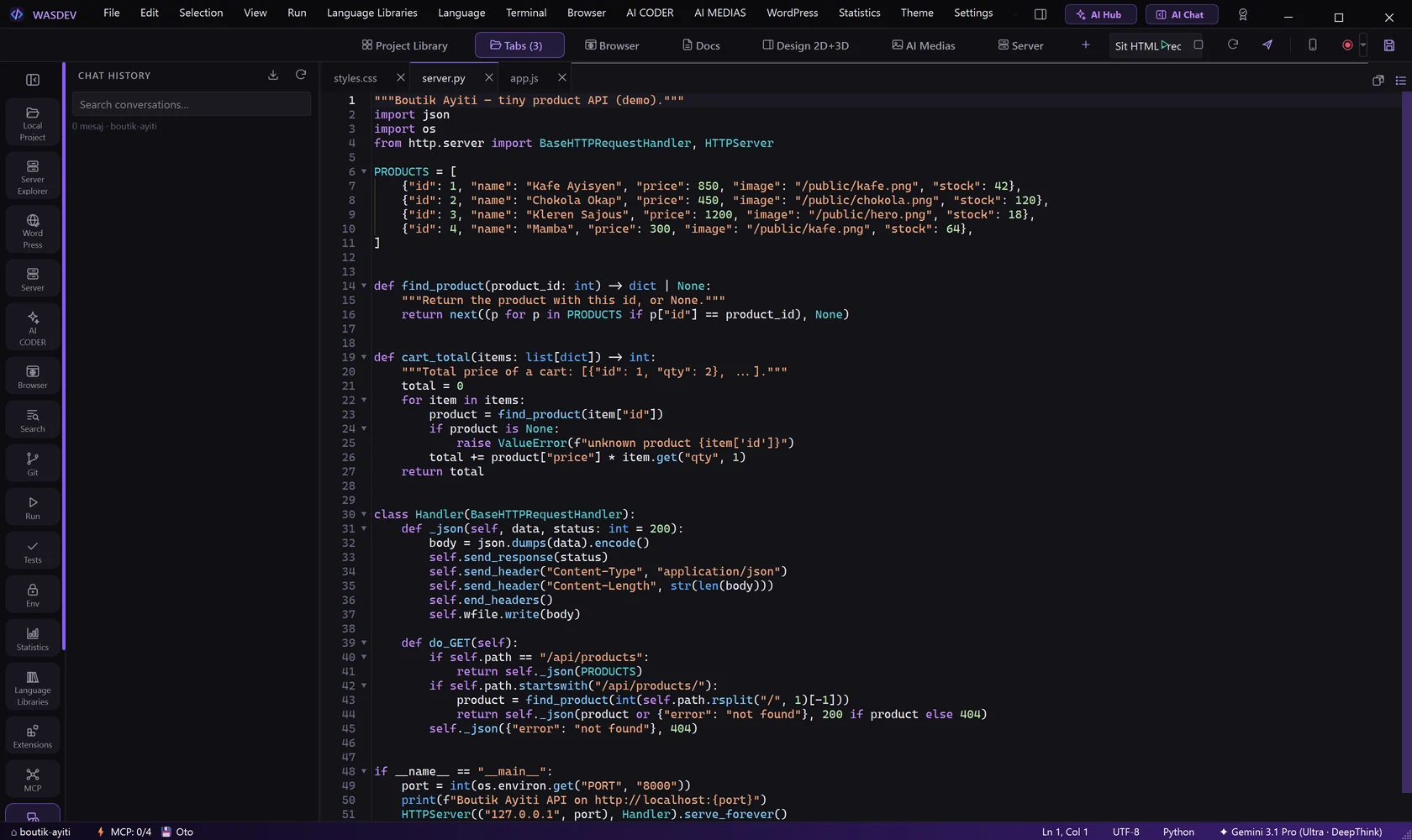
- To find an old conversation, click the history icon in the header, or press
Ctrl+Alt+H. - Type a word in the search box. Tick All projects to search everywhere.
- Click Export to save a conversation as CSV, PDF, TXT or HTML, or Import a chat to load one.
- The share icon Share entire chat… sends the whole conversation through the Windows share sheet.
- The detach icon moves the chat to its own window, for a second screen.
Use your AI CLI commands in the chat
The commands you type in the terminal of Claude Code, Codex, Antigravity or Gemini CLI also work in the chat. Choose the company first: the command applies to it.
- In the Company list, choose the CLI, for example Claude Code.
- Type
/in the input box. A list of commands appears above the box and gets shorter as you type, for example/moshows/model.
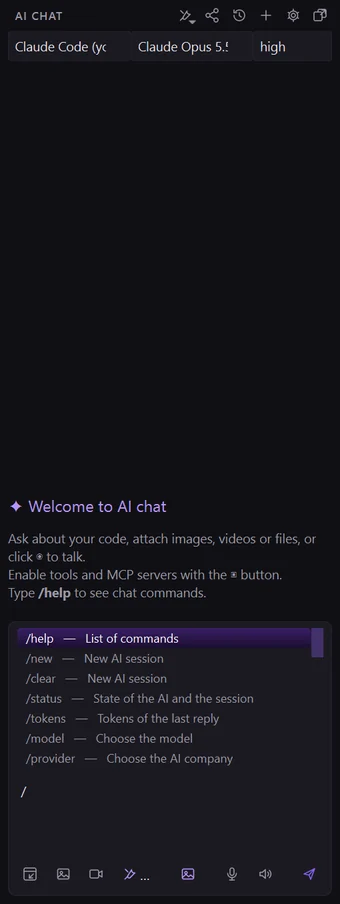
- Press the up and down arrows to choose a command, then
TaborEnterto complete it.Esccloses the list. You can also click a command. - Type
/loginand pressEnter. Your browser opens on the sign-in page, and the progress is written in the chat. - Sign in. When the chat shows Done, send your next message: the AI uses the new account.
- Type
/modelto see the models and click one, or type the name directly:/model opus. - Type
/clearto start a new AI session.
/logoutsigns out of the account of the chosen CLI.- With Claude Code,
/usageshows your subscription limits,/contextshows the context used and/compactshortens a long session. - The commands of your project, and the skills and plugins of Claude Code, pass too: type them as in the terminal.
- A few commands draw an interactive screen, for example
/theme,/vimor/resume. The chat says so and offers a link that opens the CLI in the terminal. - Gemini CLI uses an API key:
/loginshows where to get the key and where to paste it. - With a company that uses an API key,
/loginopens the settings.
Copy text and open links in the chat
- Drag the mouse over any text in the chat to select it: an answer, a notice, the name of a tool or of an MCP server, or its result.
- Press
Ctrl+C, or right-click and choose the copy command. - Click a link to open it in the WASDEV browser.
- Right-click a link to copy it or to open it outside WASDEV.
Slash commands
Type /help in the chat to see the list.
| Command | What it does |
|---|---|
| /login, /logout | Sign in to, or out of, the account of the chosen CLI |
| /clear | Start a new session, same as /new |
| /usage, /context, /compact, /init | Claude Code session commands, as in the terminal |
| /update, /version | Update the chosen CLI, or show its version |
| /new | Start a new session |
| /status | Show the state of the AI and the session |
| /tokens | Show the tokens used |
| /model, /provider | Change the model or the company |
| /effort | Change the reasoning effort |
| /auto on, /auto off | Turn autonomous mode on or off |
| /tools on, /tools off | Turn a tool group on or off |
| /mcp | List MCP servers, or turn one on or off |
| /voice on, /voice off | Turn voice dialogue on or off |
| /plan /review /secu /test /debug /clean | The six work modes |
| /check /check-secu /check-test /check-design /check-story /check-doc | Local checks without AI |