


Chapter 6
Code editor
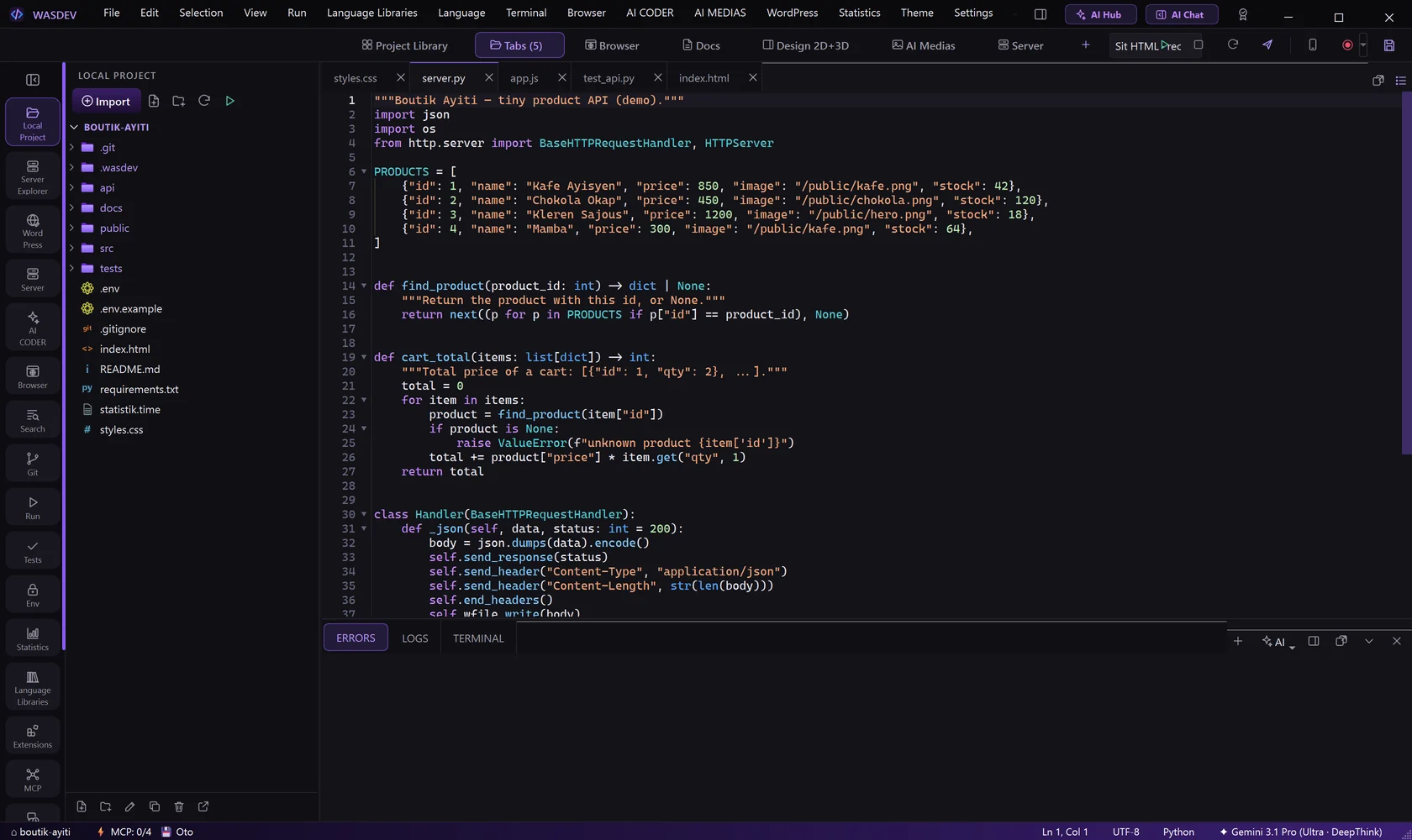
Open, write and search code: tabs, split view, multiple cursors, search and replace, code intelligence, formatting and the terminal.
Open and manage files
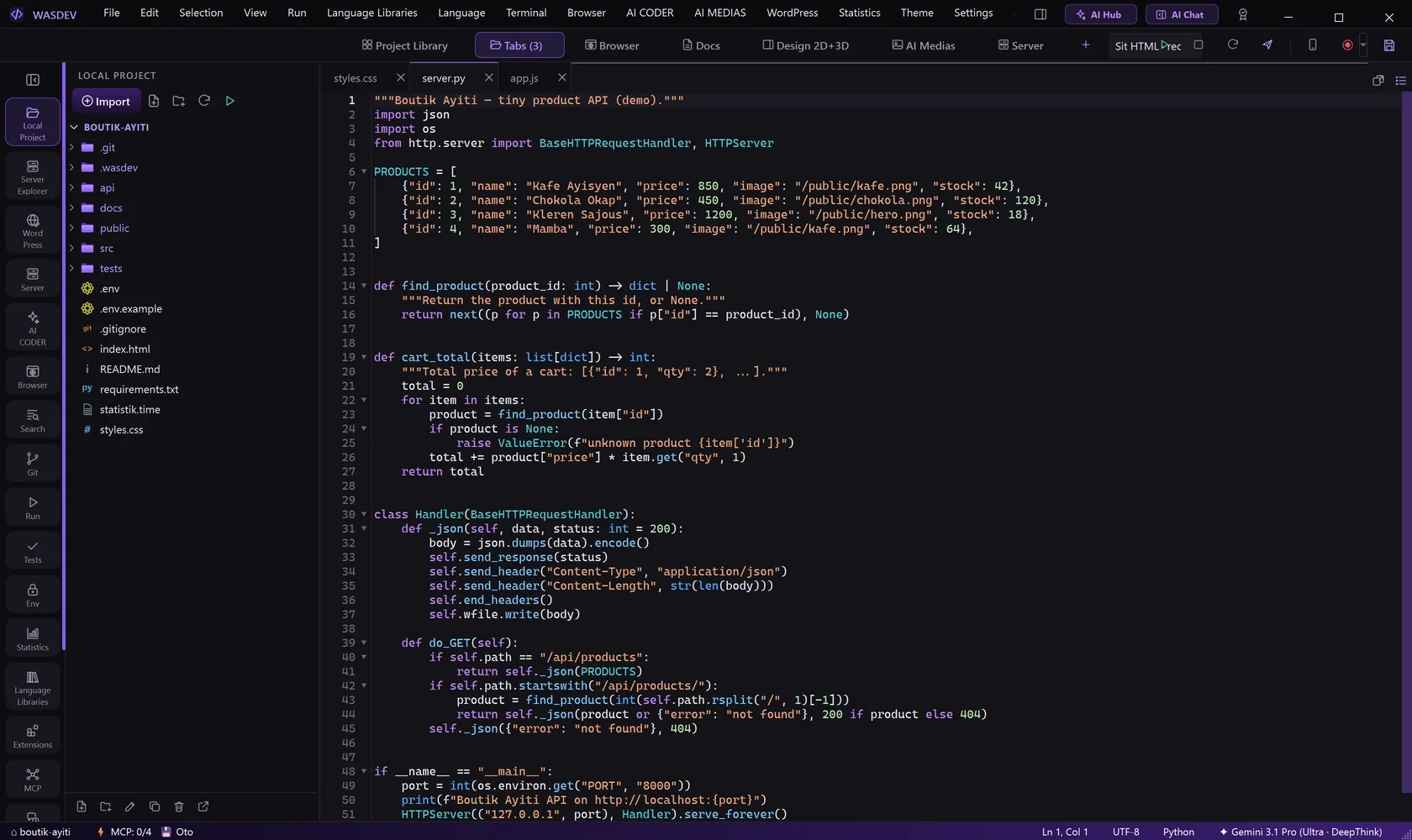
- Click the Local Project icon in the activity bar (
Ctrl+Shift+E) to see the files of the project. - Click a file to open it in a tab.
- Press
Ctrl+Pand type part of a name to open a file without the mouse. - Press
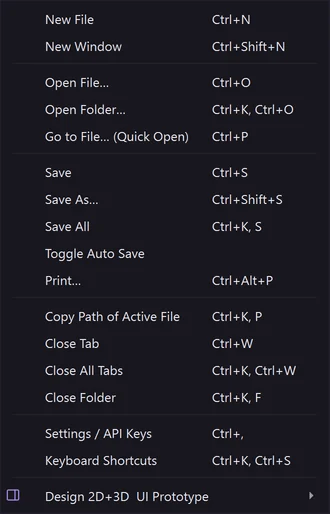
Ctrl+Tabto go to the next tab andCtrl+Wto close the current one. - Right-click a tab for Close Others, Close to the Right, Close Saved, Close All, Copy Path, Reveal in Explorer View and Send to AI Chat.
Ctrl+Shift+Treopens the tab you just closed.- Tabs in the module bar shows how many files are open and brings you back to them from any module.
Create, rename and delete files
- In the Local Project view, right-click a folder.
- Choose New File or New Folder, type the name and press
Enter. - Right-click a file for Rename…, Duplicate or Delete.
- Version history… shows the earlier saved versions of a file and lets you bring one back.
- The header of the view has Import, Refresh and Run the project.
- Reveal in File Explorer opens the folder in Windows; Open in Terminal opens a terminal there.
Save your work
- Press
Ctrl+Sto save the active file, orCtrl+KthenSto save all files. - To save automatically, open Settings → Editor & Files and tick Save files automatically, then choose how often.
- The save indicator at the right of the module bar shows whether something is unsaved; clicking it saves everything.
Edit faster
- Hold
Altand click to add a second cursor. Type: both places change together. - Select a word and press
Ctrl+Dto select its next occurrence too. - Press
Alt+UporAlt+Downto move the current line, andShift+Alt+Downto copy it. - Press
Ctrl+/to comment or uncomment the selected lines. - Click the small arrow in the margin to fold a block of code.
Ctrl+Shift+Kdeletes the line.Alt+Zturns word wrap on or off.
Search and replace
- Press
Ctrl+Fto search in the current file,Ctrl+Hto replace. - Press
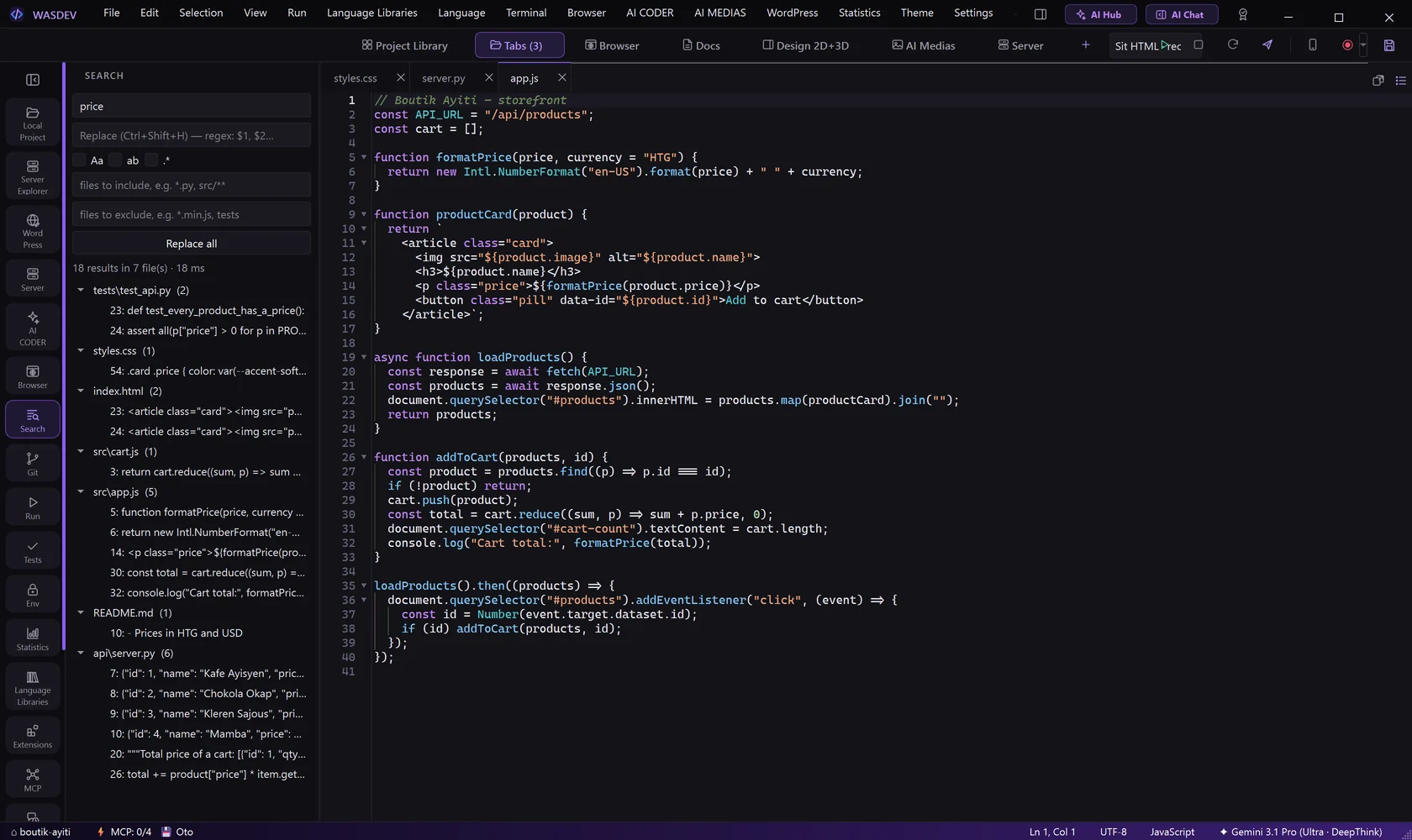
Ctrl+Shift+Fto search in the whole project: the Search view opens in the side bar. - Type your text. Use the three toggles for match case, whole word and regular expression.
- Use the include and exclude fields to limit the search to some files.
- Click a result to open the file at that line.
- To replace everywhere, fill the Replace field and click Replace all.
Ctrl+Ggoes to a line number.
Split the editor
- Press
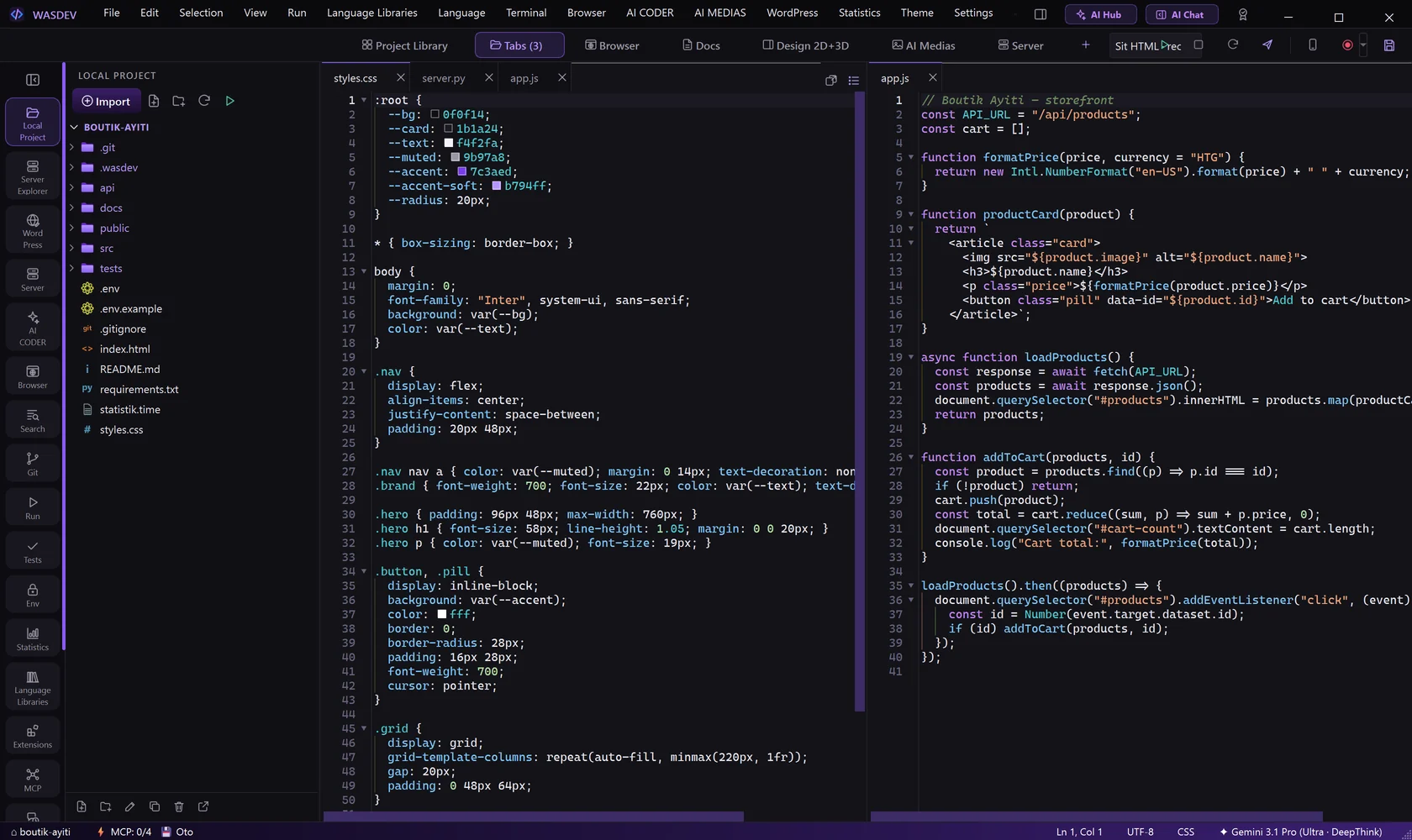
Ctrl+\to split the editor into two groups. - Press
Ctrl+1orCtrl+2to move the focus to the first or the second group. - Drag a tab from one group to the other.
- Right-click a tab and choose Detach into a separate window to move a file to another screen.
Turn on code intelligence
Completion, go to definition and rename are provided by a language server for each language.
- Open a file. If the language server is missing, a bar proposes Install or Not now.
- Click Install. WASDEV downloads and starts the server.
- Press
Ctrl+Spacefor completion,F12to go to a definition,F2to rename a symbol everywhere.
- Available for Python, TypeScript and JavaScript, HTML, CSS, JSON, C and C++, Rust, Go, Dart and PHP.
- Problems found in the code are listed in the ERRORS tab of the bottom panel (
Ctrl+Shift+M).
Format the code
- Press
Shift+Alt+Fto format the document. - To format every time you save, open Settings → Editor & Files and tick Format on save.
- The formatter depends on the language: Prettier, Ruff or Black, PHP-CS-Fixer and others. WASDEV proposes to install the one that is missing.
Ctrl+KthenMchanges the language mode of the file.
Use the terminal
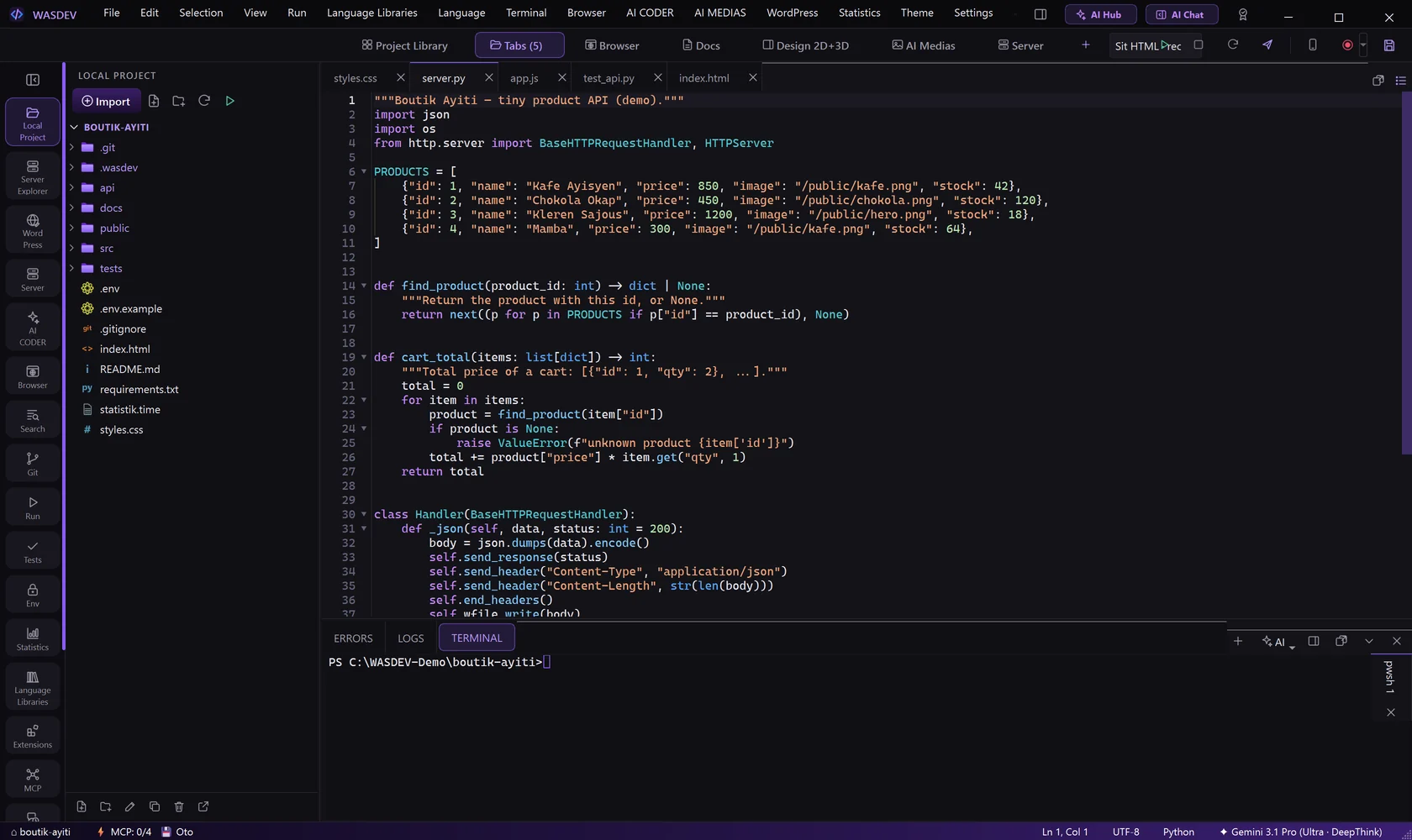
- Press
Ctrl+Jto open the bottom panel and click TERMINAL, or click Terminal in the title bar. - Type your commands. The terminal starts in the project folder.
- Press
Ctrl+Shift+5to split the terminal, and use the side tabs to switch between several terminals. - Right-click for Copy, Paste and Clear screen.
- The AI button opens an AI CLI or another shell in a new terminal.
- The corner buttons detach the tab into a separate window or enlarge the panel.
Preview Markdown
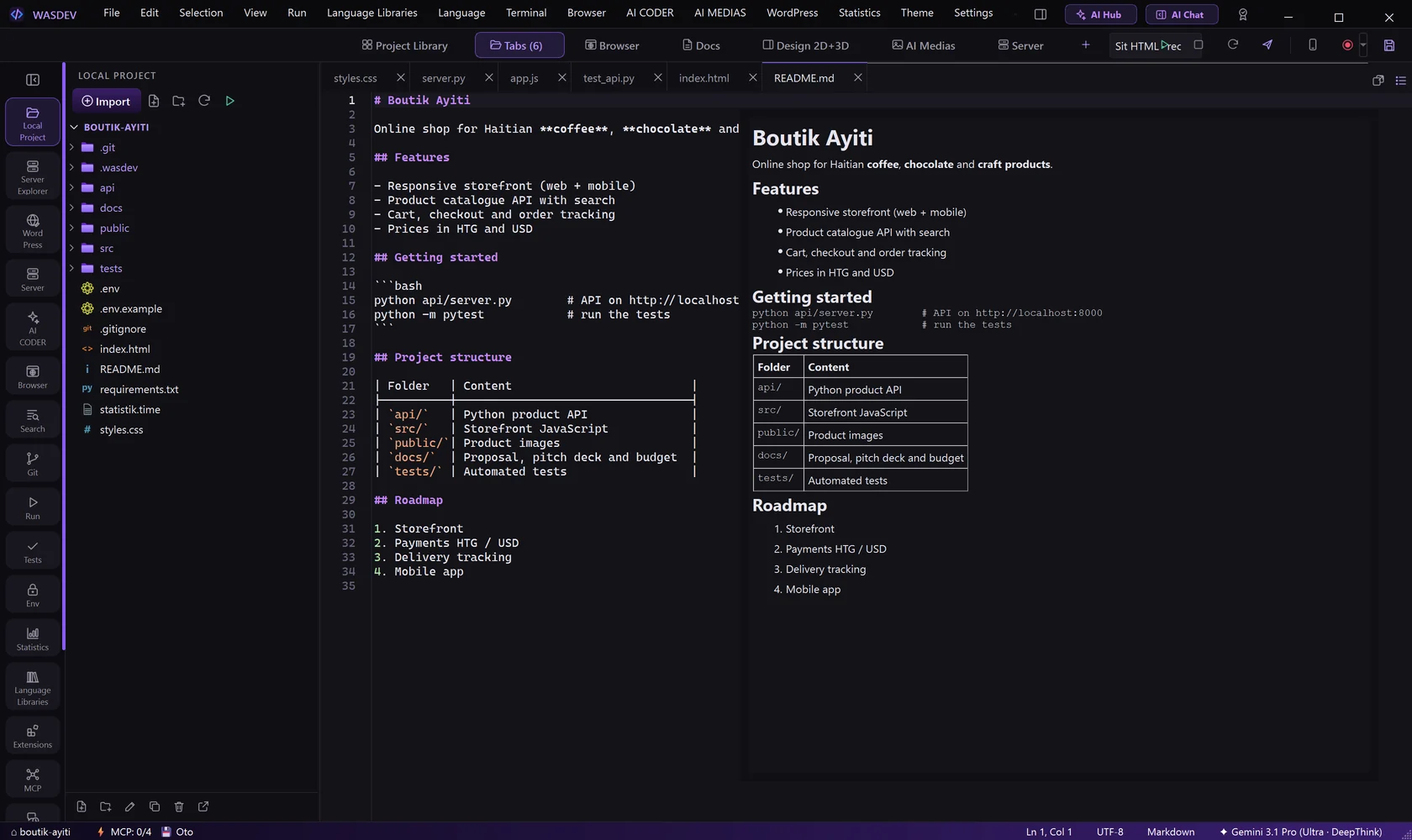
- Open a
.mdfile. - Press
Ctrl+Shift+Vto open the preview.
Install an extension
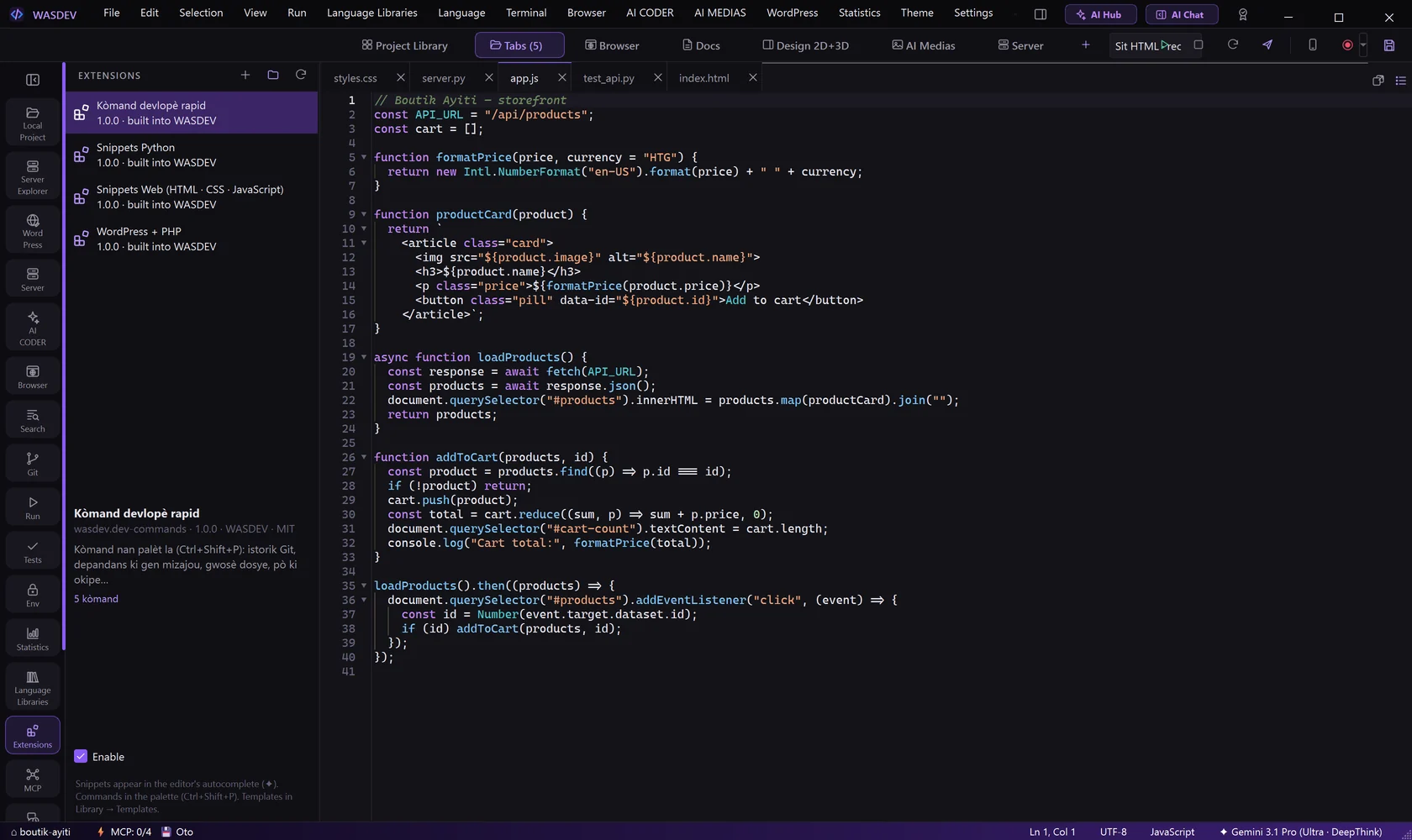
- Click the Extensions icon in the activity bar (
Ctrl+Shift+X). - Click Install an extension (.wasext / .zip or folder)… and choose the file.
- Use Enable or Uninstall on an installed extension.
Insert a library
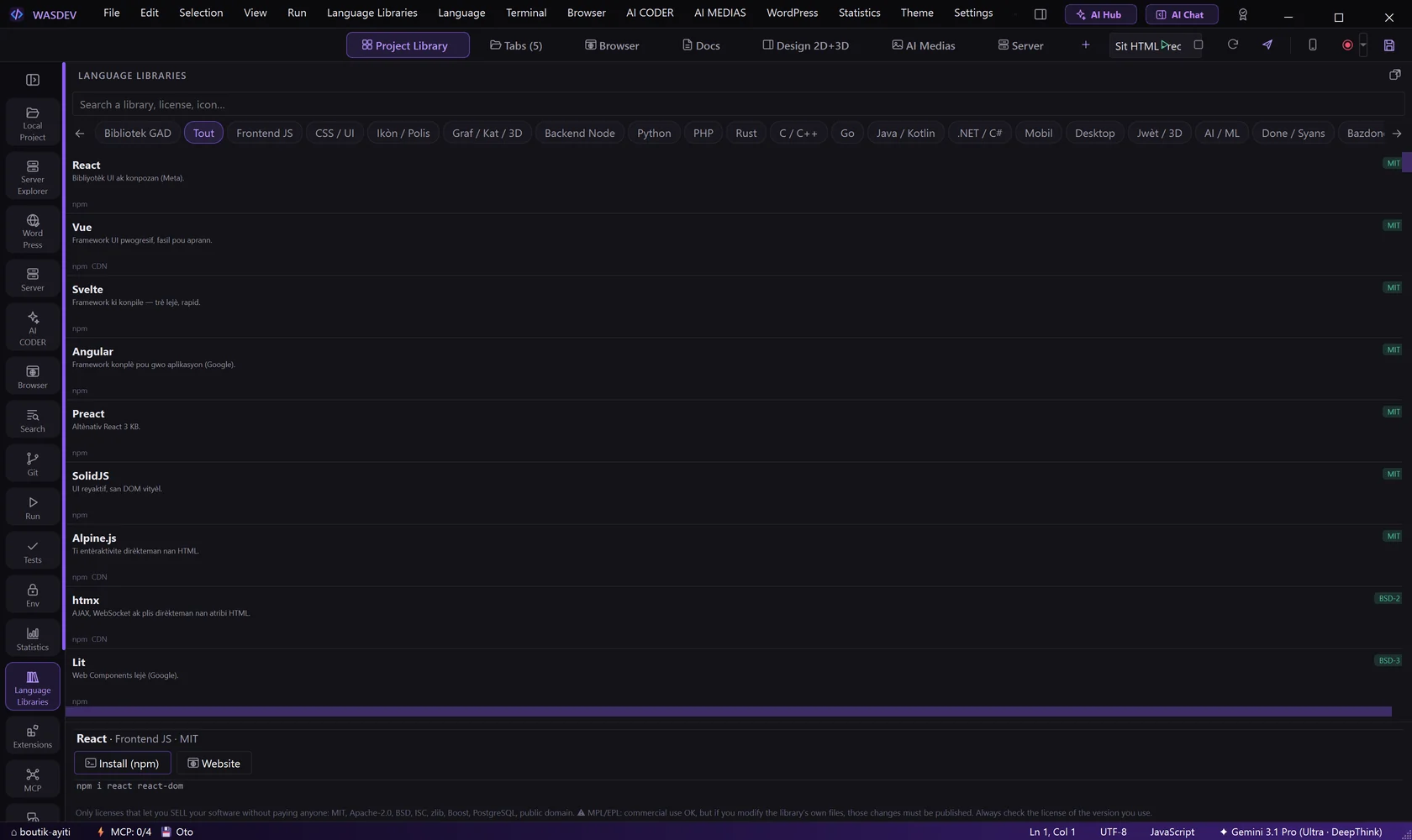
- Click Language Libraries in the title bar (
Ctrl+Shift+L). - Search a library by name or browse the categories. Filter by licence if you need to.
- Click Insert CDN into file to add the link to the open file, Copy to copy it, or Install to add the package to the project.