


Chapter 7
Run, debug, test and deploy
Start your project with one button, stop on a breakpoint, run the tests, manage environment variables and send the project to your server.
Run the project
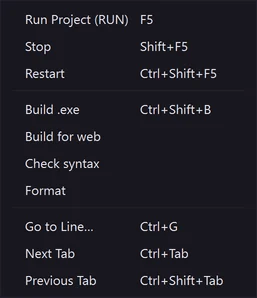
- In the module bar, open the run configuration list and choose what to run. Active file runs the file you are editing.
- Click Run or press
F5. - The output appears in the bottom panel; a web project opens in the built-in browser.
- Click Stop (
Shift+F5) to stop it, or Restart (Ctrl+Shift+F5) to start again.
Ctrl+F5runs only the active file.- WASDEV detects web, mobile, desktop and firmware projects. If the detection is wrong, see the next tutorial.
Edit the run configurations
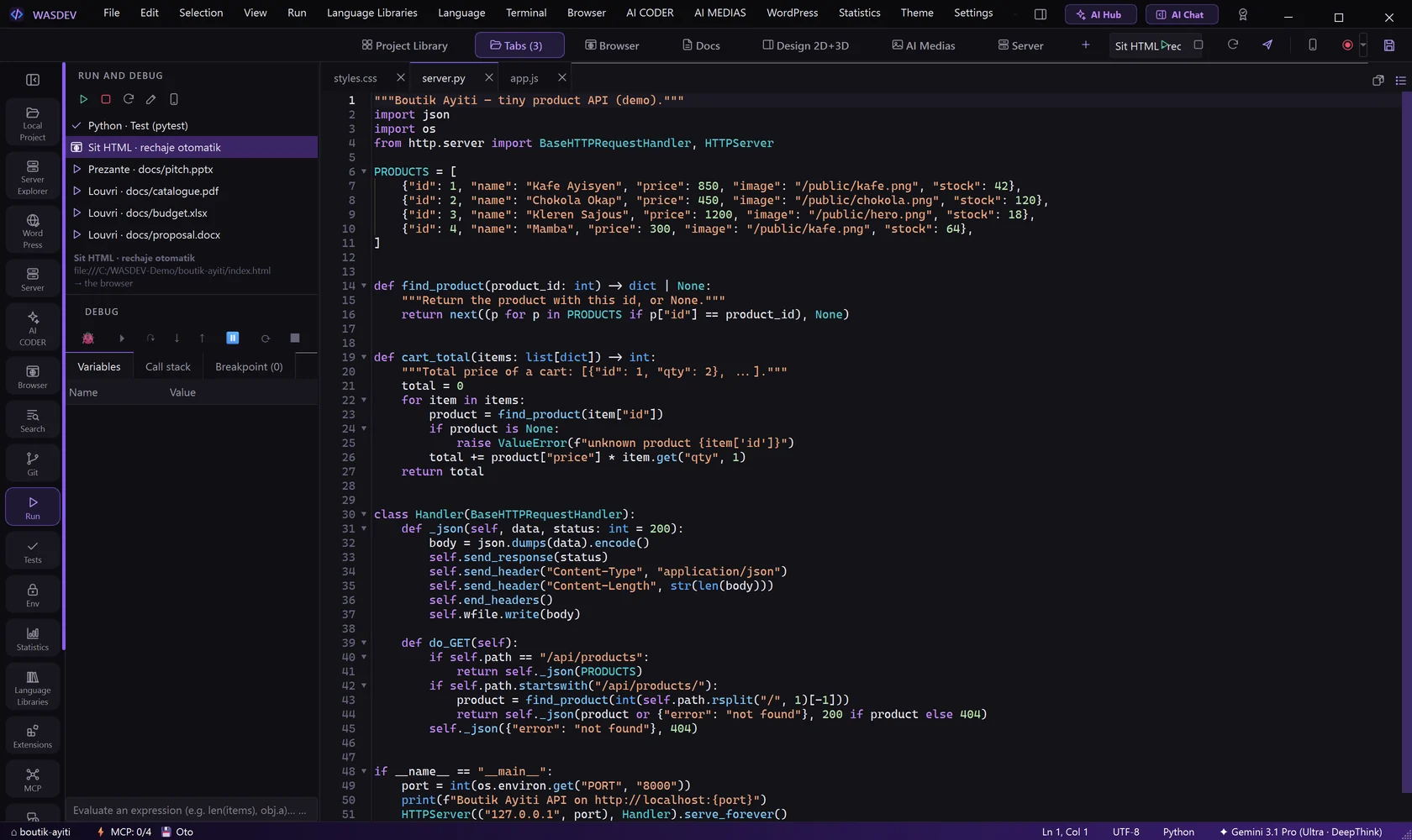
- Click the Run icon in the activity bar, or press
Ctrl+Shift+D. The view RUN AND DEBUG opens. - Select a configuration in the list and click Run the selected configuration.
- Click Detect again if you changed the type of the project.
- Click Edit .wasdev/run.json to write your own command, then save the file.
- For a mobile project, a button asks again where to run: phone, emulator or browser.
Debug with breakpoints
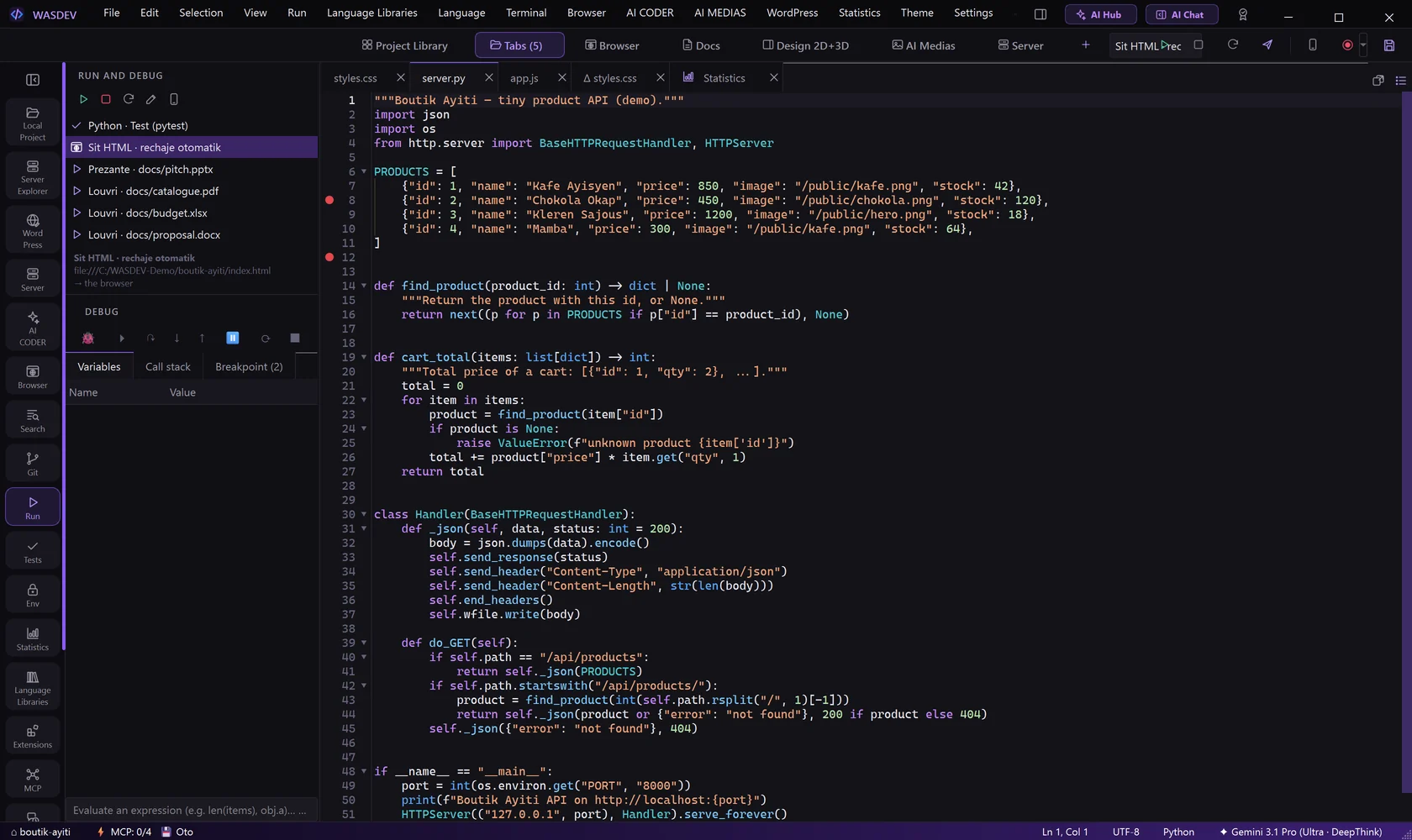
- Open the file you want to inspect.
- Click in the margin left of a line number, or press
F9, to put a breakpoint. A red dot appears. - Press
F6, or click Start debugging (active file) in the Run and Debug view. - The program stops on the breakpoint. Read the values in Variables and the path in Call stack.
- Press
F10to Step over,F11to Step into,Shift+F11to Step out,F8to Continue. - Press
Shift+F6to stop debugging.
- Type an expression in the expression box to see its value at this point.
- Debugging exists for Python, JavaScript and Node, PHP (Xdebug), C, C++ and Rust, Go, and Dart / Flutter. WASDEV proposes to install the debugger the first time.
Run the tests
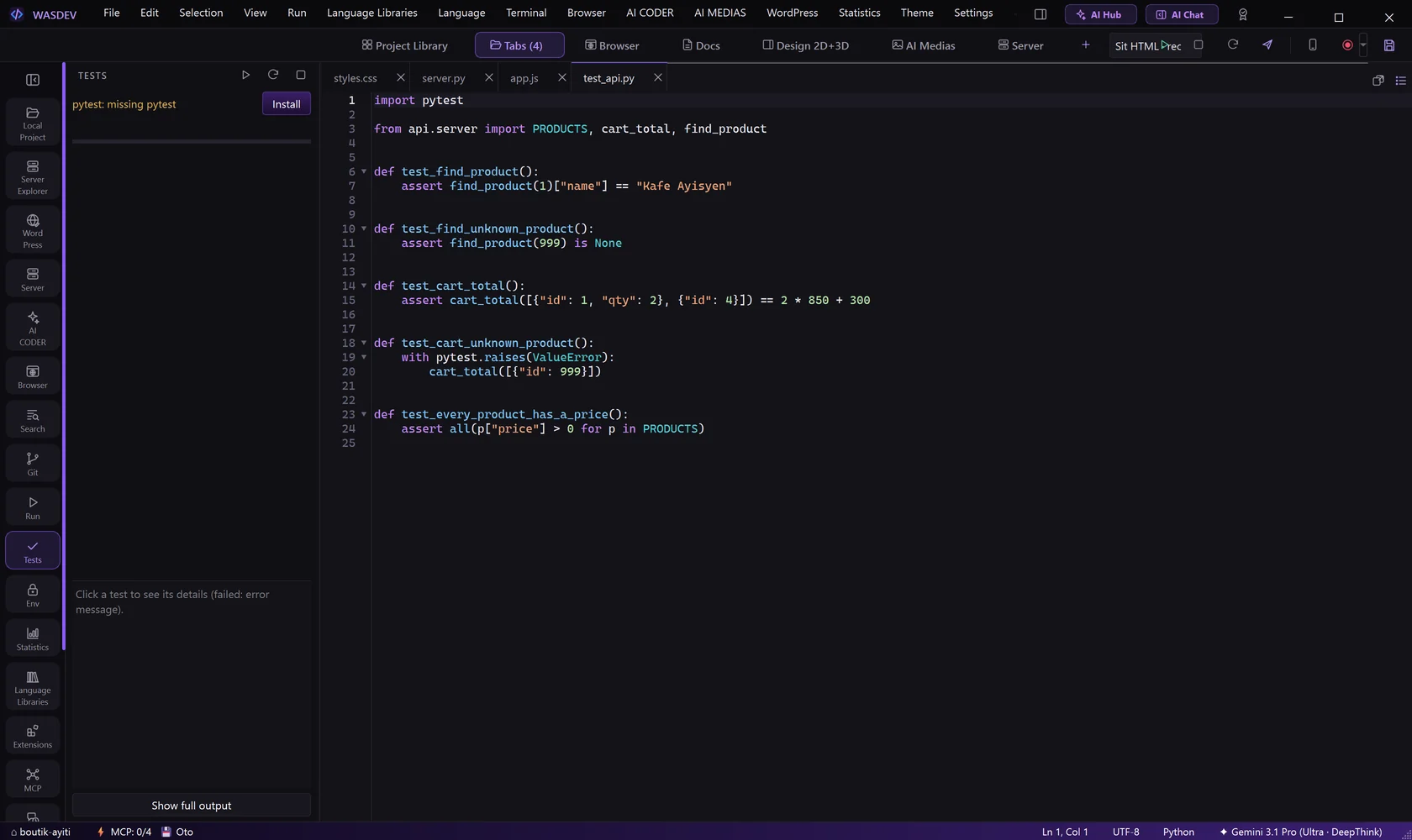
- Click the Tests icon in the activity bar, or press
Ctrl+Alt+Shift+T. - Click Run all tests.
- Read the result: each test is marked passed or failed.
- Click a failed test, then Open the file to go to it, or Show full output to read the error.
- After a fix, click Rerun failed tests.
- Right-click a test for Run this test or Run this whole file.
- Supported: pytest, Jest, Vitest, PHPUnit, cargo test, go test and flutter test. Install adds the missing framework.
Manage environment variables
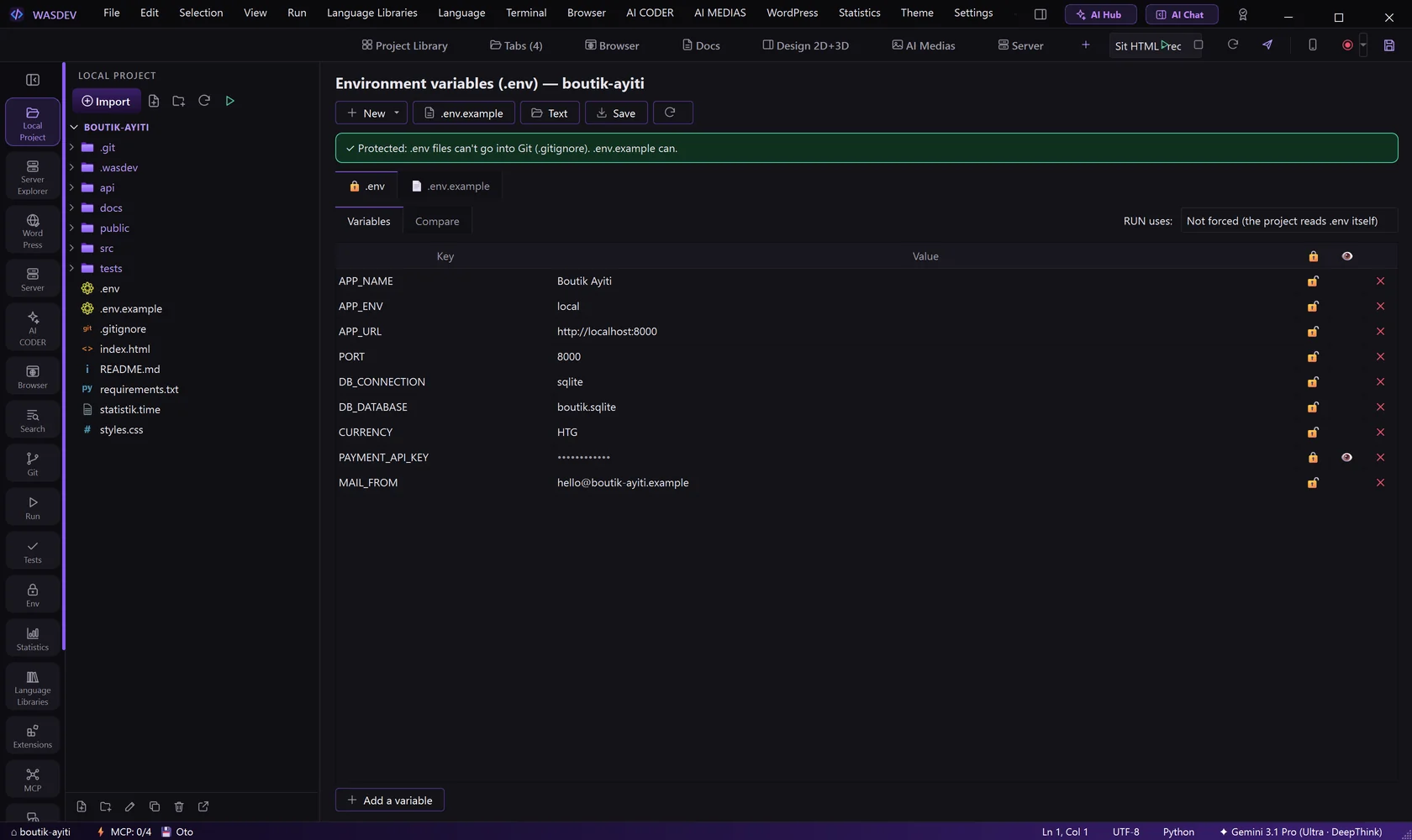
- Click the Env icon in the activity bar, or press
Ctrl+Alt+Shift+E. - The tab Variables lists the content of your
.envfile. Click Add a variable, type the name and the value. - Click Save.
- Open the tab Compare to see which variables differ between two files, for example
.envand.env.example.
- .env.example creates the example file without the secret values.
- If a
.envfile is tracked by Git, a banner offers Protect them (adds it to.gitignore) and Remove from Git.
Deploy to your server
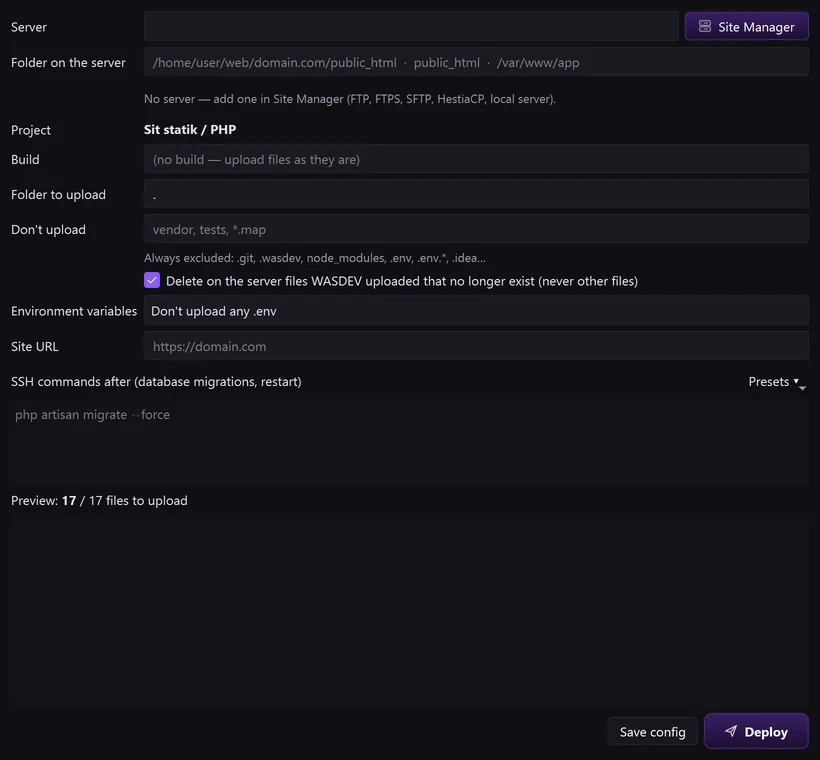
- Click Deploy in the module bar, or press
Ctrl+Alt+Shift+D. - In Server, choose a site saved in the Site Manager (see the chapter Server).
- Fill Folder on the server, and Build if the project must be built first.
- Fill Folder to upload and, in Don't upload, the files to leave out.
- Add Environment variables, the Site URL and any SSH commands after the upload. Presets proposes common ones.
- Read the preview line, which counts the files that will be uploaded, then click Save config and Deploy.
- Go live (1 click) puts a site online on a VPS that runs HestiaCP: enter the Domain, the HestiaCP user and tick HTTPS with Let's Encrypt.