

Chapter 20
Video Studio
A professional timeline video editor that runs in any browser. Edit a whole video by hand or let the AI build and change it live, then render an MP4 on your own machine with FFmpeg — no cloud, no API key. Voices and dubbing by ElevenLabs.
Open the Video Studio
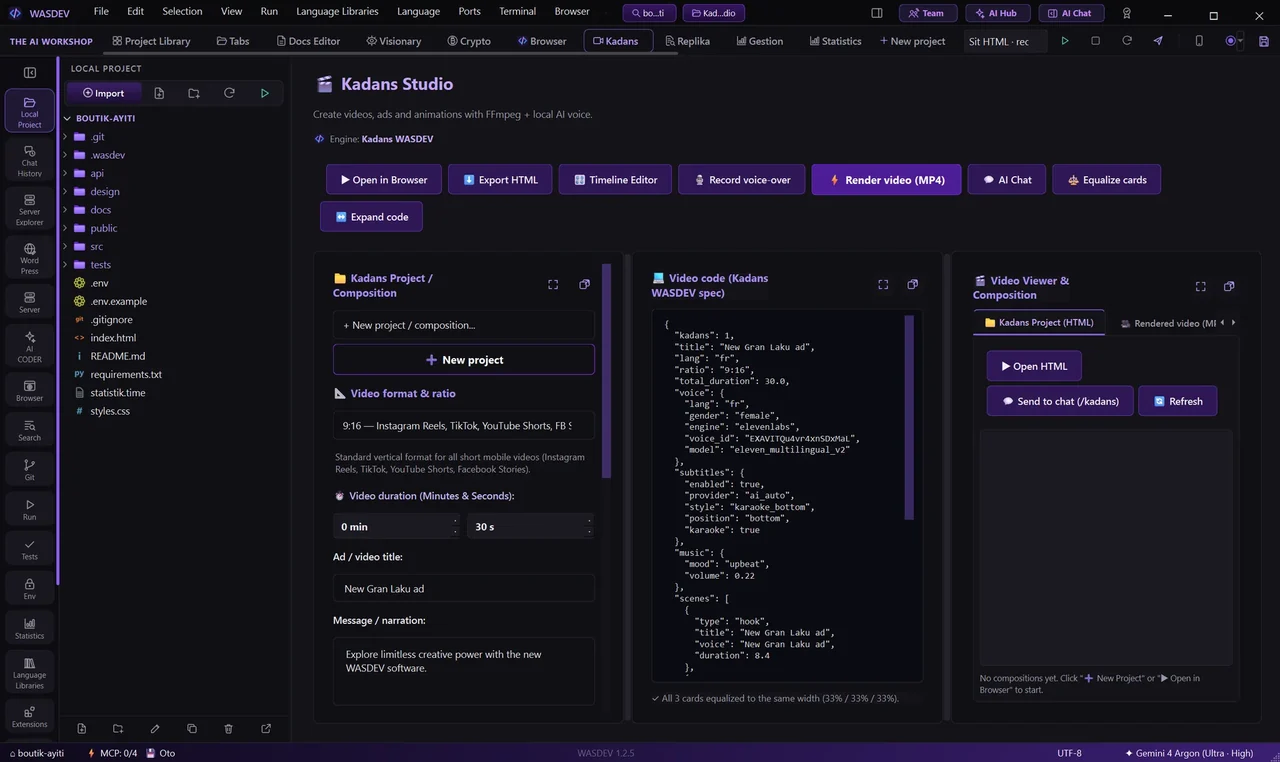
- In the top bar, open Kadans Studio (the video module).
- Create a project with a real name: the editor makes the mandatory layout (
01-senaryo,02-storyboard,medya/,rann/). - Drop your clips, images, music and voice files into the media panel on the left, then drag them onto the timeline.
- Everything renders locally. Nothing is uploaded at render time.
The timeline
- Each track holds clips (video, image, text, audio). Drag a clip to move it, drag its edges to trim.
- Markers on the ruler: click to jump, double-click to delete.
- Solo a track with the S button; ripple delete with Shift+Delete closes the gap.
- The Overwrite / Insert button sets how a dropped or pasted clip lands: *Overwrite* wins over what is under it; *Insert* pushes the later clips to the right.
- Video clips show a filmstrip of their content so you can read the footage without scrubbing.
Let the AI edit the video live
- Open the AI tab on the right rail (or 1-Click MCP to connect your AI once).
- Ask in plain words: *"Make a 45-second promo with four scenes, ElevenLabs voice and karaoke captions."*
- The AI edits the same timeline through MCP — it adds scenes and clips, cuts, grades and captions — and you watch each change appear. Undo (
Ctrl+Z) restores the whole project.
Professional colour grading
Select a clip and open the Couleur (Étalonnage) tab.
- Set Exposure, Brightness and Contrast.
- Correct colour with Temperature, Tint, Saturation and Vibrance.
- Use the Lift / Gamma / Gain wheels for shadows, midtones and highlights.
- Add Sharpen, Vignette or a cinematic LUT look.
- Turn on Enhance Quality for an automatic crisper look.
- Every change previews live on the canvas.
Animation and effects
In a clip's Properties tab:
- Keyframes animate position, scale, rotation and opacity over the clip, with linear or ease (bézier) curves. Presets: Ken Burns zoom, slide, fade in / out.
- Mask: cut the clip to a circle, ellipse or rectangle.
- Speed ramp (video): change speed over time for smooth slow-motion. Presets: slow-mo in the middle, fast→slow, slow→fast.
- Chroma key: remove a green or blue screen (put a background clip underneath).
- Multicam: add several camera angles and switch between them on the timeline.
Sound: J/L cuts
On an audio clip, the Son tab has J-cut (the sound starts before the picture) and L-cut (the sound carries on after), with an automatic crossfade.
Captions and subtitles
- Captions: word-by-word karaoke captions are built from the voice track.
- Subtitles: the Sou-tit tab lets you write your own lines with their timing and style (size, colour, position), and jump to each one.
Render the final MP4
- Press Render (or run
python -m kadans render out.mp4). - The spec becomes HTML, then an MP4 encoded with FFmpeg on your machine.
- The voice track uses ElevenLabs; Haitian Creole is a first-class language.