


Chapter 5
MCP servers
Give the AI extra tools with the Model Context Protocol: add a server, switch servers and tools on or off, and understand which AI receives them.
What MCP is
The Model Context Protocol (MCP) is an open standard. An MCP server is a small program or web service that offers tools to an AI: read a database, search GitHub, fetch a web page, generate an image. WASDEV connects to the servers you choose and shows their tools to the AI.
- WASDEV proposes four servers, switched off until you enable them: adobe-firefly-services, filesystem, fetch and github. Those that need a key need your own.
- WASDEV also runs its own internal server, which gives every AI the built-in browser and the WASDEV tools. You do not have to configure it.
Open the MCP view
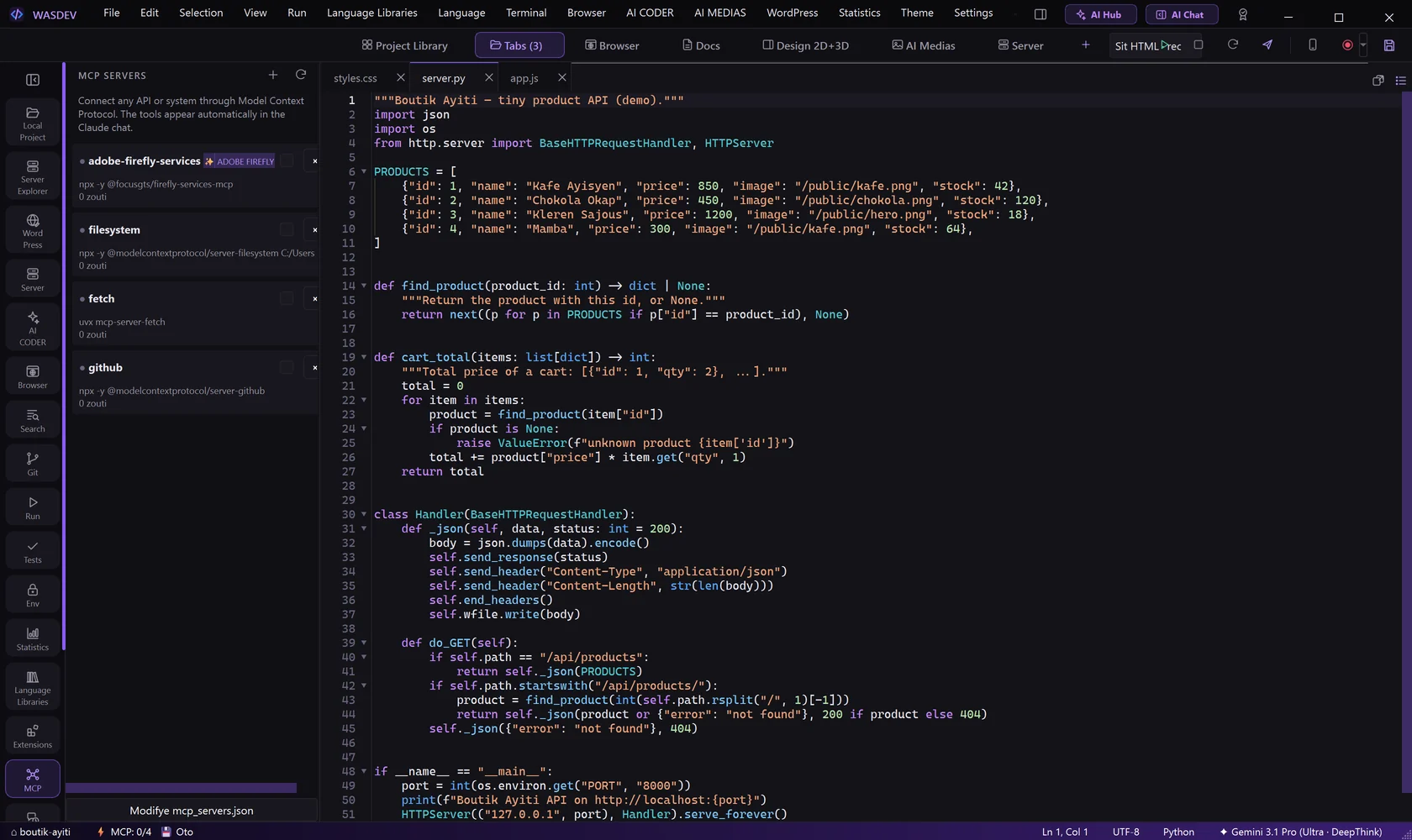
- Click the MCP icon in the activity bar, or press
Ctrl+Shift+Y. - The side bar shows the list of servers, each with a checkbox.
- Tick a server to enable it, untick it to disable it.
- Reload configuration reads the file again after a manual change.
Add an MCP server
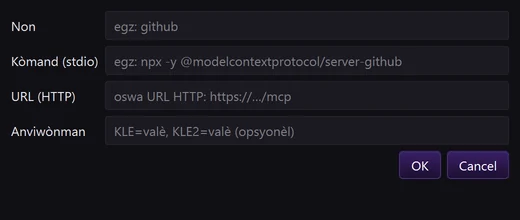
- In the MCP view, click Add server (the + button).
- In Name, type a short name without spaces, for example
github. - For a server that runs on your PC, fill Command (stdio) with the command that starts it, for example
npx -y @modelcontextprotocol/server-github. - For a remote server, fill URL (HTTP) with its address instead.
- In Environment, type the variables the server needs, as
KEY=valueseparated by commas, for exampleGITHUB_TOKEN=your_token. - Confirm. The server appears in the list; tick it to enable it.
- Servers started with
npxneed Node.js on the PC. - To remove a server, click the ✕ next to it.
Edit the configuration file
- In the MCP view, click Edit mcp_servers.json.
- The file opens in the editor. It uses the same format as Claude Desktop: an object
mcpServerswith one entry per server. - Edit, save with
Ctrl+S, then click Reload configuration.
- The file is stored in your user profile, in
%APPDATA%\WASDEV\mcp_servers.json. It is shared by all your projects. - You can copy a server definition from the documentation of any MCP server and paste it here.
Switch tools on or off from the chat
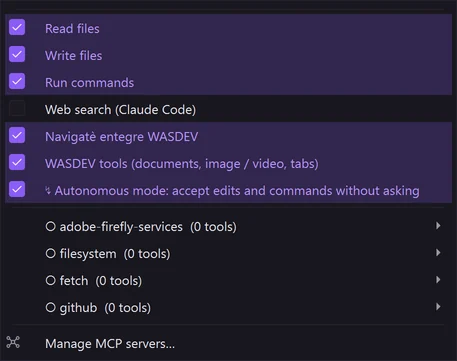
- In the chat header, click the wrench icon Tools and MCP servers.
- The lower part of the menu lists the MCP servers. Tick or untick them.
- In the chat you can also type
/mcpto list the servers,/mcp off githubto disable one and/mcp on githubto enable it.
- The tools of a server appear to the AI with the prefix of the server, so two servers never collide.
Which AI receives which tools
- The servers you add are given to the API providers and to Claude Code.
- Codex, Gemini CLI and Google Antigravity receive the built-in WASDEV tools (browser, documents, design, media, run). For other MCP servers, add them in the CLI's own configuration.
- The status bar at the bottom of the window shows the state of MCP.