


Chapter 13
Server
Connect to your hosting by FTP, FTPS or SFTP, run a local web server with databases, create WordPress sites, schedule jobs, back up and manage a VPS.
Open the Server module
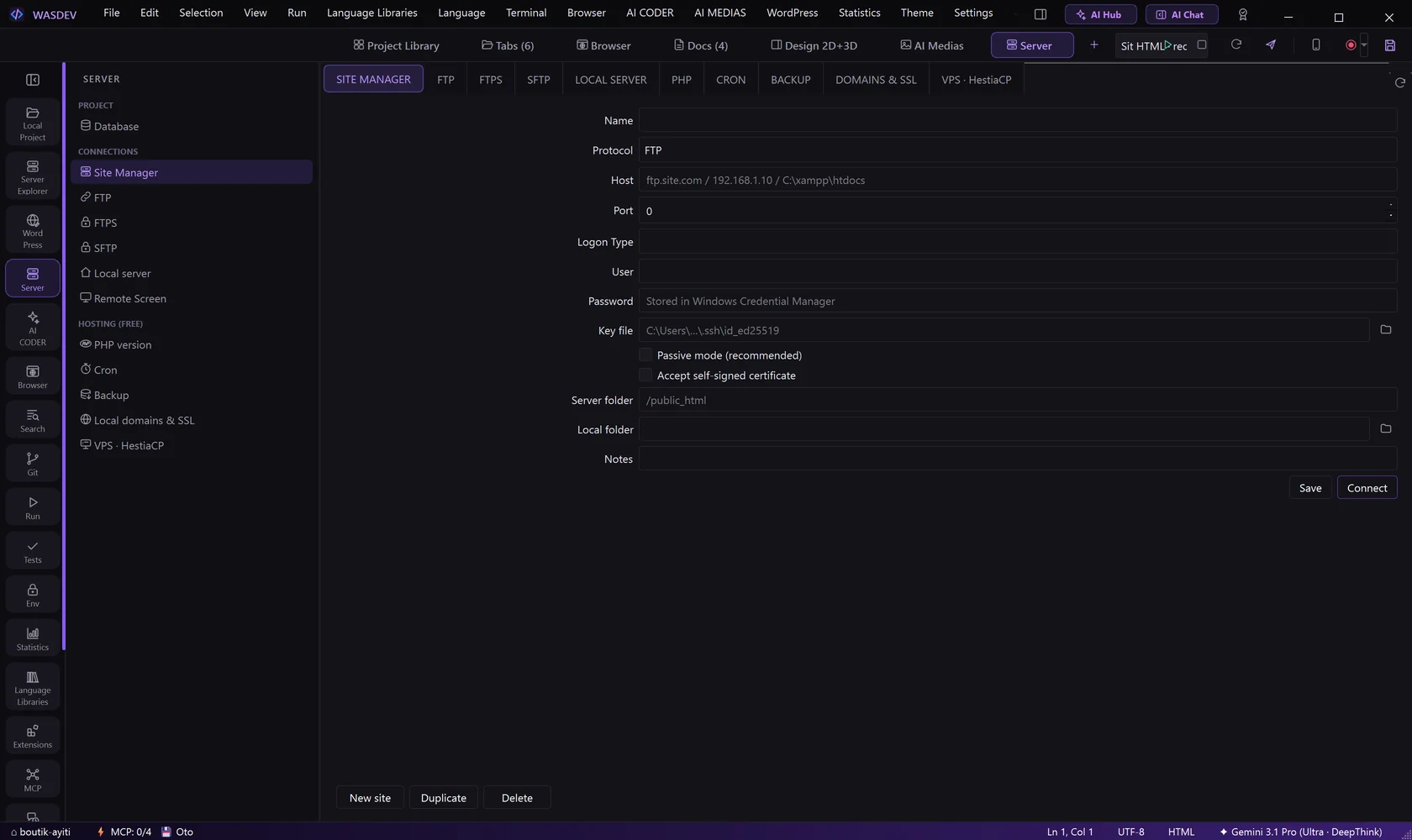
- Click Server in the module bar, or press
Ctrl+Alt+S. - The left SERVER menu has three groups: PROJECT (Database), CONNECTIONS (Site Manager, FTP, FTPS, SFTP, Local server, Remote Screen) and HOSTING (PHP version, Cron, Backup, Local domains & SSL, VPS · HestiaCP).
- The same sections are tabs at the top of the Server page.
Connect to your hosting
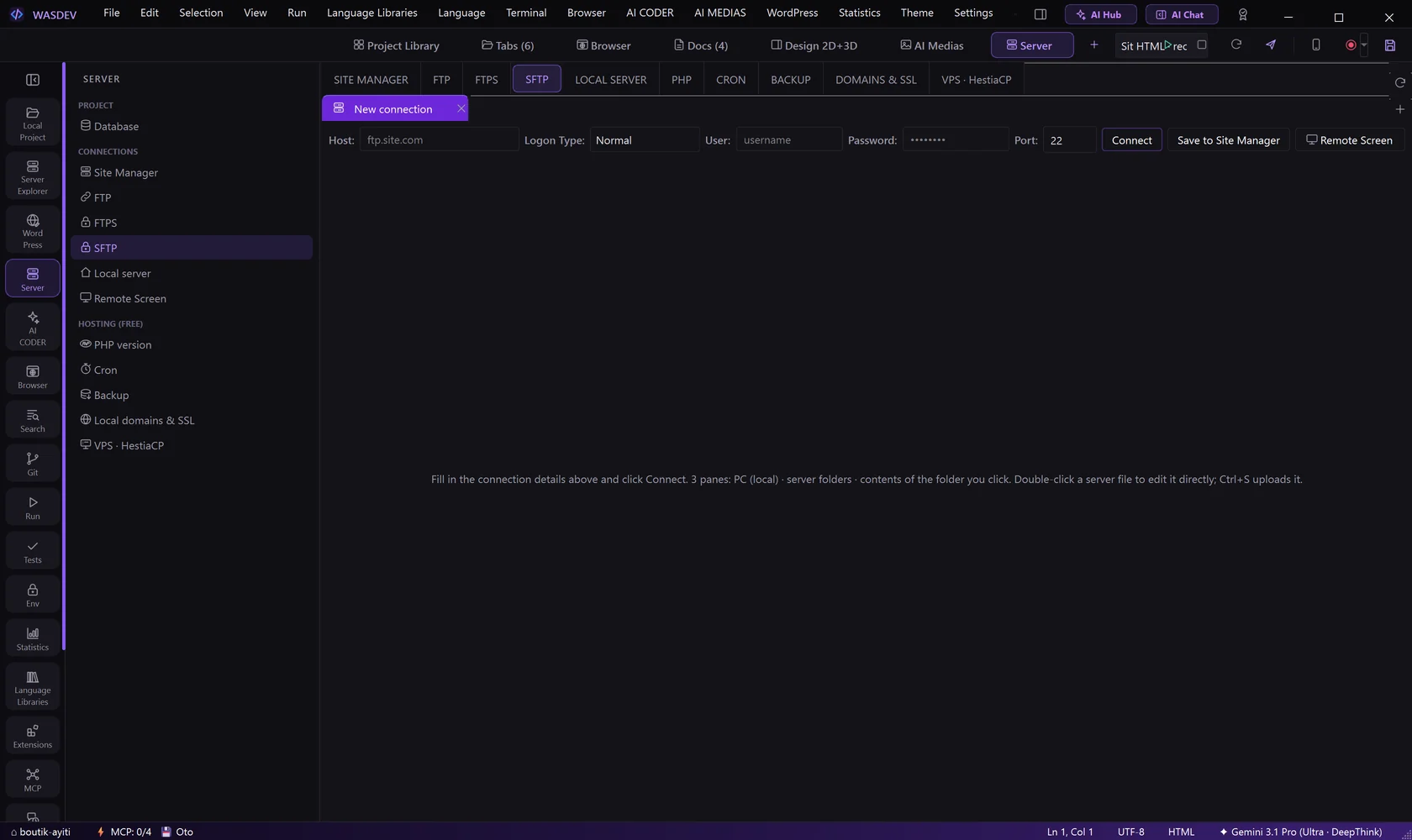
- Open the tab SFTP (or FTP / FTPS, according to what your host gives you).
- Fill Host, Port, User and Password. For SFTP you can choose an SSH key instead of a password.
- For FTPS, choose the Encryption: Explicit TLS (port 21) or Implicit TLS (port 990).
- Click Connect.
- The page splits in two: LOCAL on the left, SERVER on the right.
- Your host gives these details in its control panel, usually under “FTP accounts” or “SSH access”.
- The first time you reach a server by SFTP, WASDEV remembers its fingerprint and warns you if it changes.
Save the connection in the Site Manager
- After filling the connection, click Save to Site Manager and give the site a name.
- Next time, open SITE MANAGER, select the site and connect.
- Passwords are stored in Windows Credential Manager, not in a file.
Transfer and edit files
- To send, select files in LOCAL and click Upload. To receive, select files in SERVER and click Download.
- Right-click in SERVER for New File, New Folder, Rename, Delete and Permissions (chmod).
- To change a file directly, right-click it and choose Edit in Editor.
- Edit, then press
Ctrl+S: the file is uploaded.
- Open in Browser shows the file at its web address.
- The Server Explorer view (
Ctrl+Alt+E) shows the server files in the side bar while you code.
Start a local server
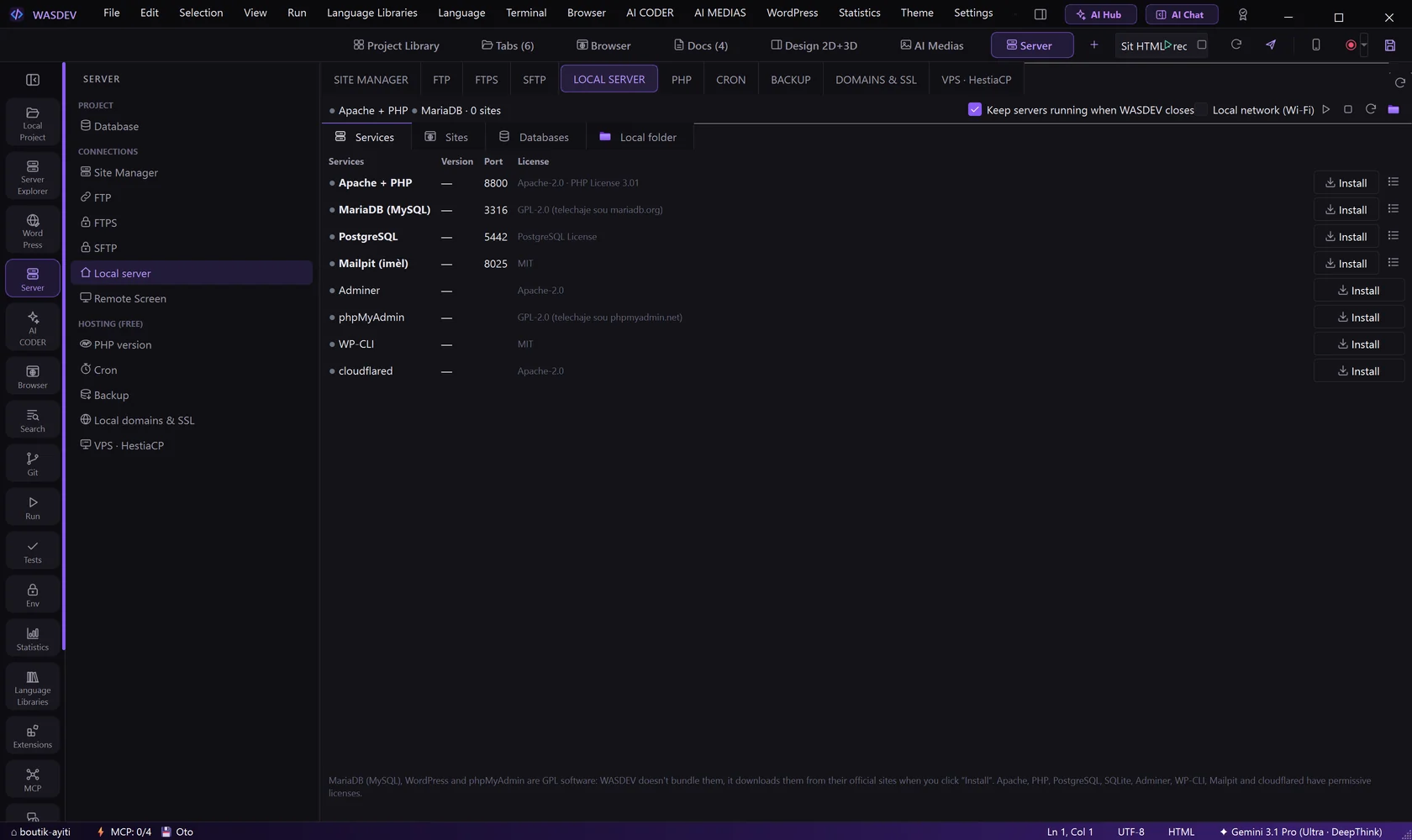
- Open the tab LOCAL SERVER.
- In Services, click Install next to the web server, PHP and the database the first time.
- Click Start all. Stop all stops them.
- Open Sites to create a site, and Databases to create a database.
- Log shows what a service reports; Update installs a newer version.
- Keep servers running when WASDEV closes and Local network (Wi-Fi), which lets a phone on the same network open your local site, are options of this page.
- Export / put online packs a local site as
.zip,.raror a folder, ready for your hosting.
Create a WordPress site
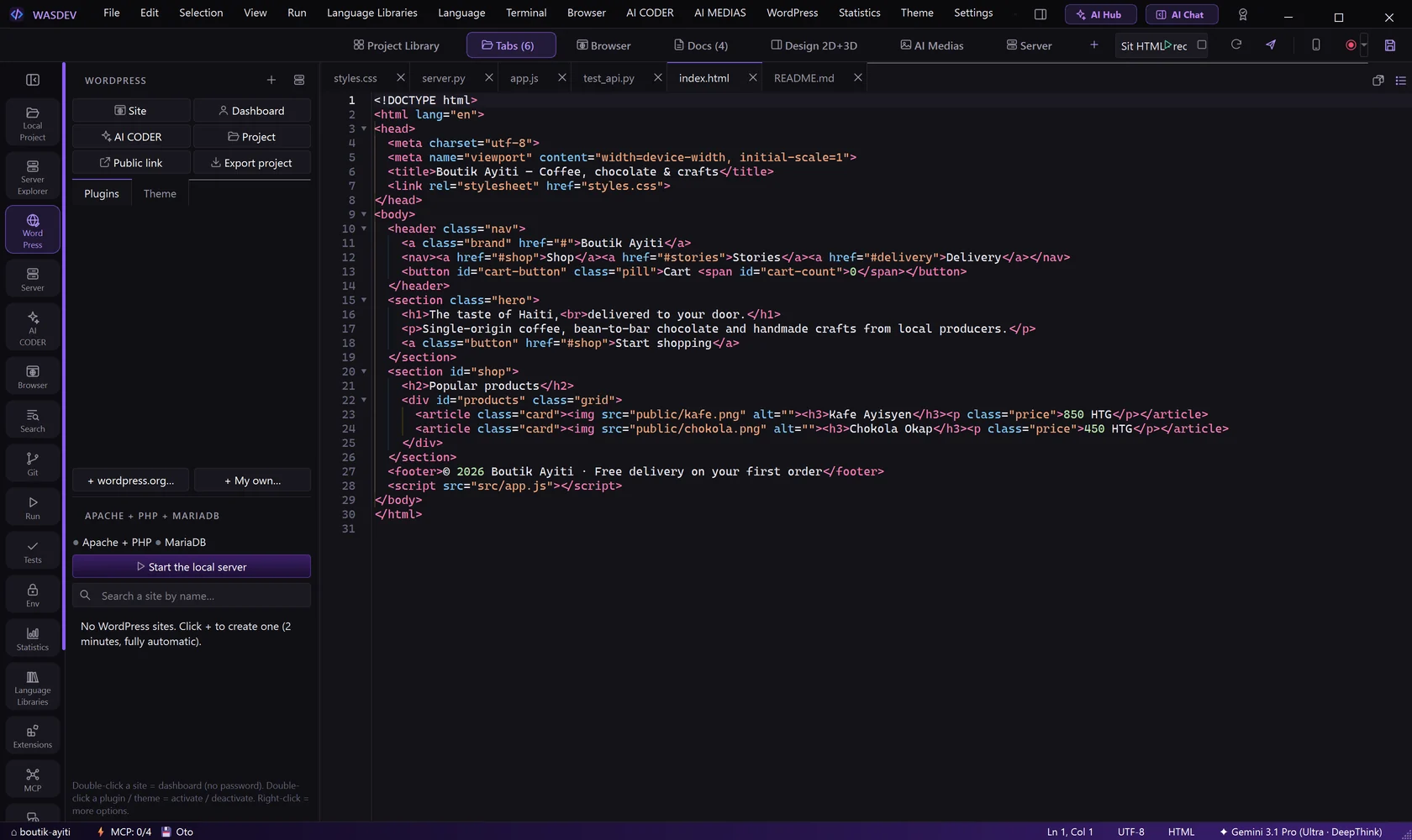
- Click the WordPress icon in the activity bar (
Ctrl+Alt+Shift+W), or the WordPress button in the title bar. - Click Start the local server if it is not running.
- Click New WordPress…, type the name of the site and confirm. WASDEV downloads WordPress and creates the database.
- Double-click the site in the list to open its dashboard.
- Plugins and Theme manage them without leaving WASDEV. Public link gives a temporary address to show the site to someone.
- Open project opens the files of the site in the editor; Ask AI CODER about it sends it to the chat.
Manage databases
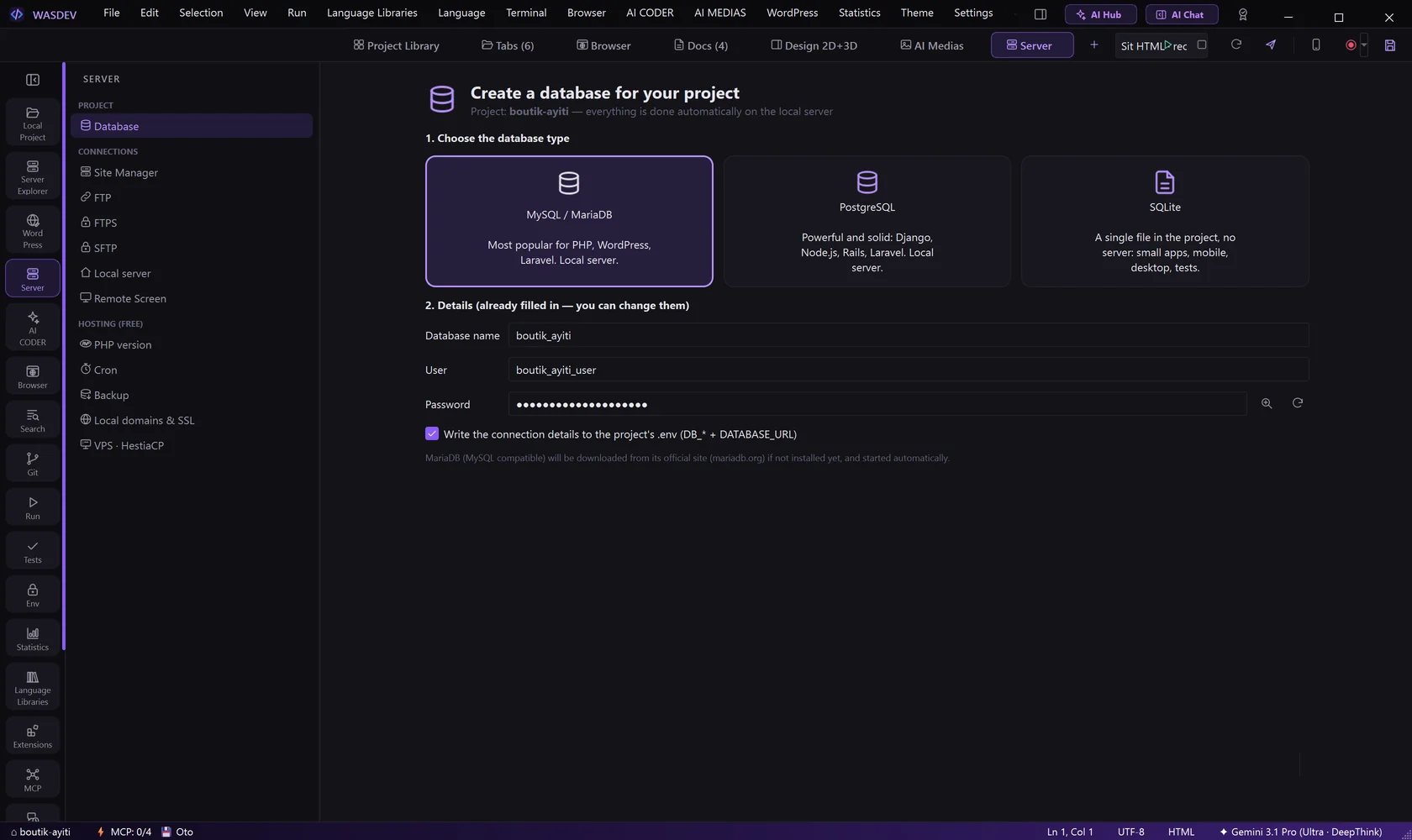
- In the SERVER menu, click Database.
- Choose the type of database and fill the details, then click Create database.
- Click Open it (Adminer) to browse the tables and run SQL.
- Click Back up now to save a copy.
- In LOCAL SERVER → Databases, Export .sql and Import .sql move a database between machines.
Choose the PHP version
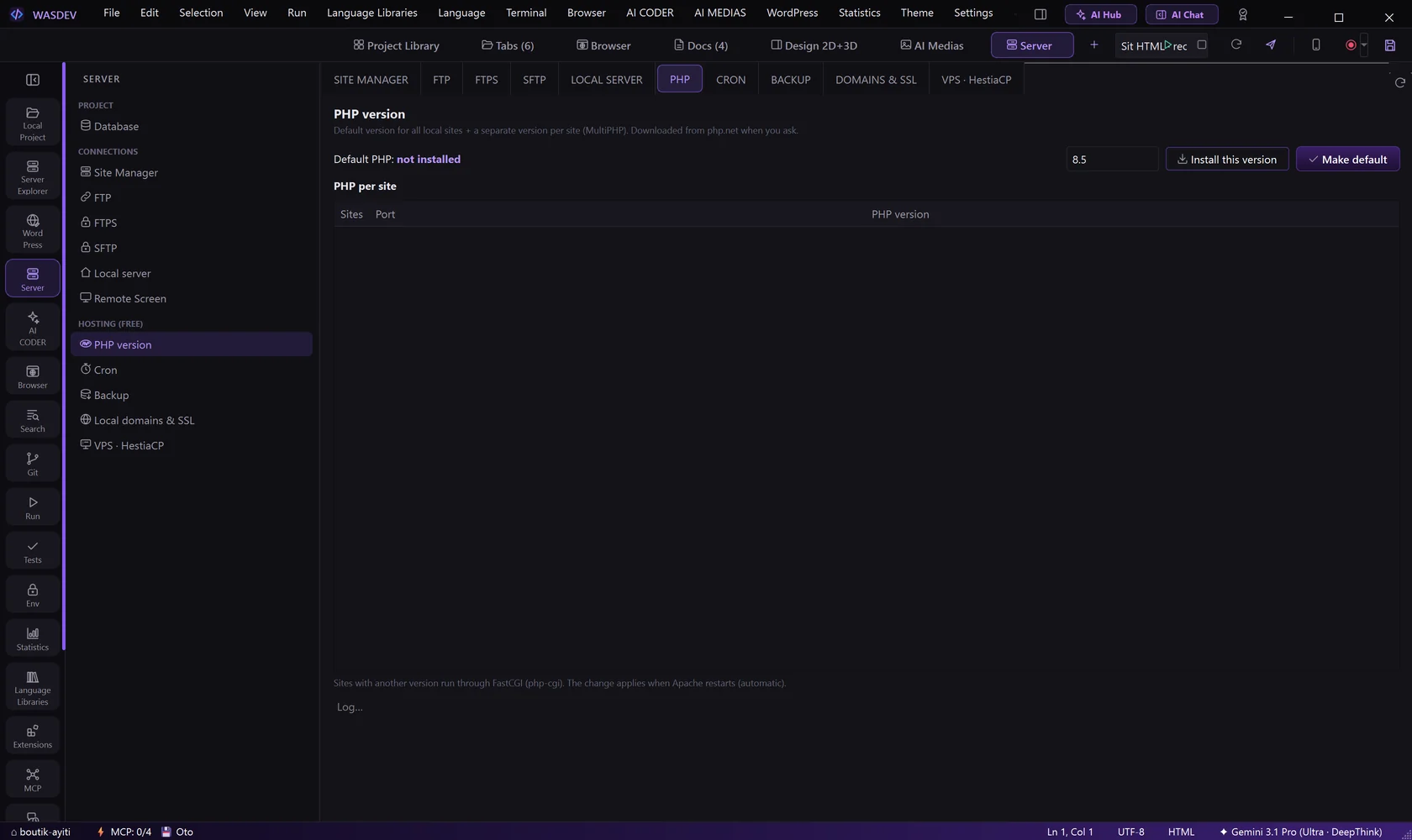
- Open the tab PHP.
- Type the version your site needs and click Install this version, then Make default.
- The table PHP per site gives one site a different version from the default.
Schedule a job with Cron
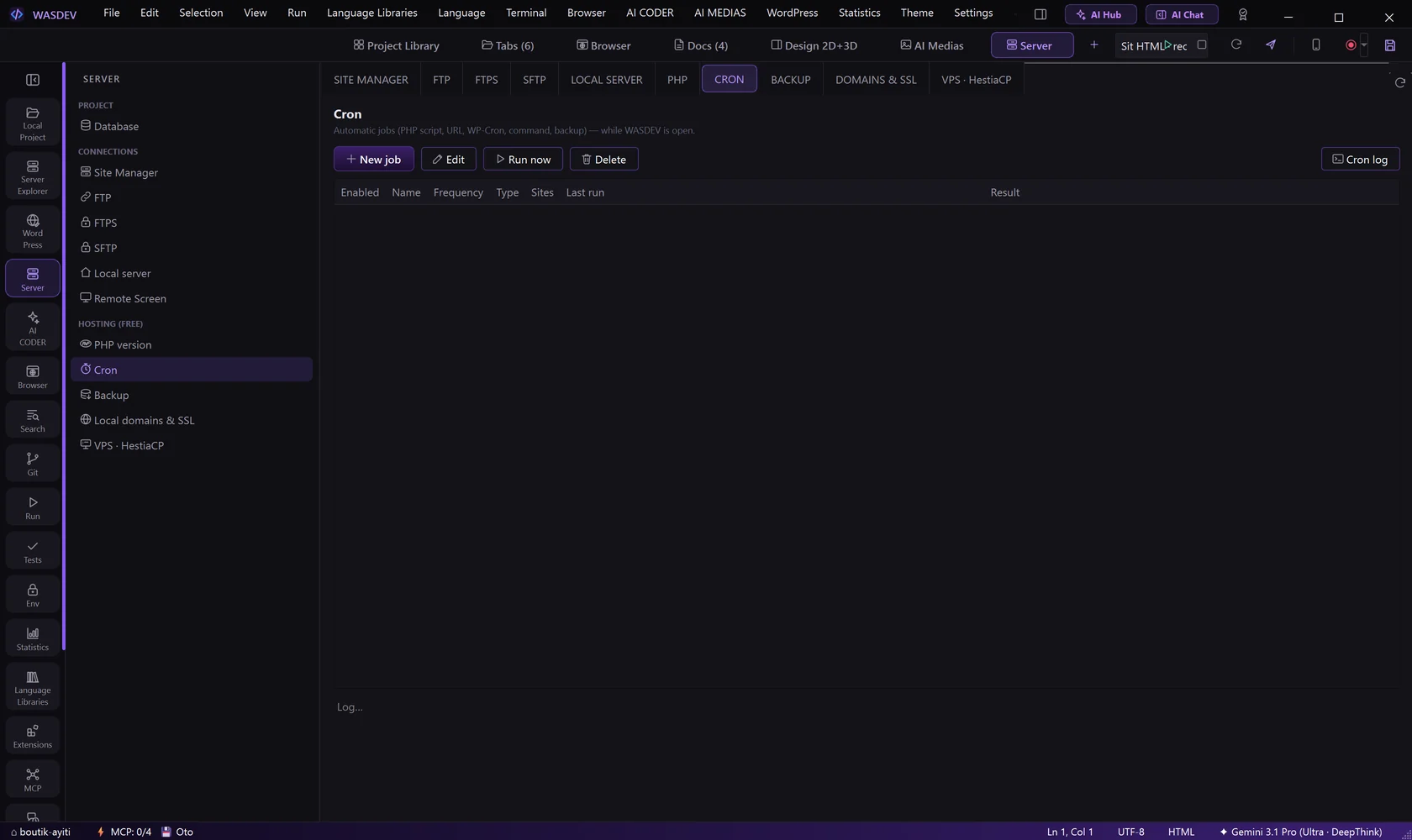
- Open the tab CRON and click New job.
- Give the command to run and how often.
- Use Run now to test it and Cron log to read the result.
Back up and restore
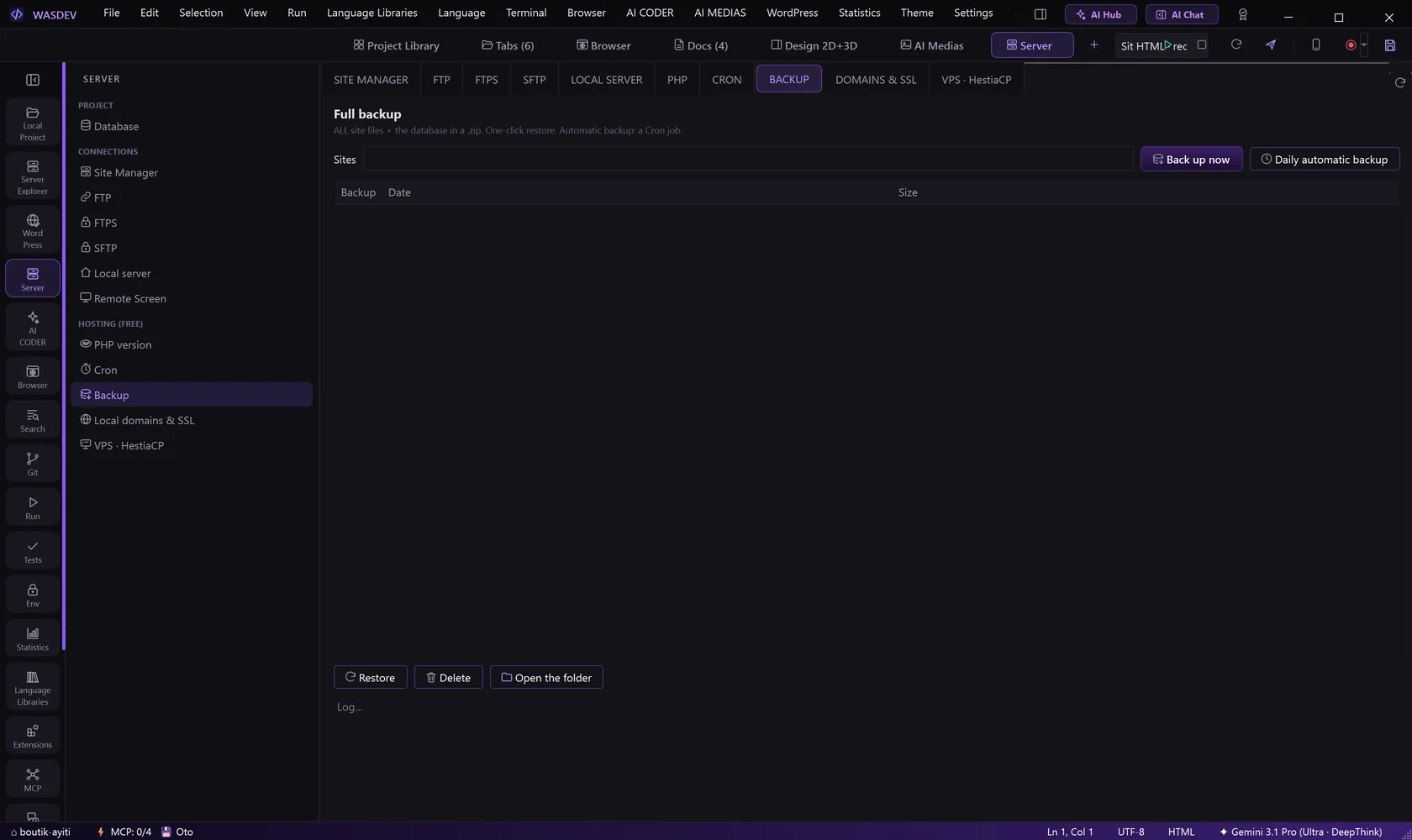
- Open the tab BACKUP and click Back up now.
- Click Daily automatic backup to have one every day.
- To go back, select a backup and click Restore.
Use a local domain with HTTPS
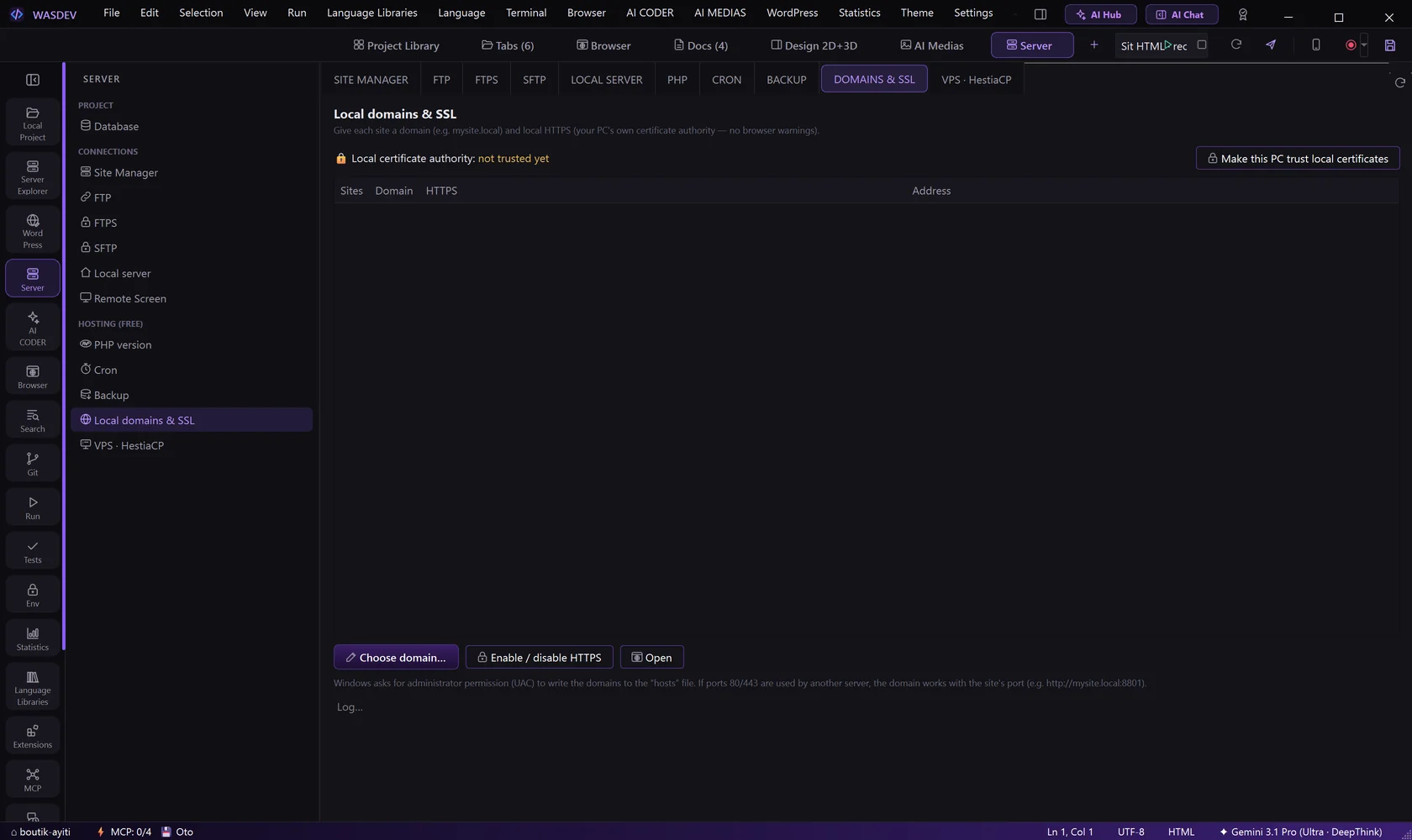
- Open the tab DOMAINS & SSL and click Choose domain….
- Type a local name for your site.
- Click Enable / disable HTTPS.
- Click Make this PC trust local certificates so the browser shows the padlock without a warning.
Put a site online on a VPS
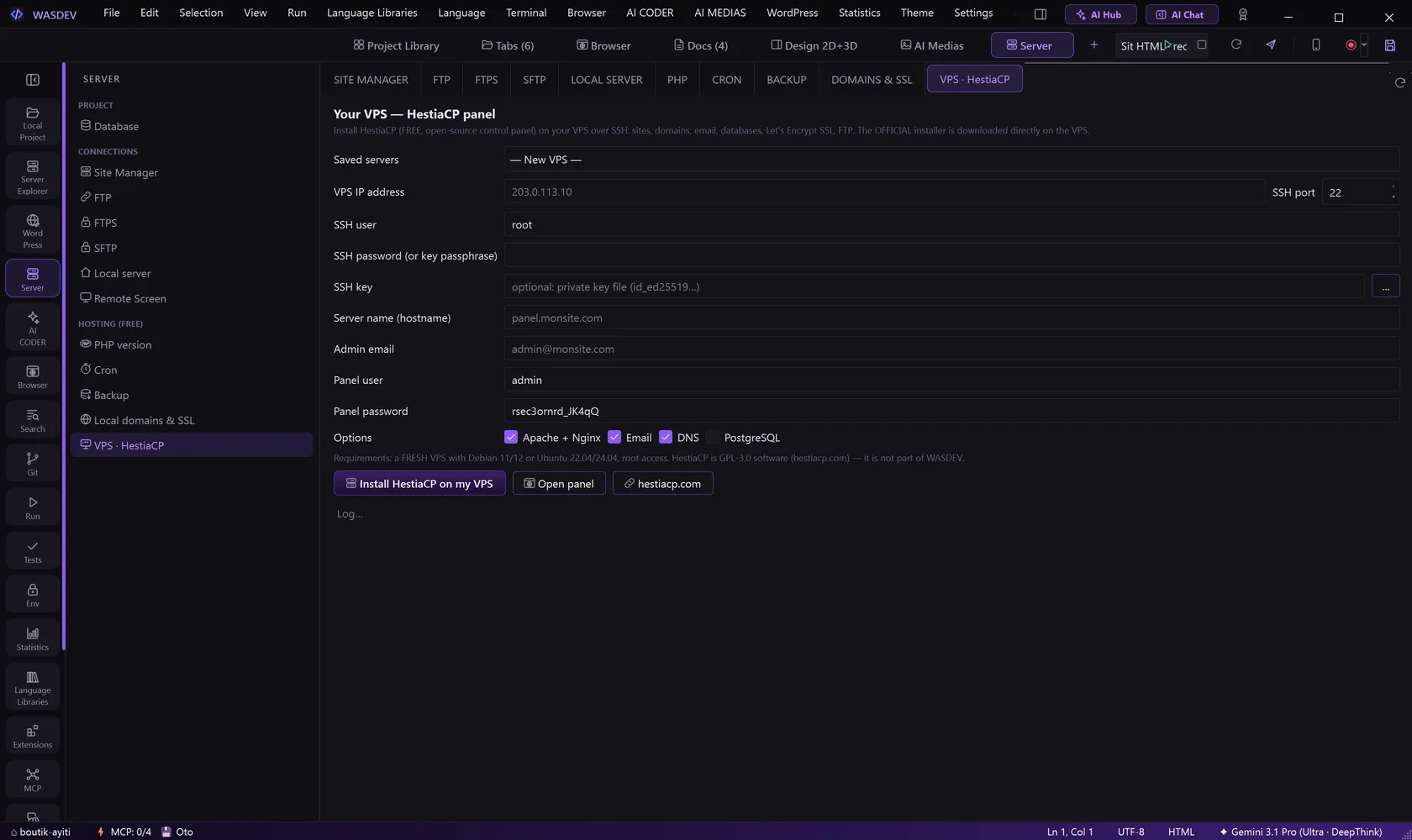
- Rent a VPS from the host of your choice and note its address and password.
- Open the tab VPS · HestiaCP and fill VPS IP address, SSH user, SSH password (or SSH key), Server name and Admin email.
- Click Install HestiaCP on my VPS and follow the log.
- When the installation ends, click Open panel to manage domains, mail and databases.
- In your project, use Deploy → Go live (1 click): enter the Domain and the HestiaCP user, and keep HTTPS ticked.
- The VPS must be new, with Debian 11 or 12 or Ubuntu 22.04 or 24.04, and root access.
- The VPS and the domain name are rented from your own host. WASDEV only installs and drives the panel.
Open a remote screen
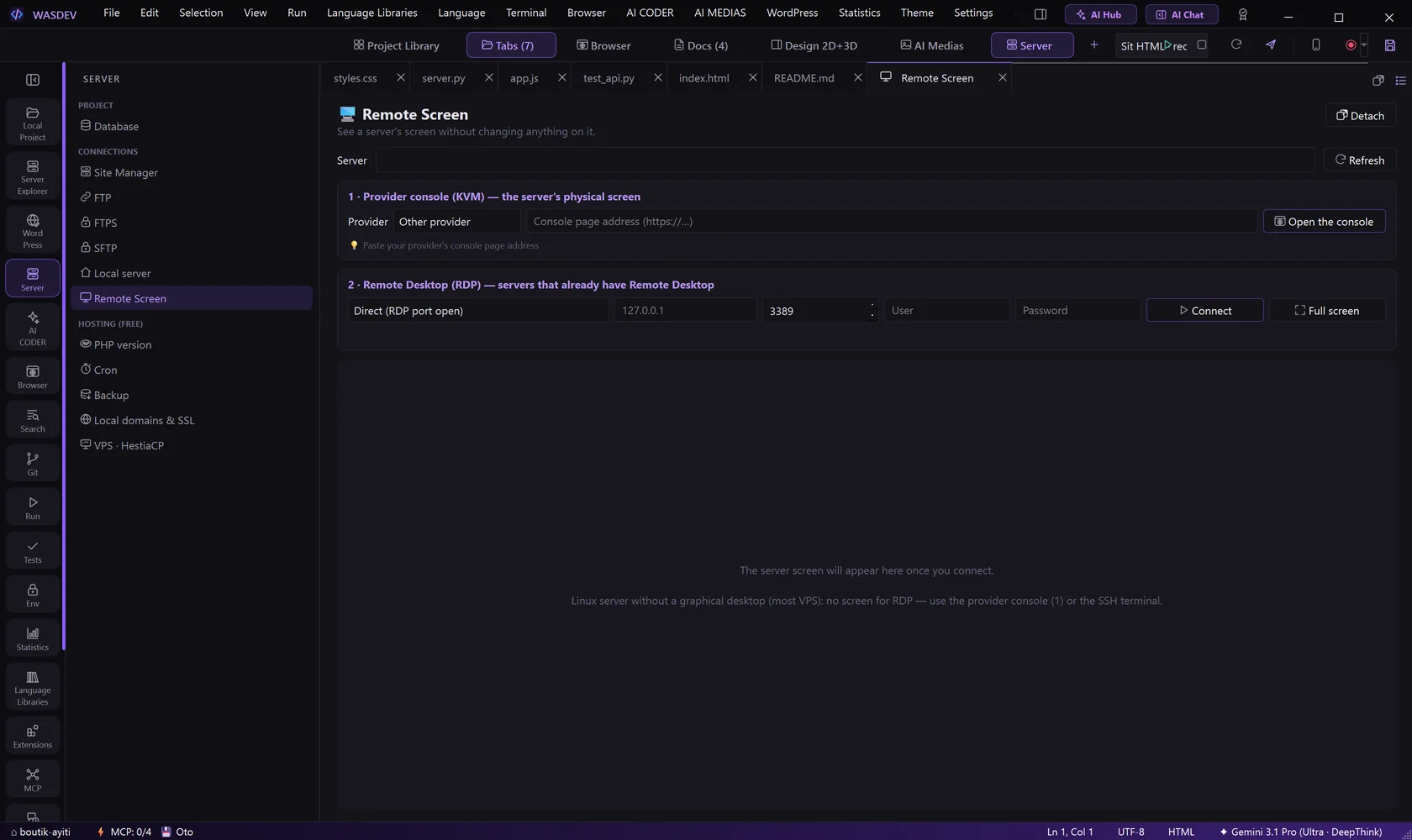
- In the SERVER menu, click Remote Screen.
- Choose Provider console (KVM) or Remote Desktop (RDP), directly or through SSH.
- Fill the address and sign in.
PuTTY and PuTTYgen Studio
- Open the tab PuTTY to manage SSH sessions natively with automated Windows Registry synchronization.
- Open PuTTYgen to generate Ed25519, RSA (2048/4096) or ECDSA key pairs with an interactive entropy zone.
- Export keys to
.ppkor OpenSSH format and copy yourauthorized_keysin one click.