
Chapter 3
AI Hub and AI CLIs
Connect your own AI accounts and keys: install the AI command-line tools, sign in, enter API keys and test each connection.
What you need before you start
WASDEV does not provide API keys, AI credits or paid AI accounts. You connect what you already have. There are three ways, and you can combine them.
- Your account, through a CLI: Claude Code (Claude account), Codex (ChatGPT account), Gemini CLI and Google Antigravity (Google account). No API key is needed.
- Your API key: Claude API, Google Gemini, OpenAI GPT, DeepSeek, Mistral AI, xAI Grok, Groq, Together AI, OpenRouter, Perplexity, Qwen, Kimi, GLM, Cohere, Fireworks AI or Meta Llama. The provider bills you for what you use.
- A local engine: Ollama or LM Studio. Free, no account, nothing leaves your PC.
- Most CLIs are installed with npm. Install Node.js from nodejs.org first if it is not on your PC.
Open the AI Manager and CLI Hub
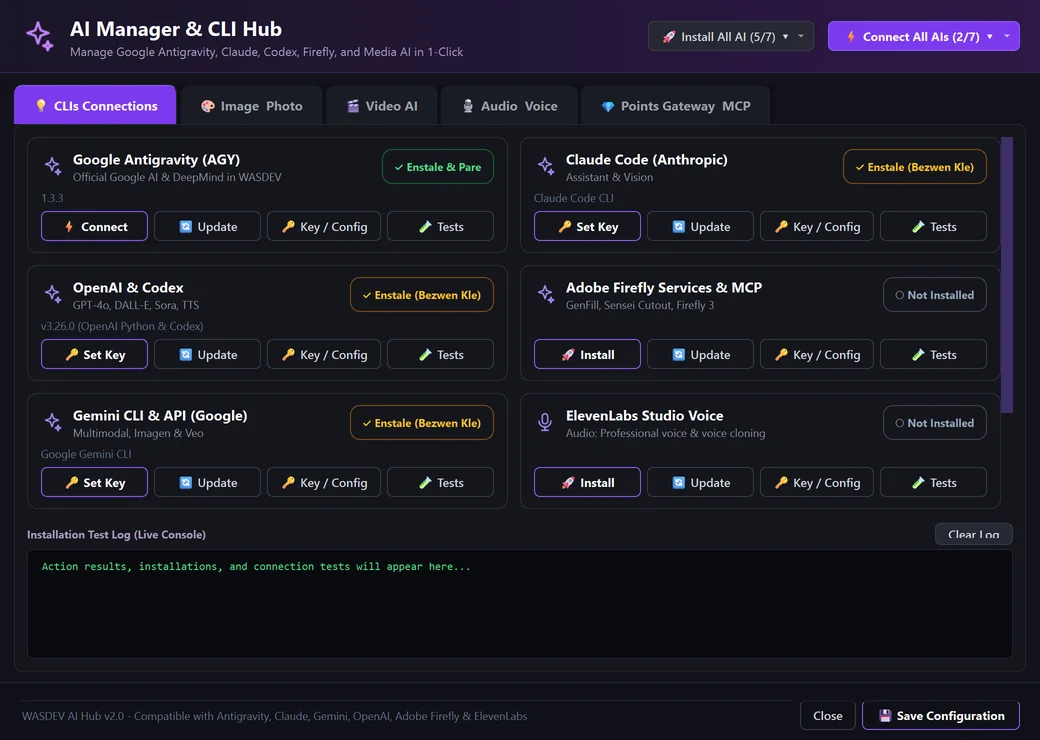
- Click AI Hub at the right of the title bar. You can also open it from Project Library with the button AI Manager CLI Hub.
- The window opens on the tab CLIs Connections.
- Read the cards: Google Antigravity (AGY), Claude Code (Anthropic), OpenAI & Codex, Adobe Firefly Services & MCP, Gemini CLI & API (Google), ElevenLabs Studio Voice and Ollama.
- Each card shows a status badge — installed and ready, installed but a key is needed, or not installed — and the version found.
- The other tabs are Image Photo, Video AI, Audio Voice and Points Gateway MCP.
Install and connect everything in one click
- In the header of the hub, click Install All AI. The numbers on the button, for example 5/7, show how many are already installed.
- Watch the Installation Test Log (Live Console) at the bottom: each tool reports when it is installed.
- When everything is installed, click Connect All AIs.
- Click Save Configuration, then Close.
- The arrow next to each header button opens a list showing the state of each AI, so you can see which ones are missing.
- Ollama is not installed by WASDEV: the hub tells you to download it from ollama.com.
Install or update one AI only
- Find the card of the AI you want.
- Click its main button. It reads Install, Set Key or Connect depending on what is missing.
- To get the latest version later, click Update on the card and confirm.
- Click Tests to check that the tool answers. The result appears in the log.
Sign in to a CLI with your own account
The sign-in belongs to the CLI itself. WASDEV never sees your password; it only checks whether you are signed in.
- Open the terminal: click Terminal in the title bar.
- Type the name of the CLI and press
Enter:claudefor Claude Code,codexfor Codex,geminifor Gemini CLI,agyfor Antigravity. - Follow the sign-in the CLI shows. It usually opens a web page where you approve the connection with your account.
- Come back to WASDEV. In the chat panel, the company now appears with the note that it uses your account.
- For Claude Code you can also type
claude login. For Codex,codex login. - Settings → AI CODER shows the plan detected for Claude Code and confirms that Claude can be used without a key.
- If Google refuses a personal account for Gemini CLI, use Google Antigravity or a free Google AI Studio key instead.
Enter an API key
- Create the key on the provider's website (for example console.anthropic.com, aistudio.google.com or platform.openai.com).
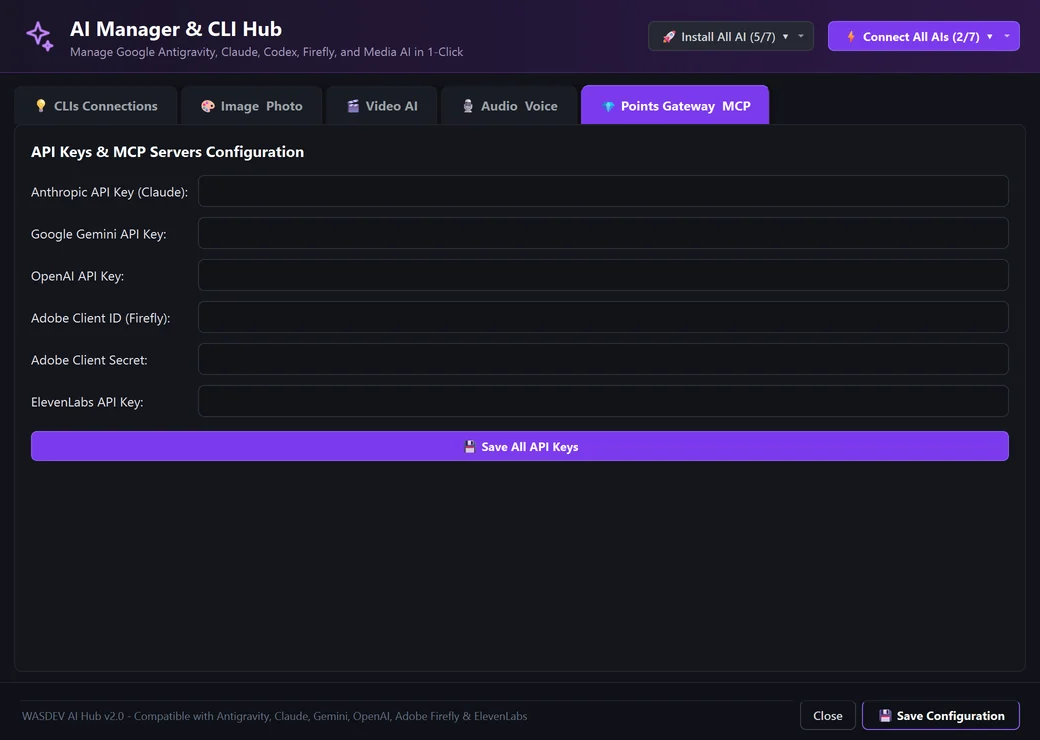
- In the hub, click Key / Config on a card, or open the tab Points Gateway MCP.
- Paste the key in the matching field: Anthropic, Google Gemini, OpenAI, Adobe Client ID and Secret, or ElevenLabs.
- Click Save All API Keys.
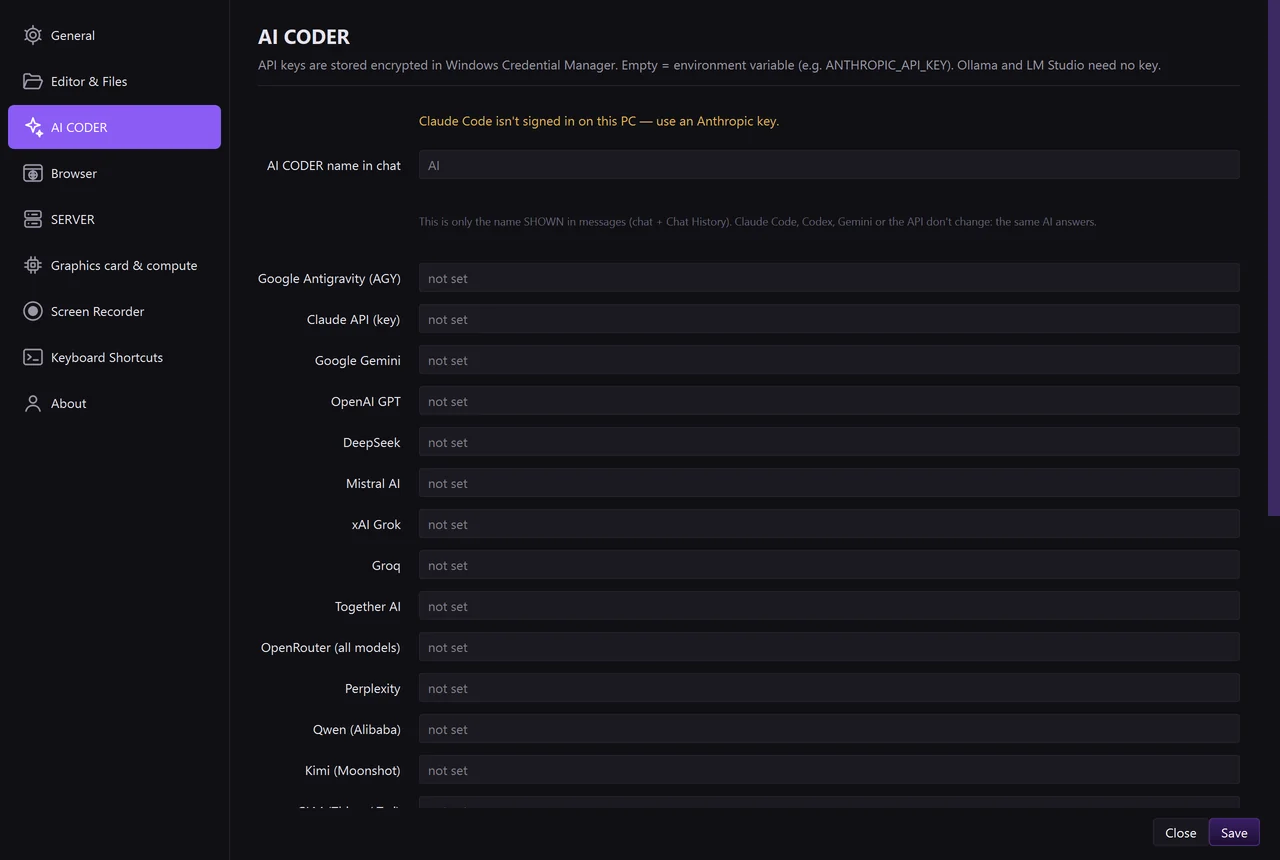
- For the other providers (DeepSeek, Mistral, Grok, Groq, OpenRouter and so on), open Settings → AI CODER and paste the key next to the provider's name, then click Save.
- Keys are stored encrypted in Windows Credential Manager under the name WASDEV. They are not written in your project.
- To remove a key, clear its field and save.
Use a free local model with Ollama
- Install Ollama from ollama.com and start it.
- Download a model, for example by typing
ollama pull llama3.2in a terminal. - In the chat panel, open the Company list and choose Ollama (local).
- Open the Model list: WASDEV reads the models installed in Ollama. Choose one.
- LM Studio works the same way: start its local server, then choose LM Studio (local).
- Local models are slower and less capable than the large online ones, but they are free and private.
Set up images, video and voice
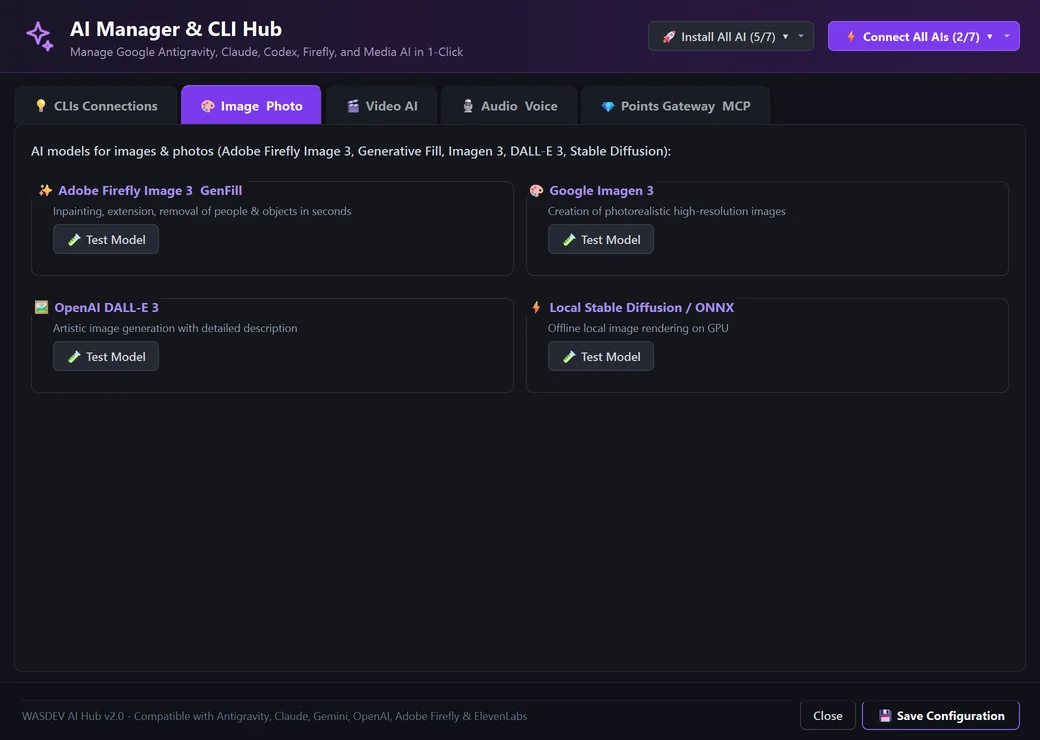
- Open the tab Image Photo to see the image services and test them.
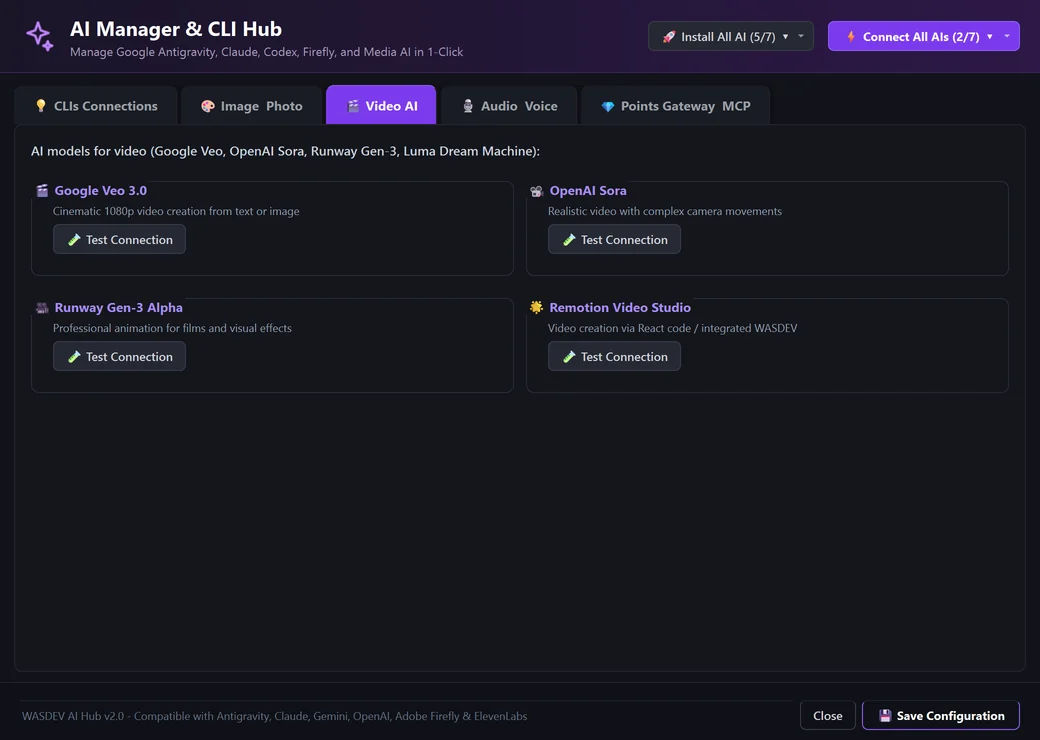
- Open Video AI for the video services.
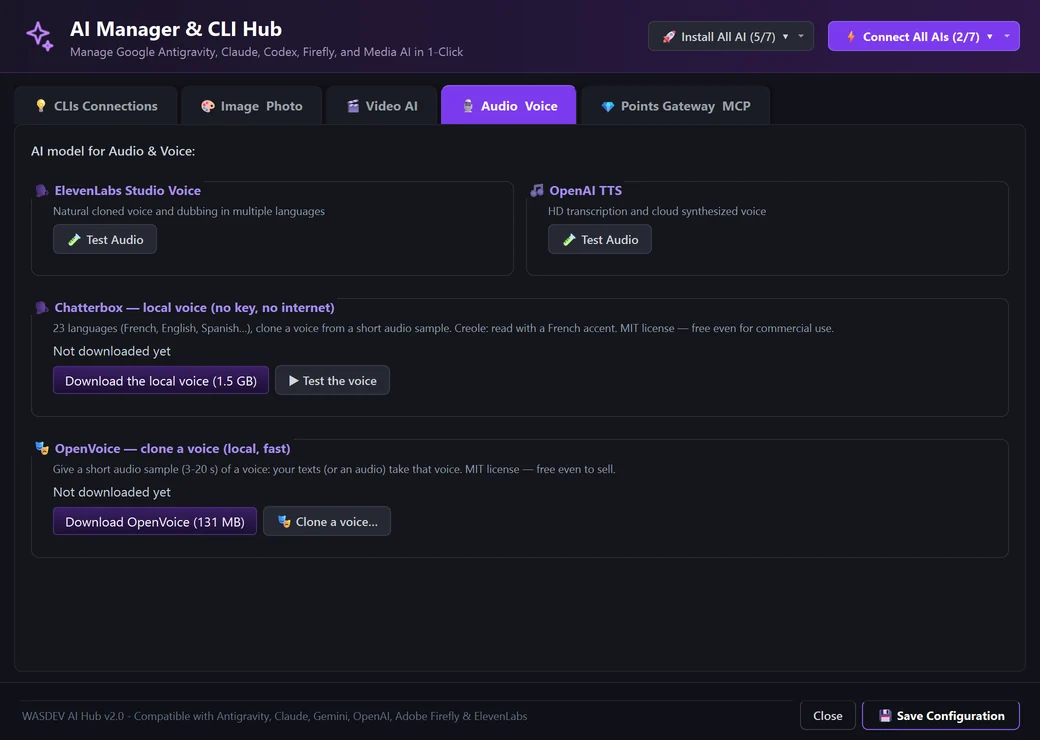
- Open Audio Voice to set up voices: every voice is made with ElevenLabs (key in AI Hub); OpenVoice (131 MB) clones a voice from a short sample, locally.
- Click the test button to hear the voice.
- Image models that need a key: Google Imagen 4, Gemini Flash Image, OpenAI GPT Image 1 and DALL·E 3, xAI Grok 2 Image, FLUX.1 schnell (Together key) and Adobe Firefly Image 3 (Adobe Client ID and Secret).
- Video models: Google Veo 3 (Google key) and OpenAI Sora 2 (OpenAI key).
- Images can also be generated through your Antigravity, Gemini CLI or Codex account, with no key.
Run an AI CLI in the terminal
You can work with the CLI directly instead of the chat panel.
- Open the terminal: click Terminal in the title bar.
- Type
claude,codex,geminioragyand pressEnter. - The real CLI starts in your project folder, with WASDEV's own tools already connected and your project instructions loaded.
- Type your request as you would in any terminal.
- The AI button of the terminal panel opens a new terminal directly on an AI CLI.
- With
claudeandcodex, configuration commands such aslogin,mcpandupdateare passed to the CLI unchanged.