


Chapter 12
Browser
Test your site in the built-in browser: tabs, phone and tablet previews, screenshots, favourites, downloads and the password manager.
Open the browser
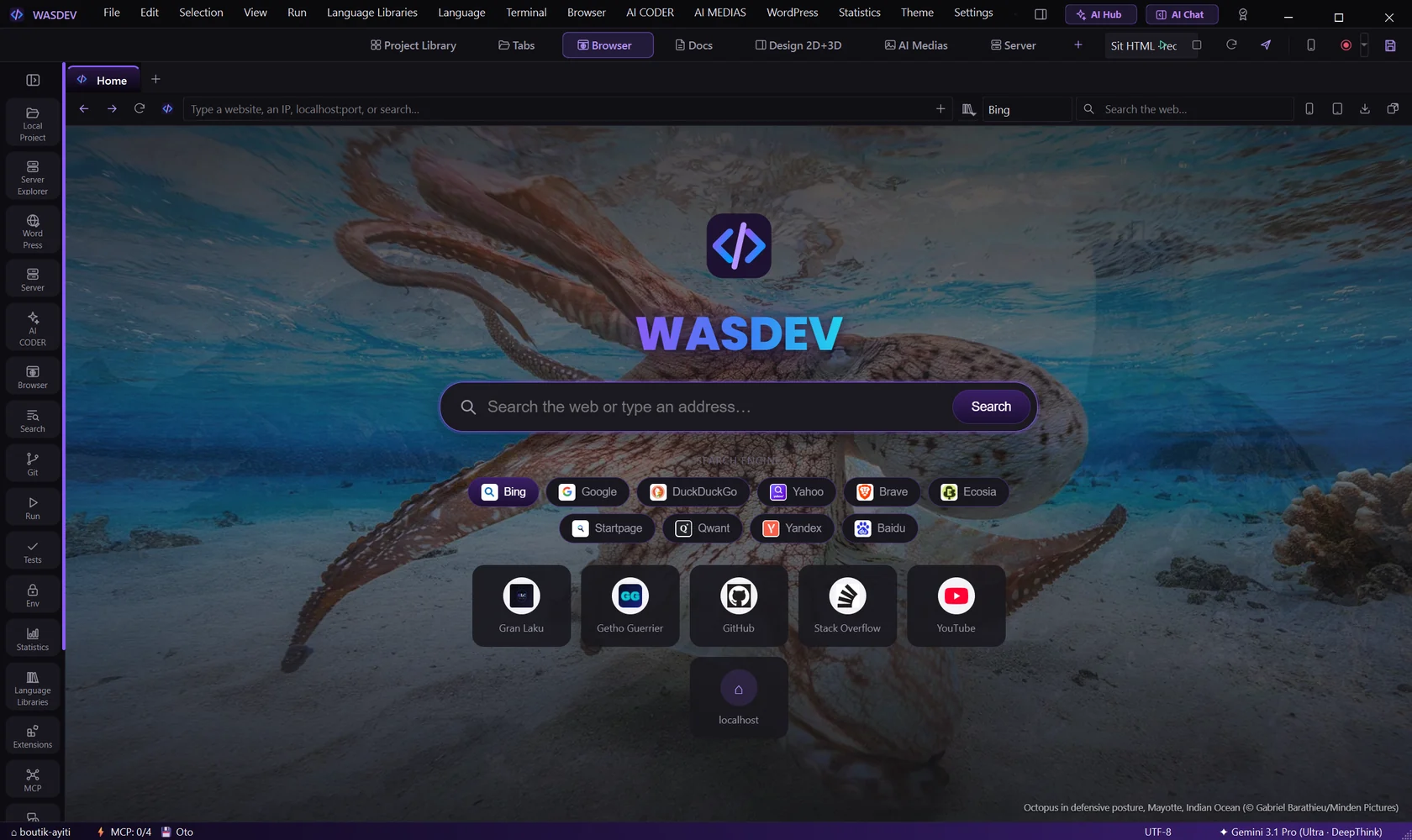
- Click Browser in the module bar, or press
Ctrl+Alt+W. - The fixed Home tab opens. Type an address or a search in the address box and press
Enter. - Use Back, Forward, Reload and Home page in the toolbar.
- Right-click a tab for New Tab, Close Others, Close to the Right, Close All, Mute tab and Open in system browser.
- When you press Run on a web project, its page opens here.
- Detach moves the browser to its own window.
Preview on a phone or a tablet
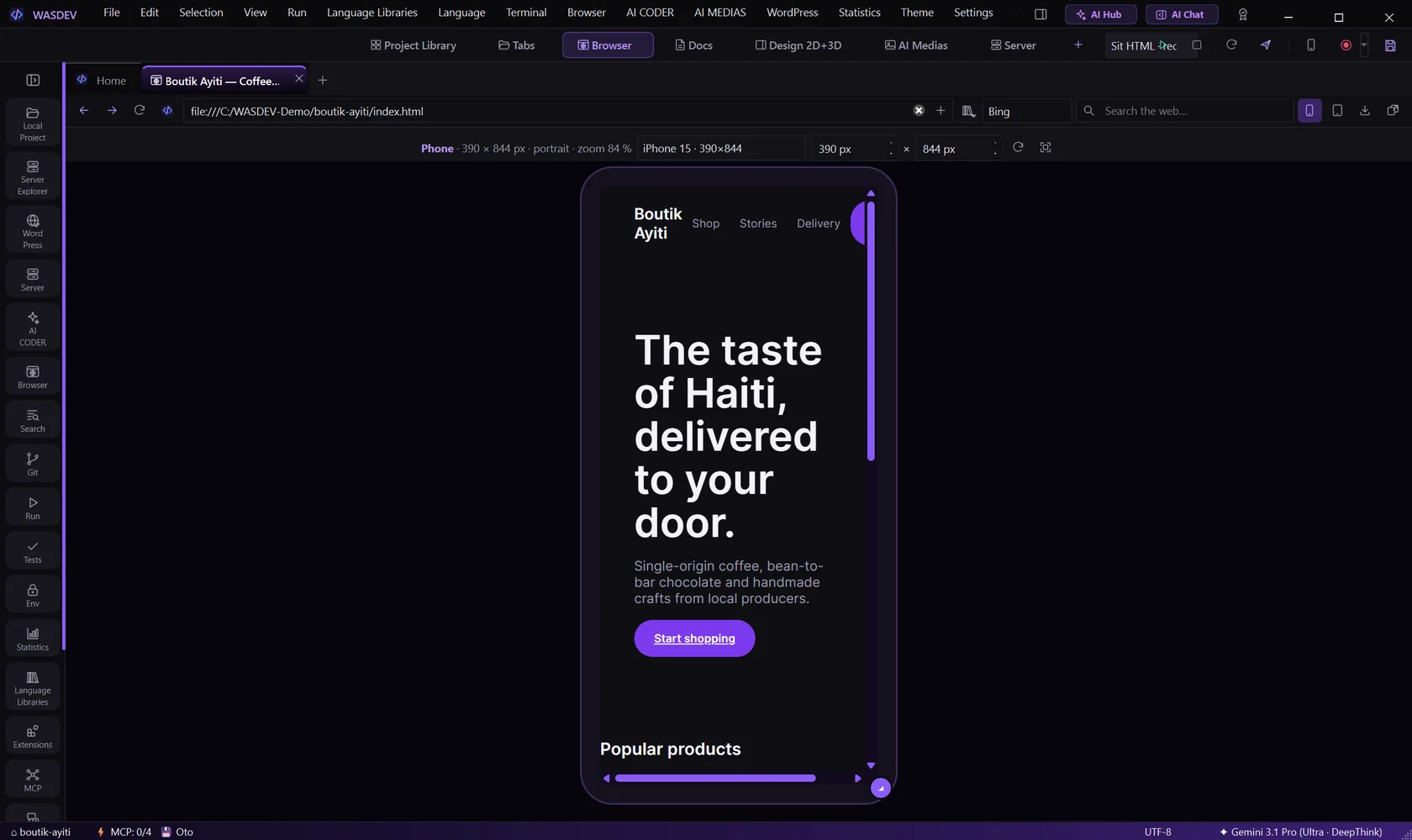
- Open your page in the browser.
- Click Phone preview in the toolbar. The page is shown at 390 × 844.
- Click Tablet preview for 820 × 1180.
- Choose a device model, rotate it, or type a custom size.
- Click the preview button again to return to the full width.
Take a screenshot of a page
- Right-click the page.
- Choose Screenshot (visible area), or Screenshot — select area… and drag a rectangle.
- The image is saved in the project and can be sent to the chat or placed in a design.
- Save image as… saves a picture of the page. Inspect opens the developer tools.
Keep favourites and history
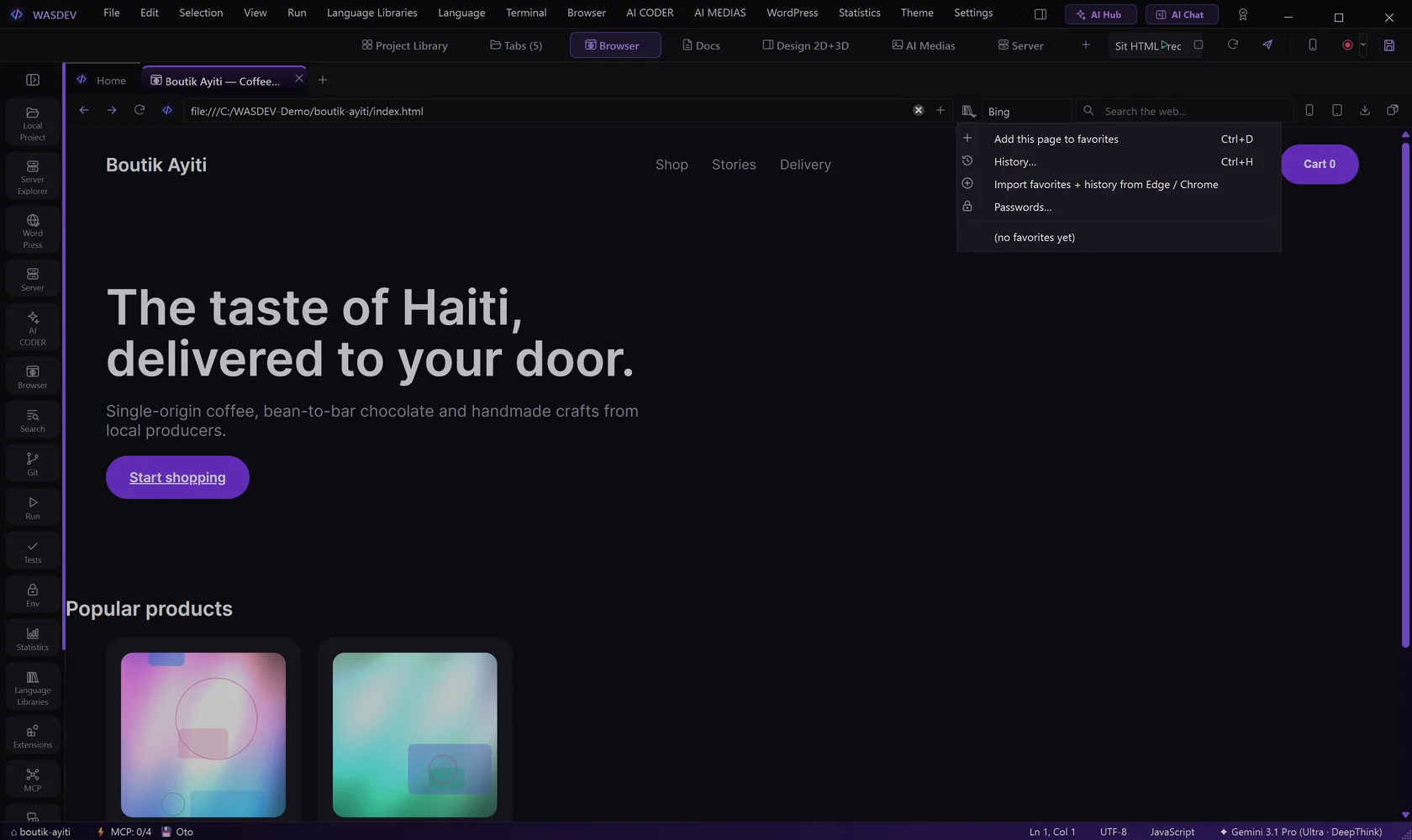
- Open the menu of the browser and click Add to favorites on the page you want to keep.
- Click History… to find a page you visited.
- Click Import favorites + history and choose Edge or Chrome to bring your existing ones.
Manage downloads
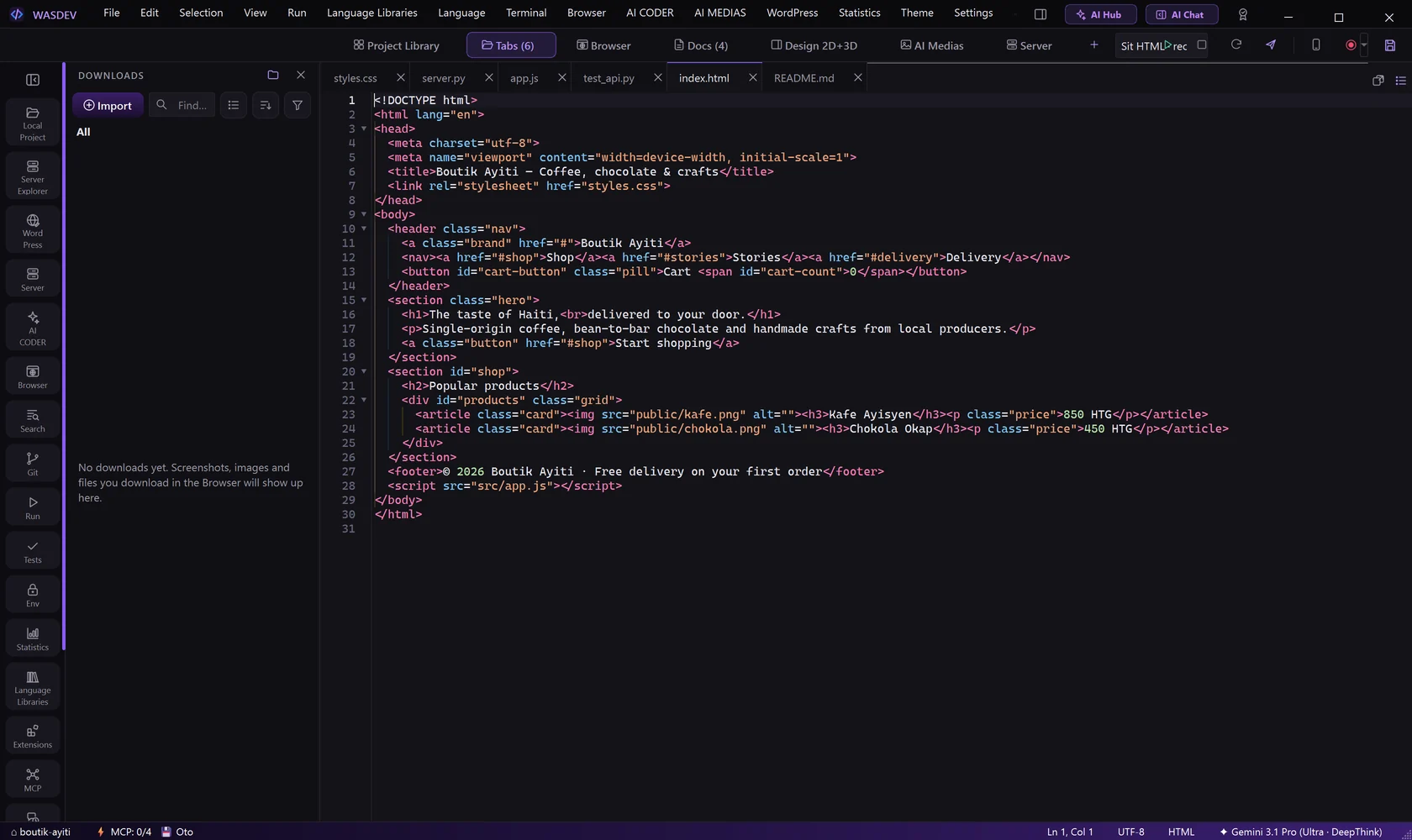
- Click Downloads in the toolbar of the browser, or press
Ctrl+Shift+J. - Filter by All, Images, Videos, Audio, Documents, Archives or Other; switch between list and grid.
- Select a file and click Add to project to copy it into your project.
- Clear list empties the list without deleting the files.
Save passwords behind a PIN
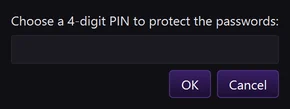
- Open the menu of the browser and click Passwords….
- The first time, choose a 4-digit PIN. You will type it each time you open the manager.
- To bring your existing passwords, click Import CSV (Edge / Chrome)… and select the file you exported from that browser.
- Export CSV… saves your passwords to a file. Change PIN and Delete all are in the same window.
Change the search engine and add the video engine
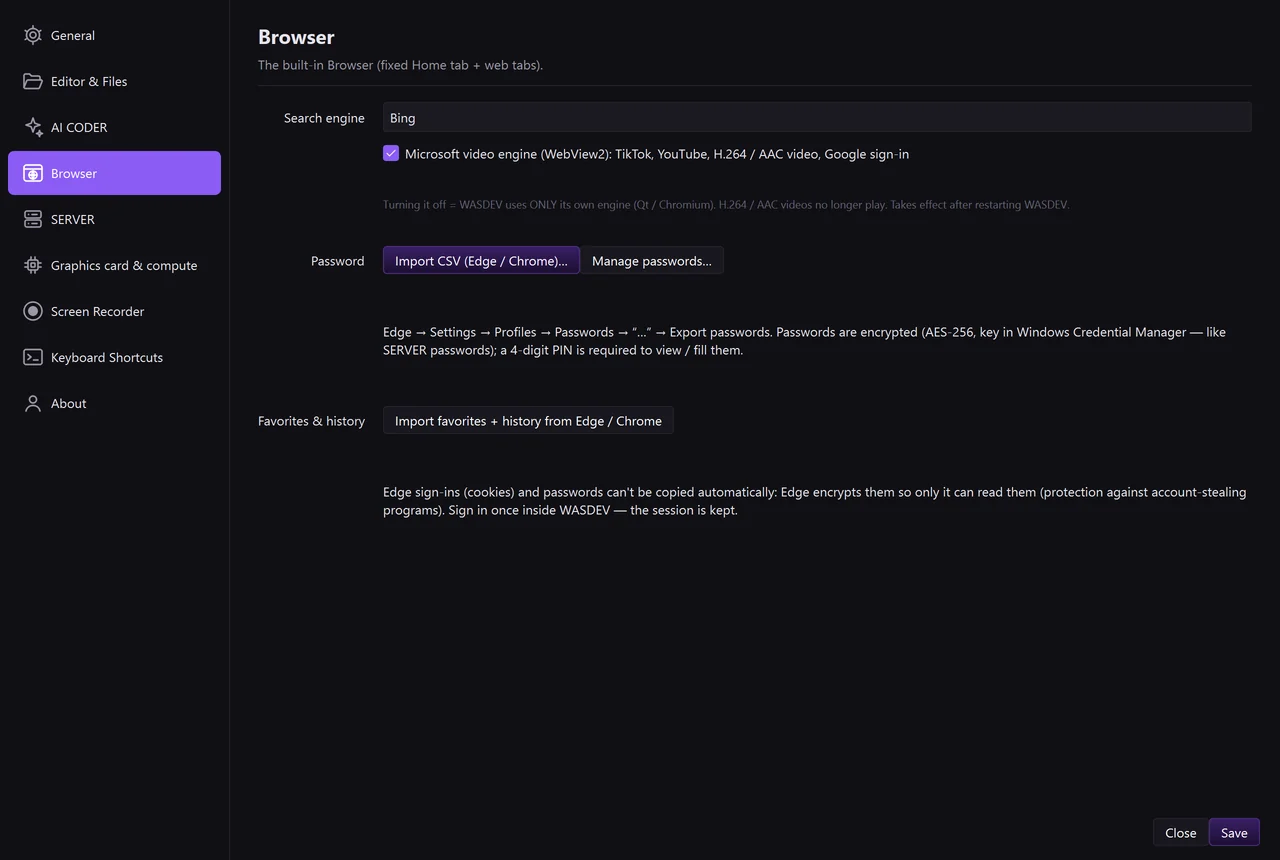
- Open Settings → Browser.
- Choose the Search engine among the ten proposed.
- If a site with protected video does not play, install the Microsoft video engine (WebView2) from the same page.
Let the AI use the browser
- In the chat, keep the tool group WASDEV built-in browser ticked in the tools menu.
- Ask, for example:
Open the site, fill the contact form with test data and tell me what the console shows. - The AI opens the page, reads it, clicks, types and reads the console, then reports.
- This is how the AI checks its own work after a change.