
Chapter 9
Design 2D + 3D
Draw interfaces on a canvas with frames, layers and components, then prototype, storyboard, model in 3D, hand over to code and export.
Open the Design module
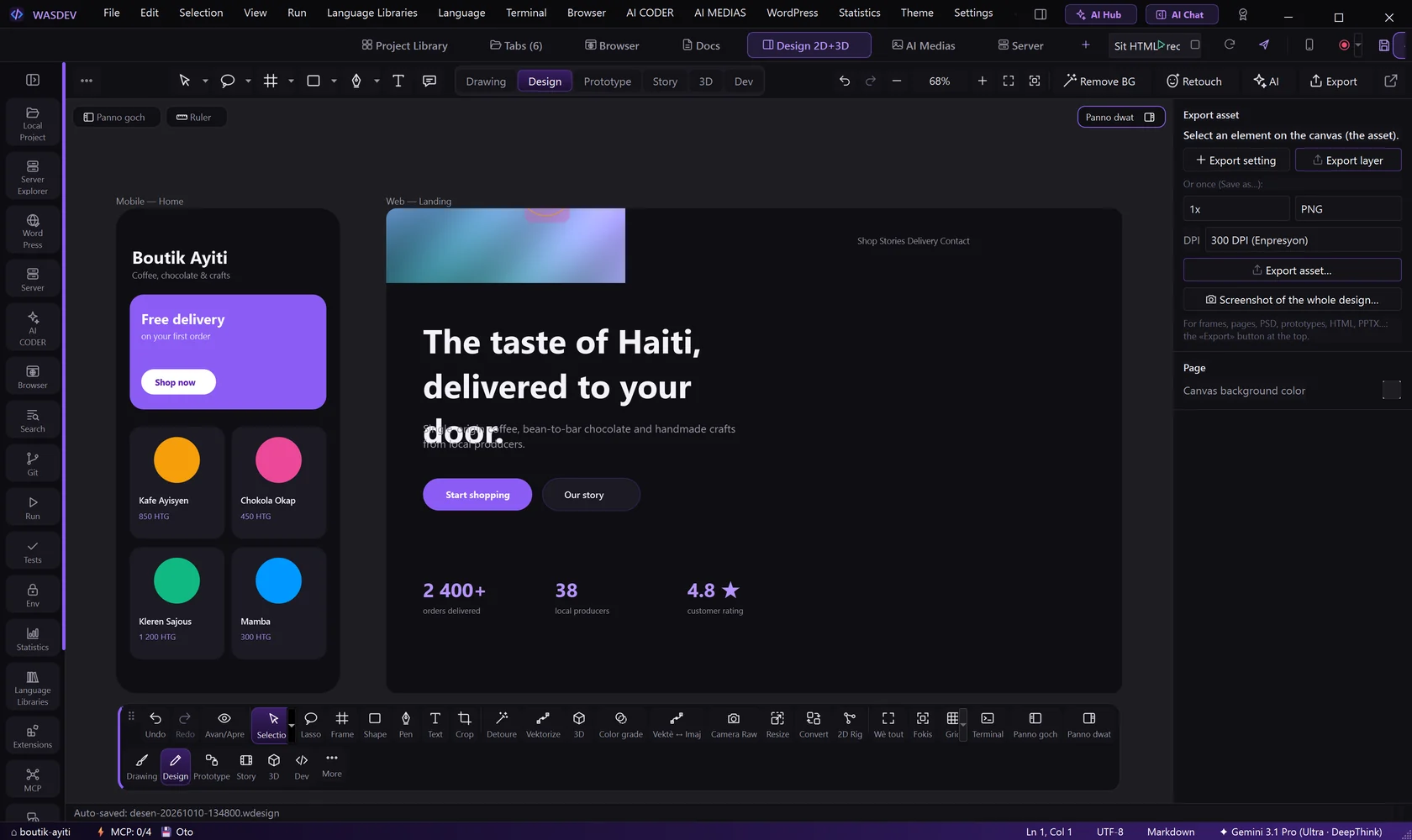
- Click Design 2D+3D in the module bar, or press
Ctrl+Alt+D. - Open the File menu of the Design page and choose New.
- Pick Empty canvas, one of the size presets, or Custom size….
- Save with Save as…. Design files use the extension
.wdesign.
- Open… opens an existing design; Recent lists the last ones.
- Import… brings in PSD, PSB, SVG, PDF, PNG, ICO, PPTX, HTML or a prototype ZIP.
Your design is saved automatically
You never lose a design, a prototype or a storyboard: WASDEV saves the file by itself while you work.
- Draw or change something. Three seconds after each change, the design is saved in its file.
- A new design without a name receives a file automatically, in the folder
designof the open project. - Close WASDEV when you want: the last changes are saved before the window closes.
- Open WASDEV again: the last design opens by itself on the Design page.
- With no project open, new designs go to the folder
WASDEV Designsin your documents. - WASDEV does not interrupt you: while you type a text, it waits until you finish.
Draw your first screen
- Press
F(tool Frame) and drag on the canvas to create a frame, or choose a device size. - Press
Rfor a rectangle,Ofor an ellipse,Lfor a line,Tfor text. Draw inside the frame. - Press
V(tool Move) and click an object to select it. - In the right panel, change Position, Fill, Stroke, corner radius and Effect.
- Press
I(or use Images) to place a picture. - Hold
H(tool Hand) and drag to move around the canvas.Shift+1zooms to fit.
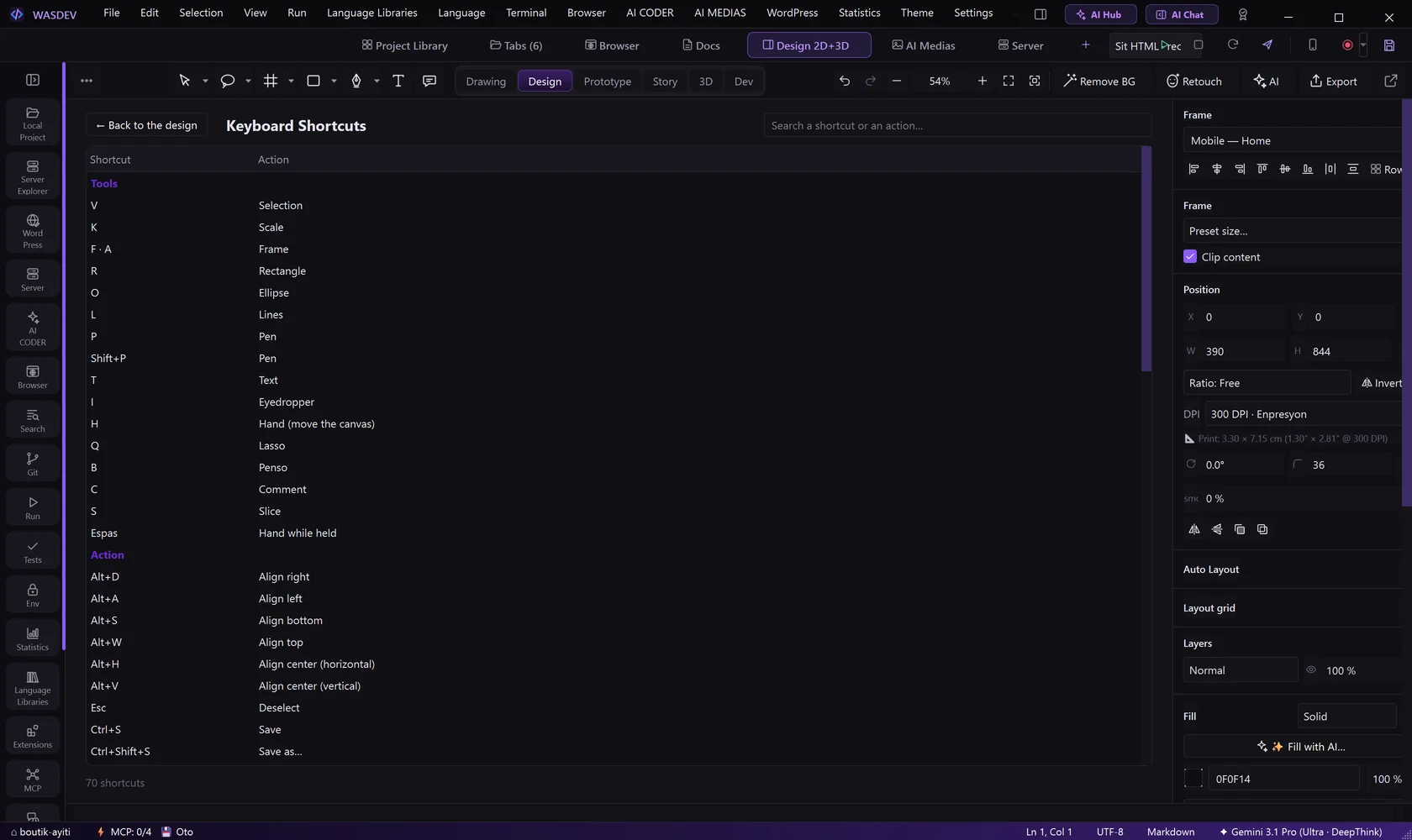
Ctrl+Dduplicates,Ctrl+Ggroups,Ctrl+Shift+Gungroups.Pis the pen,Shift+Pthe pencil,Bthe brush,Ca comment.Ctrl+Zundoes,Ctrl+Shift+Zredoes. The Actions Klik view in the activity bar shows the undo history.
Organise with layers and pages
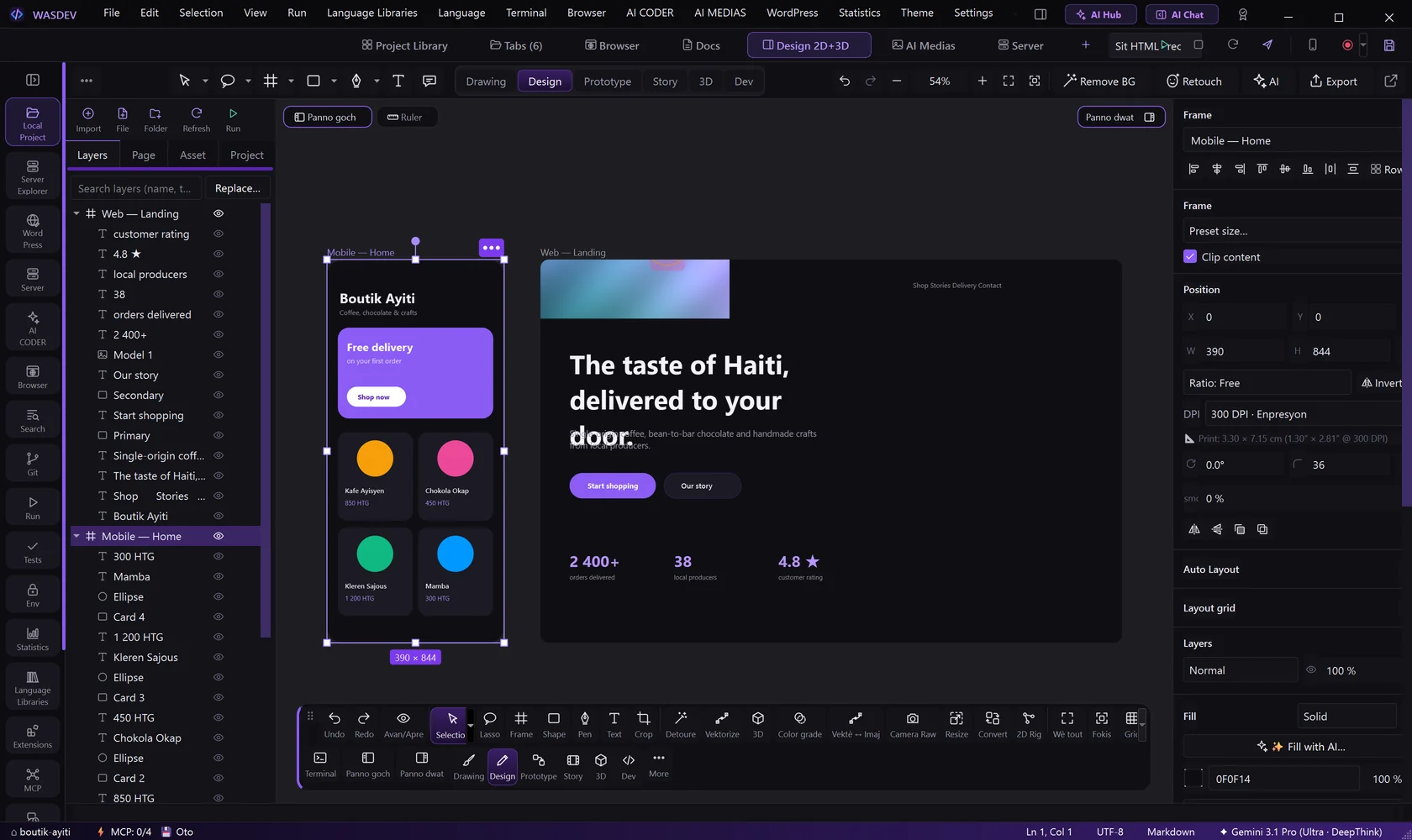
- In the left panel, open the tab Layers: every object of the page is listed.
- Drag a layer up or down to change what is in front.
- Use the eye and the lock on a layer to hide or lock it (
Ctrl+Shift+H,Ctrl+Shift+L). - Open the tab Page to add a page and move between pages.
Ctrl+]brings forward,Ctrl+[sends backward; withShiftadded, to the front or to the back.
Use auto layout and components
- Select several objects and press
Shift+A: they become an Auto Layout group that spaces them automatically. - In the right panel, set the direction, the gap and the padding.
- To reuse an element, select it and press
Ctrl+Alt+Shift+K(Create component). - Copies of a component are instances: change the component and all instances follow.
Ctrl+Alt+Bdetaches an instance.
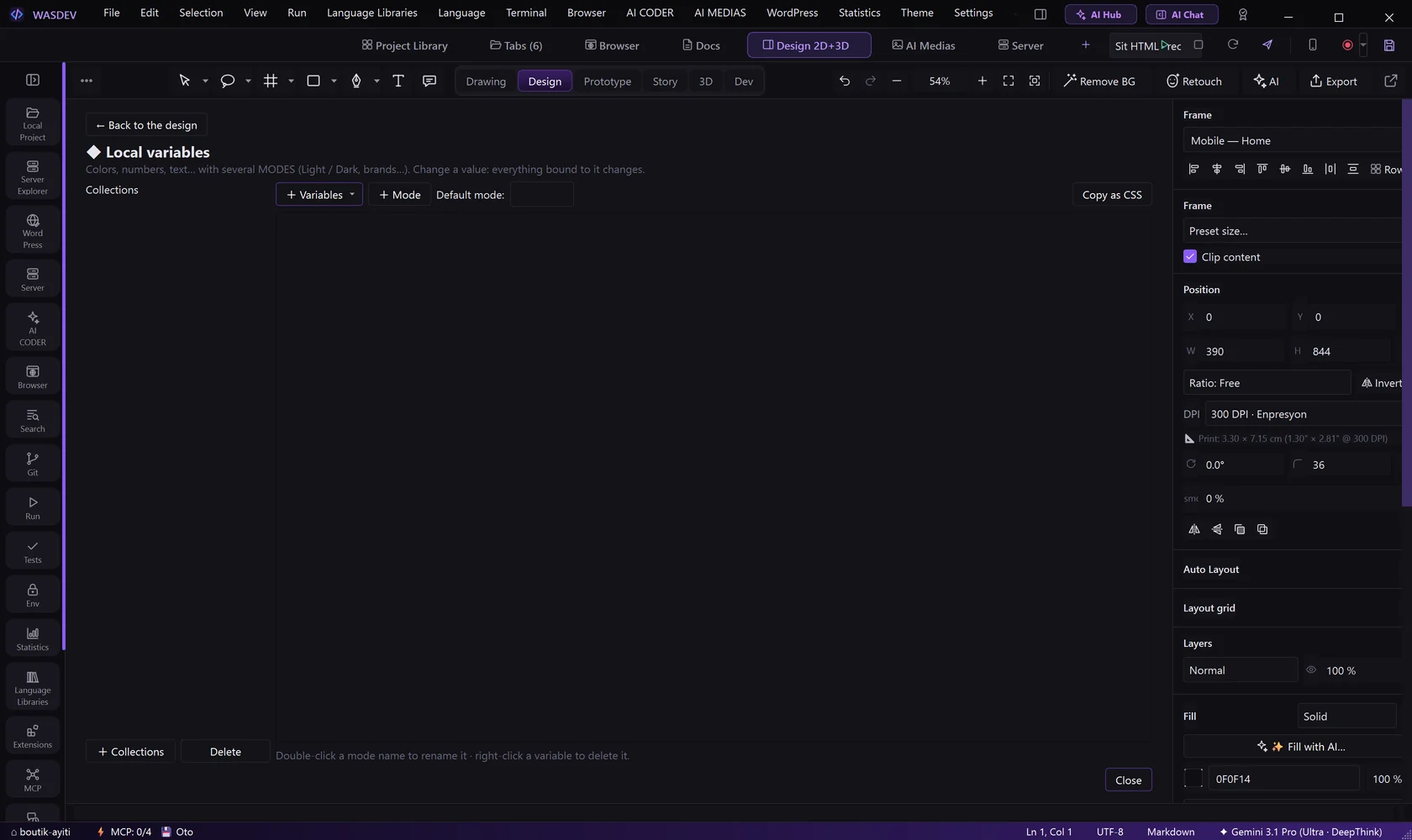
- Local variables… in the File menu stores colours, numbers and texts in collections with modes (for example light and dark), and can copy them as CSS.
Add ready-made assets and templates
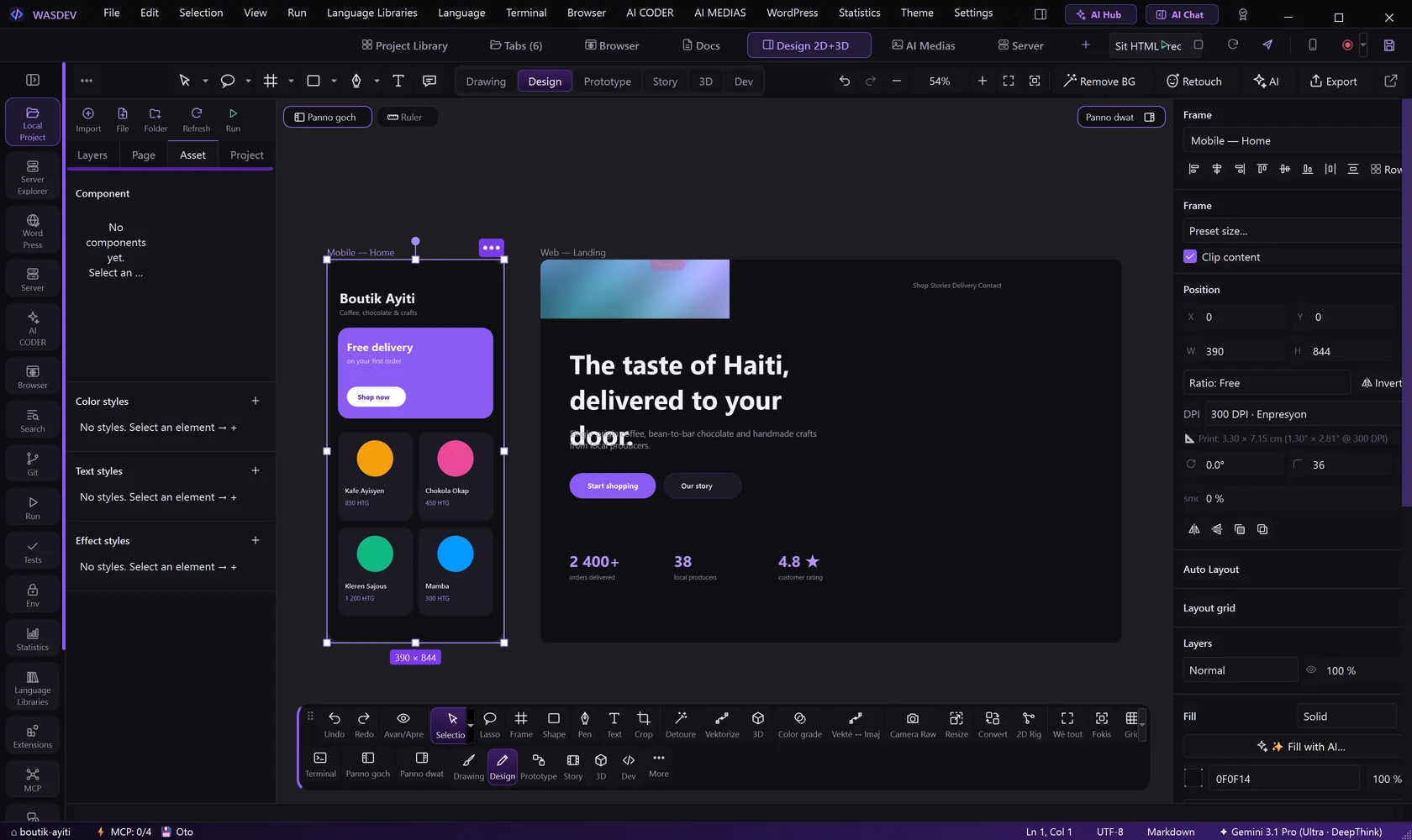
- In the left panel, open the tab Asset.
- Choose a category — 3D, Object, Shapes, Smoke, Splash, Lights, Mine or AI Medias — and drag an asset onto the canvas.
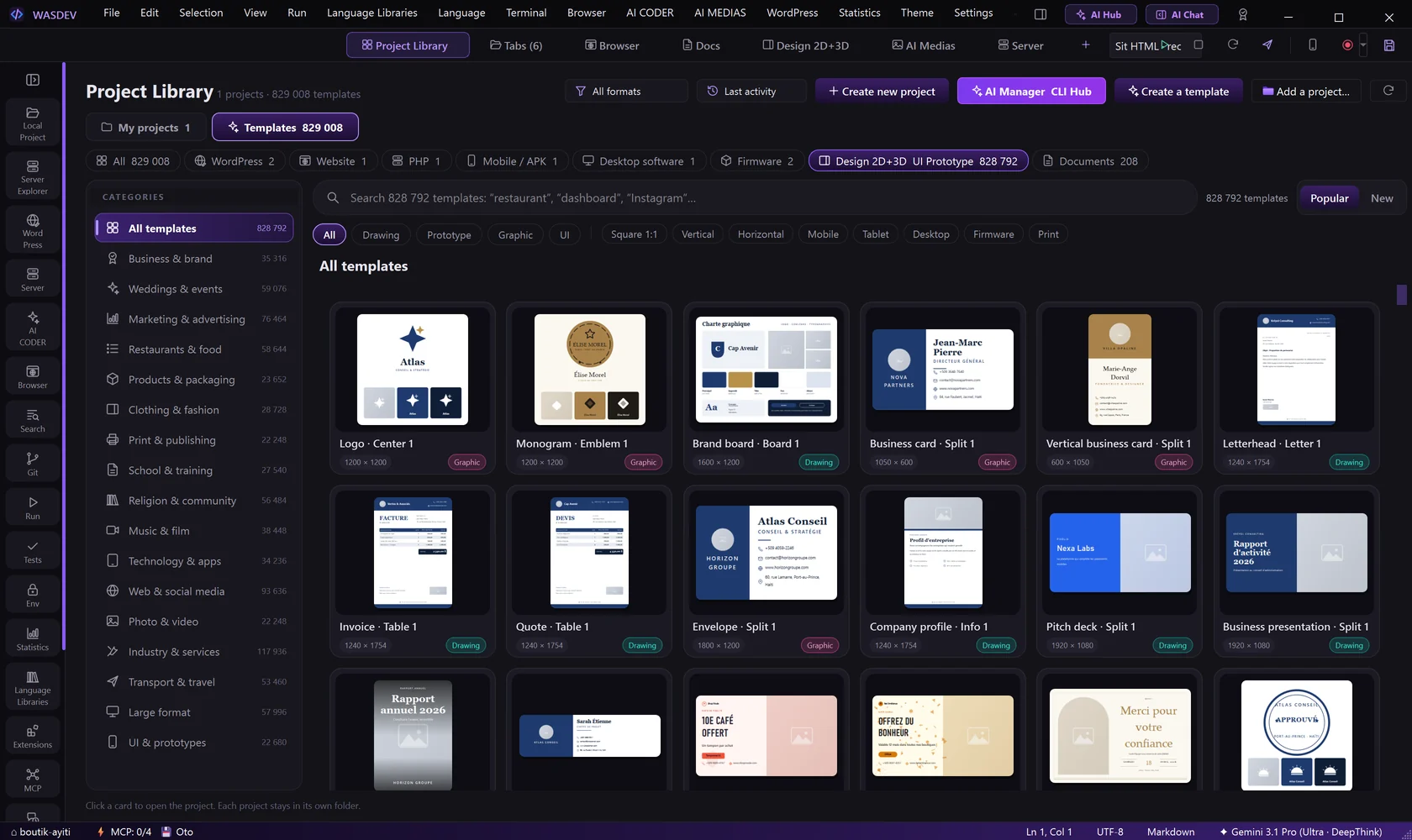
- For a complete design, open Project Library → Templates, choose the category Design 2D+3D UI Prototype, search or browse, and click Use this template.
- Add to the open design inserts a template into your current file instead of opening a new one.
Build a prototype
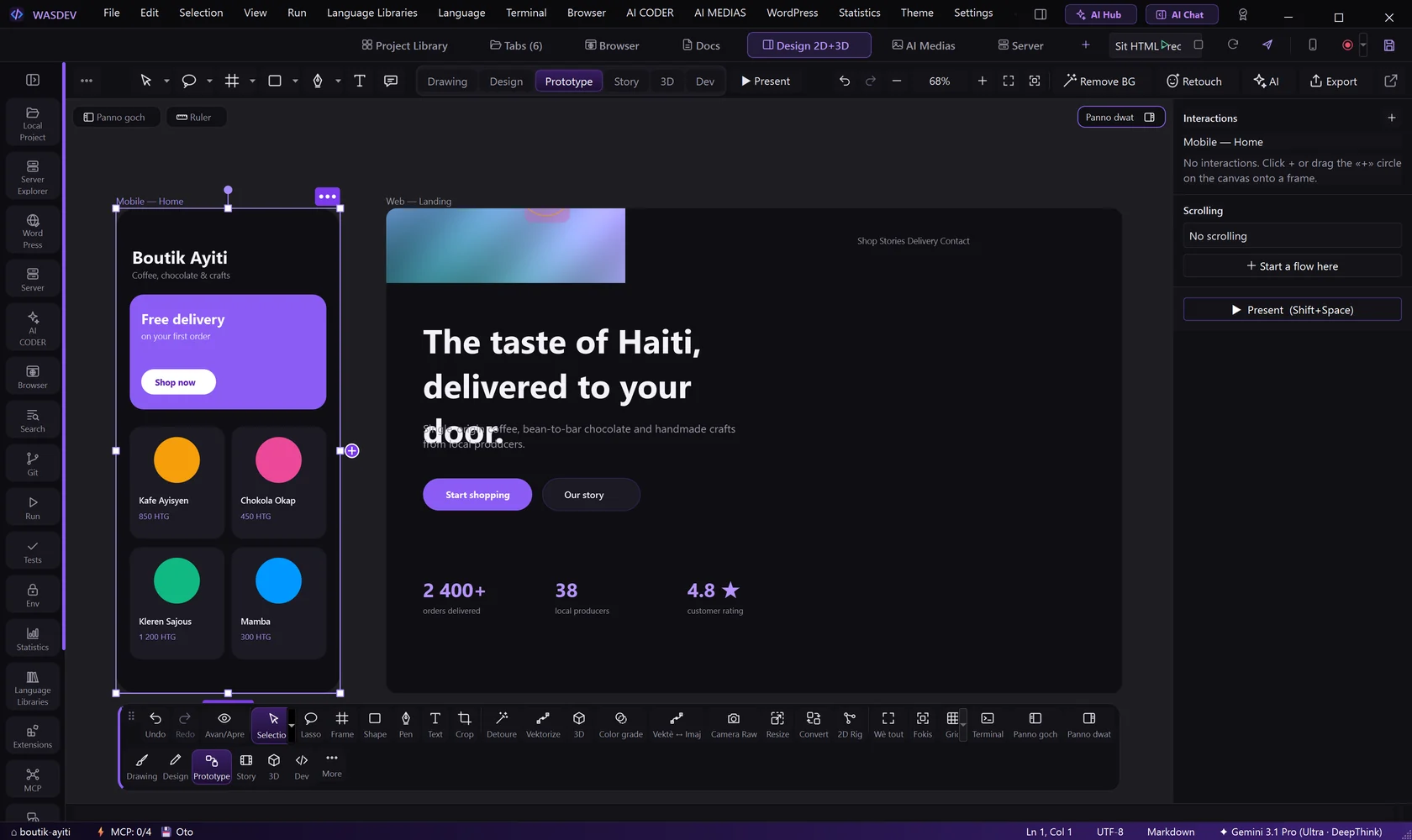
- In the top bar, switch the mode to Prototype.
- Select the object that should react, for example a button.
- In the right panel, under Interactions, choose the Trigger (for example a click), the Action and the Target frame.
- Under Animations, choose the Direction, the Easing and the Duration.
- Click Present (
Shift+Space). In the player, use Restart, Device bezel, Full screen and Exit.
- Flows names several starting points; Presentation device chooses the phone or screen shown around the prototype.
Tell a story with Storyteller
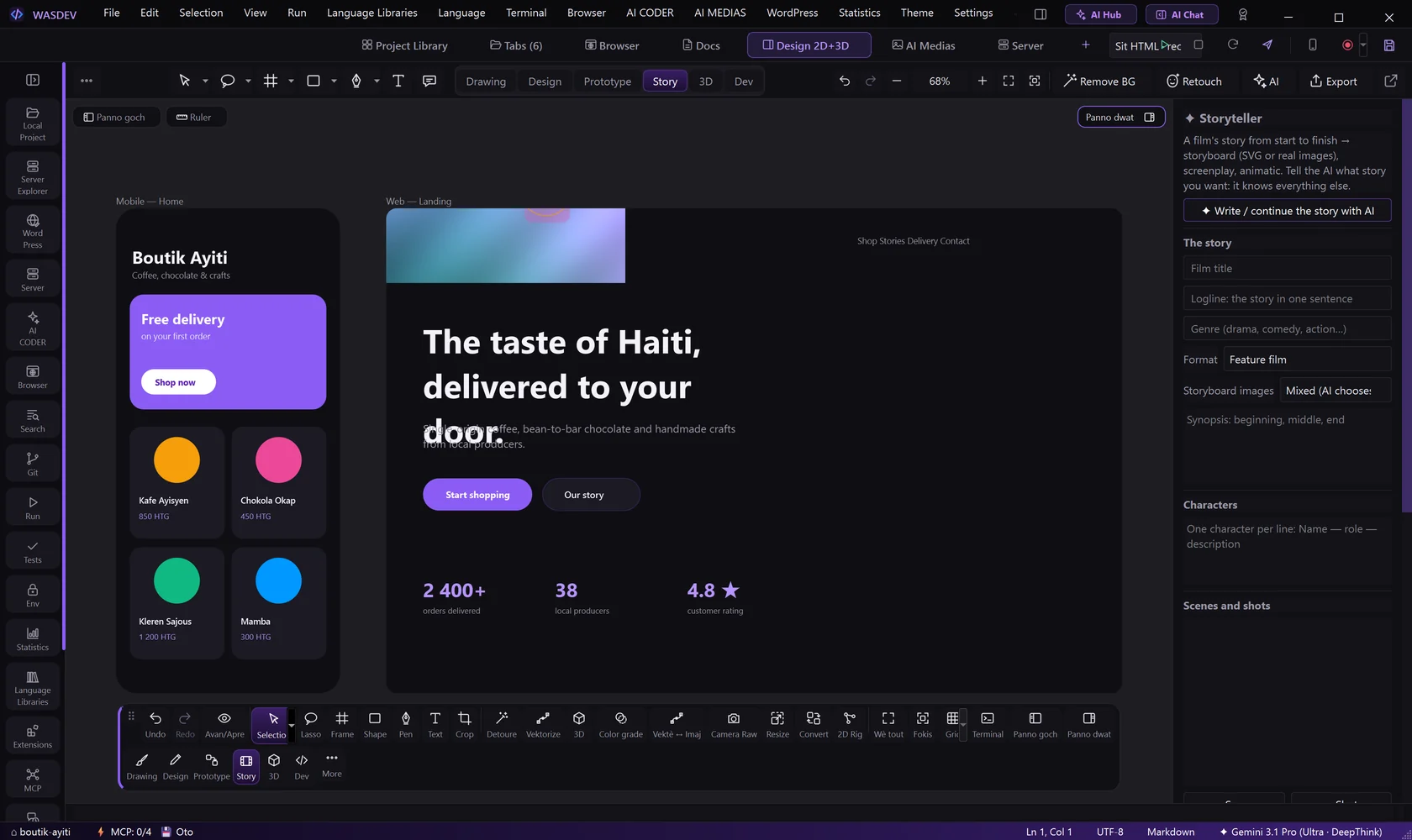
- Switch the mode to Story.
- Under The story, fill Film title, Logline, Genre, Synopsis and Format.
- Add your Characters.
- Under Scenes and shots, click + Scene, then + Shot for each shot.
- Click Build / update the storyboard to lay the shots out on the canvas.
- Click Play the animatic to watch the sequence.
- Write / continue the story with AI asks the AI to write from your logline.
- The AI can also generate the image of each shot in the style you choose: photo, 3D animated film, anime, comic, sketch or watercolour.
- Export storyboard / screenplay… produces a storyboard PDF, a screenplay in PDF, Word or Fountain, a shot list in Excel, or an animatic in HTML or MP4.
Work in 3D
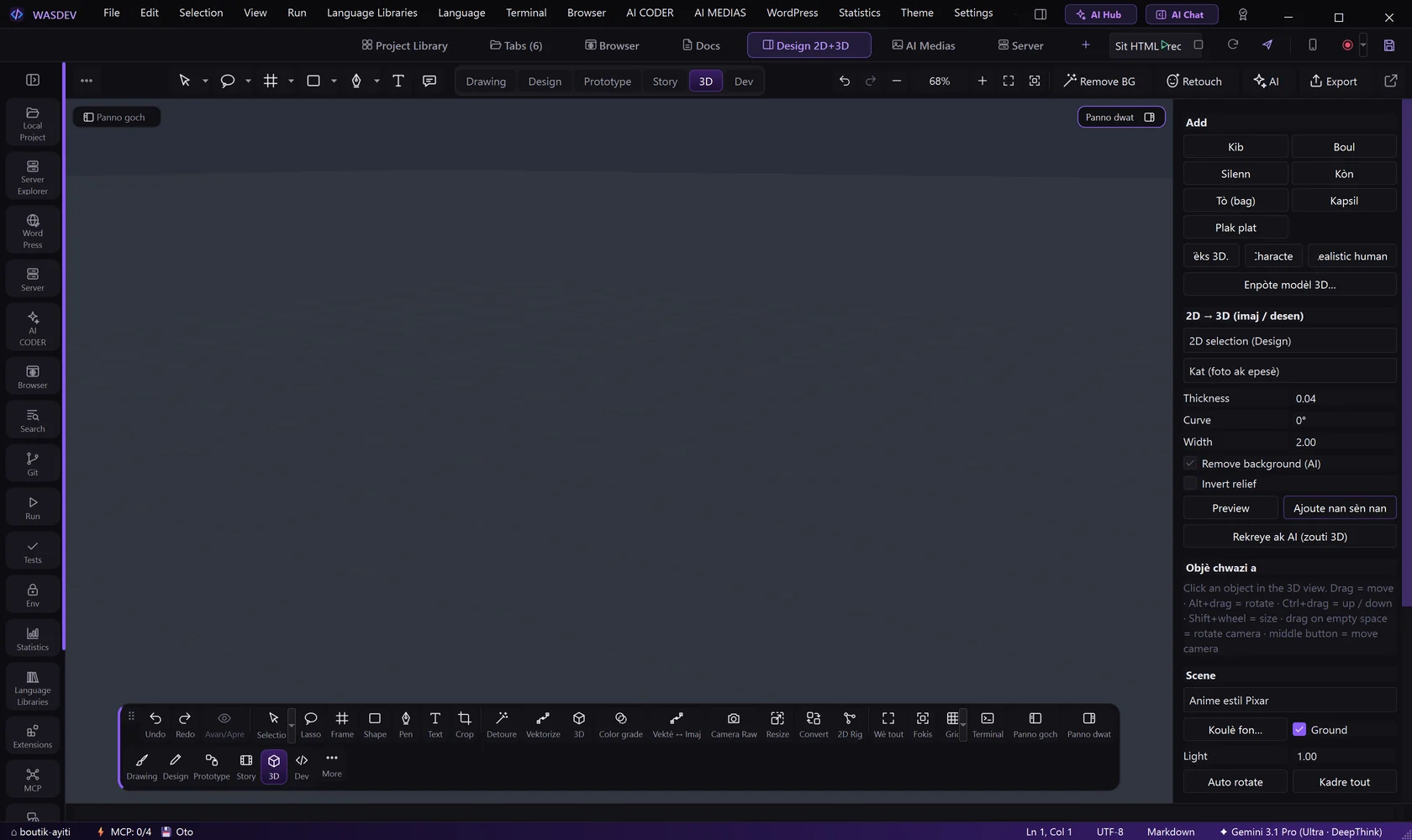
- Switch the mode to 3D.
- Add 3D Text, a character, or Import 3D model (
.obj,.stl,.ply,.gltf,.glb). - Adjust the material sliders, the Light and the Ground.
- Turn on Auto rotate or build a Scene animation with keyframes.
- Click Save 3D image (PNG) or Save video (MP4, WebM, MOV or PNG frames).
- An image can be turned into relief, inflated or curved. Photo → full 3D object uses an optional AI model that WASDEV proposes to install.
Hand over to code with Dev mode
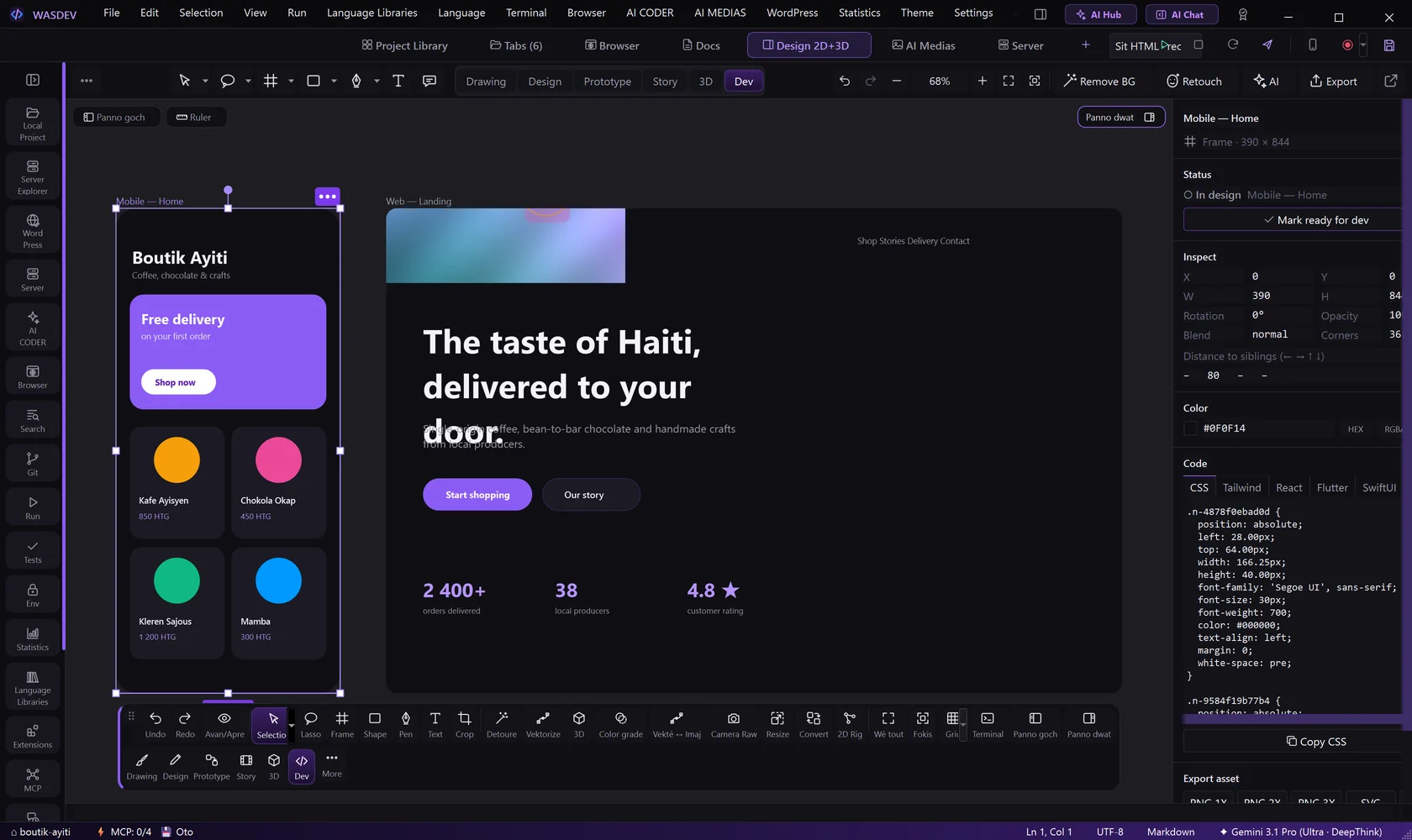
- Switch the mode to Dev.
- Click an object: Inspect shows its sizes, spacing, colours and Typography.
- Open Code, choose CSS, Tailwind, React, Flutter or SwiftUI, and copy the generated code.
- Click Copy as context for AI, then paste in the chat and ask the AI to build the screen.
- Mark ready for dev flags a frame as finished; Changes since ready shows what moved afterwards.
- In Design mode the AI does not write code or run commands unless your message says “code it”.
Let the AI draw
- Open the chat (
Ctrl+Alt+I) while the Design module is in front. - Describe the screen, for example:
Design a login screen for a mobile banking app, dark theme. - The AI adds frames, texts and shapes on the canvas while you watch. Everything stays editable.
/check-designruns a local check of the design without any AI.
Export the design
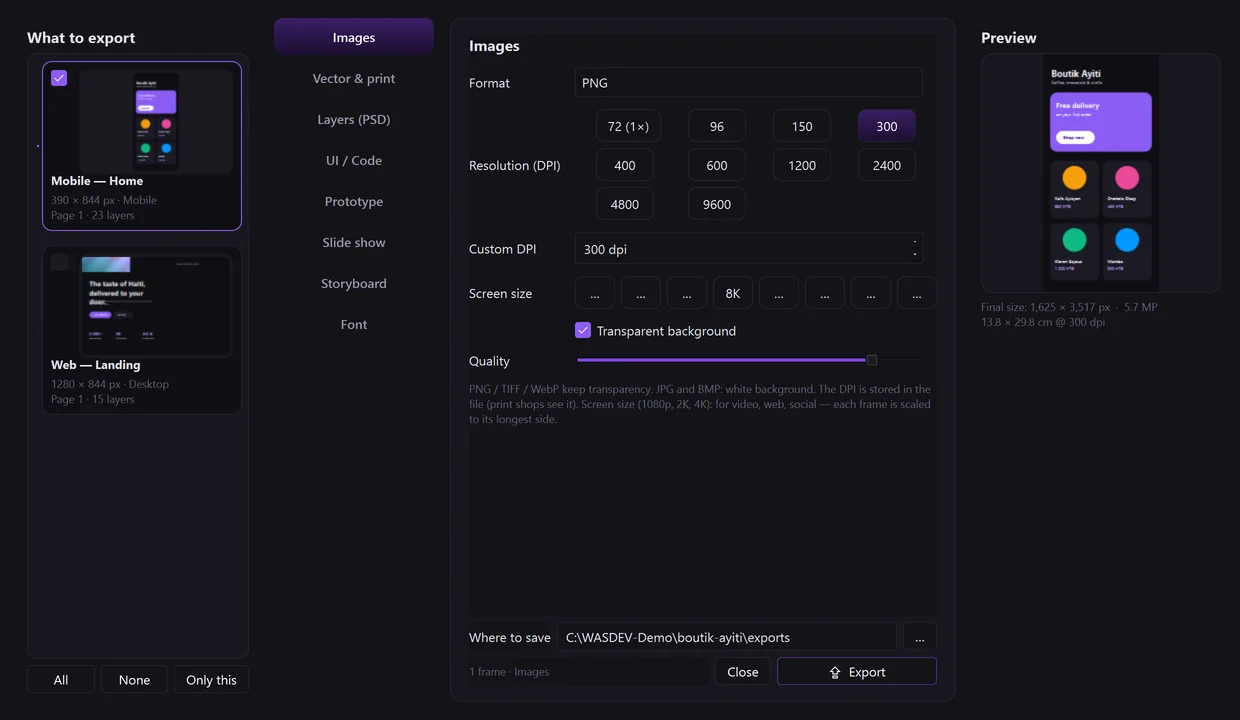
- Click Export in the top bar.
- Choose a section and a format from the list below.
- Choose where to save and confirm.
- Images: PNG, JPG, WebP, AVIF, TIFF, BMP, ICO, ICNS or an icon pack, with the resolution in DPI.
- Vector & print: SVG, PDF, or print PDF with bleed and crop marks.
- Layers: PSD.
- UI / Code: HTML + CSS or HTML + Tailwind.
- Prototype: an interactive HTML ZIP.
- Slide show: PPTX or PDF.
- Font: TTF, OTF, WOFF, WOFF2 or a CSS kit.
- Screenshot in the top bar captures the whole design as one image.
- Keyboard Shortcuts in the File menu (
Ctrl+Shift+/) lists every Design shortcut.