


Chapter 11
Documents: Word, Excel, PowerPoint, PDF
Create and edit office documents without Microsoft Office, start from a template, and ask the AI to write or correct a document.
Open the Docs Editor
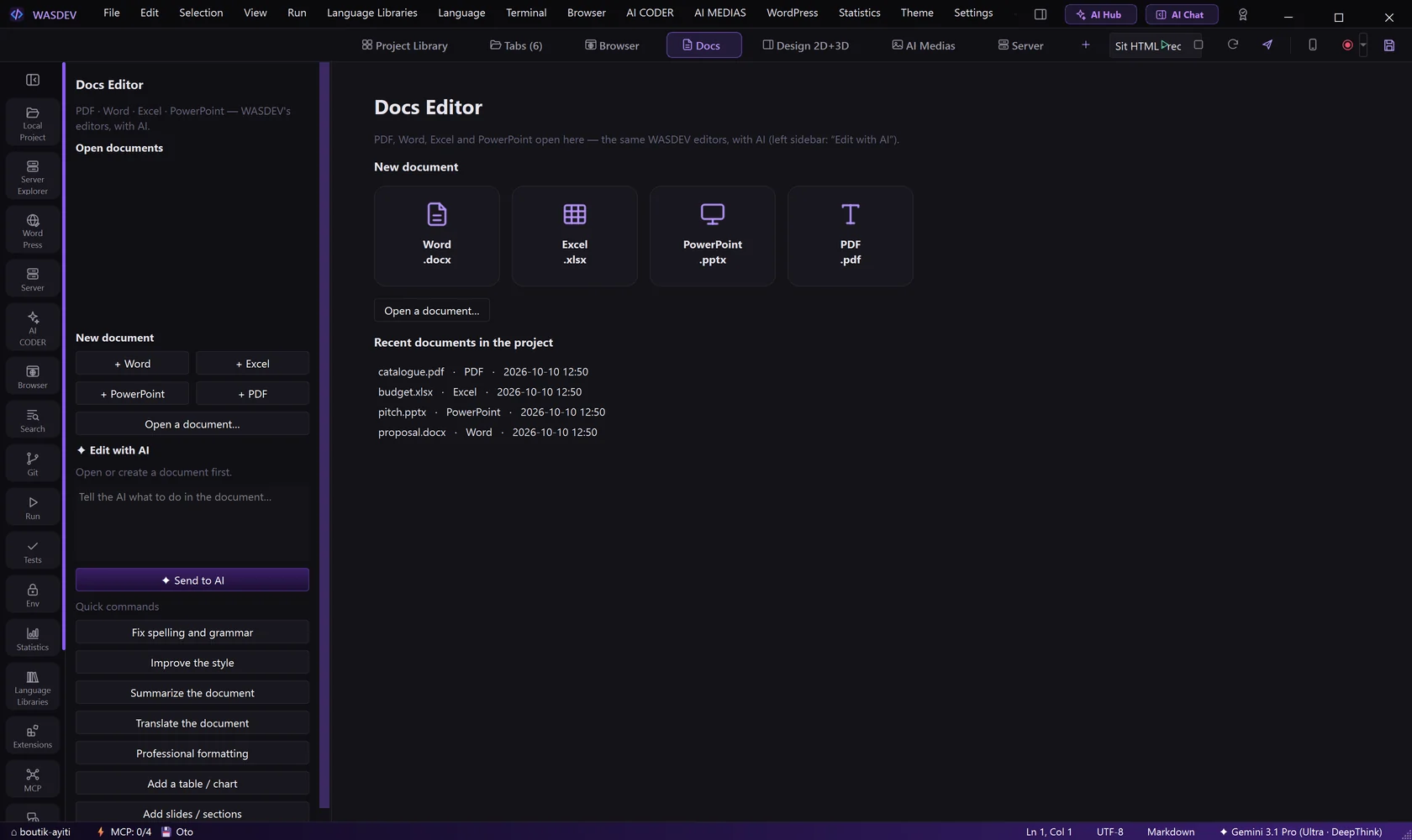
- Click Docs in the module bar, or press
Ctrl+Alt+F. - In the side panel, click New document and choose Word, Excel, PowerPoint or PDF.
- Or click Open a document… to open a file from your PC.
- Open documents and Recent documents in the project list what you worked on.
- Supported:
.docx,.docm,.dotx,.xlsx,.xlsm,.xltx,.pptx,.pptm,.ppsx,.potxand.pdf. OpenDocument spreadsheets (.ods) open read-only.
Start from a template
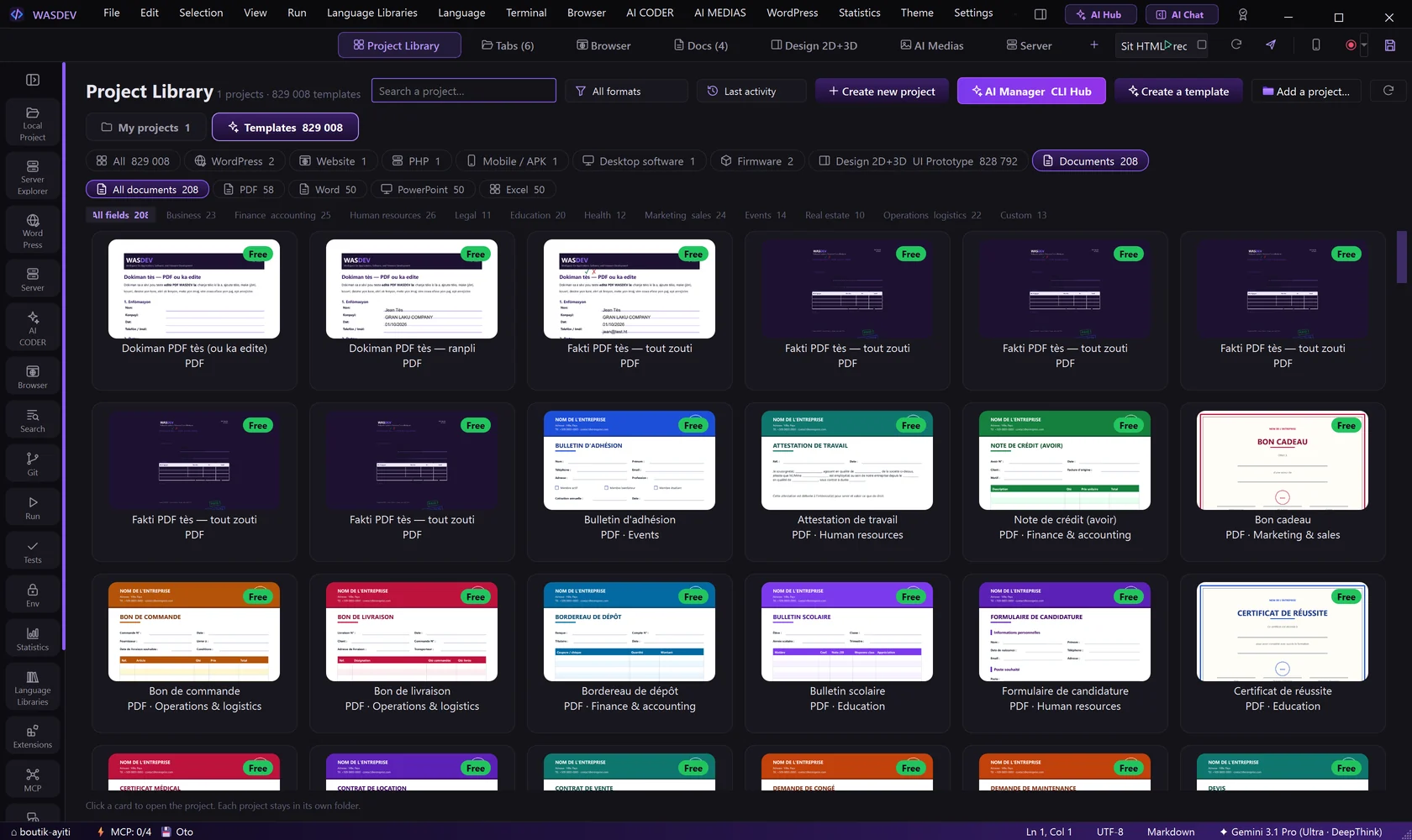
- Open Project Library → Templates and choose the category Documents, or pick a template when you create a new document.
- Choose a template: invoice, contract, CV, report and many more.
- WASDEV asks where to save a copy. Choose the folder and the name.
- A template file is never modified: you always work on your copy.
- Create a template saves one of your own documents as a template.
Write a Word document
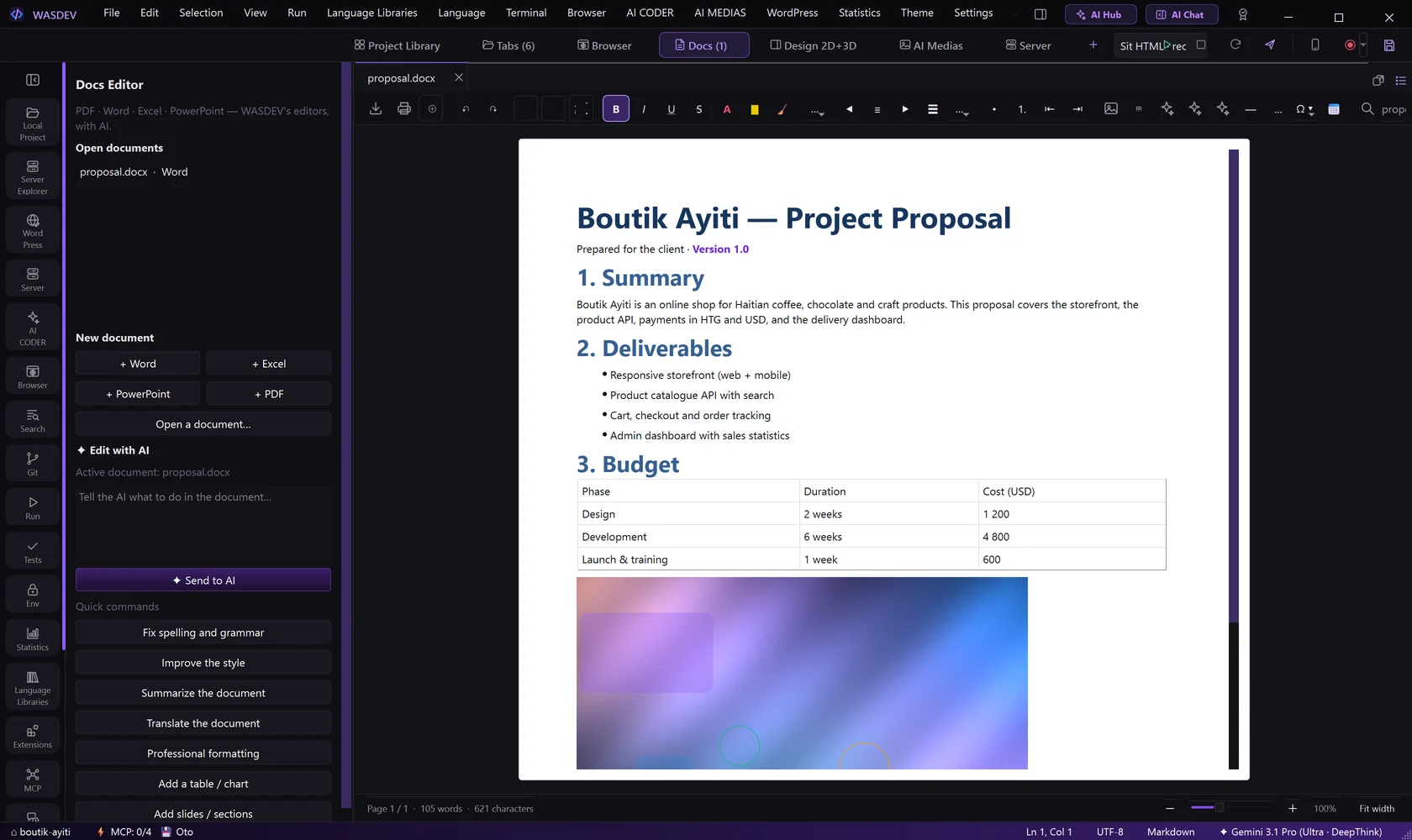
- Type your text. Choose a Paragraph style (title, heading, normal) in the toolbar.
- Select text and use Bold, Italic, Underline, Text color and Highlight color.
- Use the alignment, Line spacing, list and indent buttons for paragraphs.
- Insert with the toolbar: image, table, QR Code or Barcode, Shape, Text Art, Horizontal rule, Page break, Special symbols, Date and time.
- Press
Ctrl+Hfor Find and replace. - Save with
Ctrl+S.
- Export saves as PDF, Word, ODT, HTML, Markdown or plain text.
- Print (
Ctrl+Alt+P) sends the document to a printer.
Build a spreadsheet
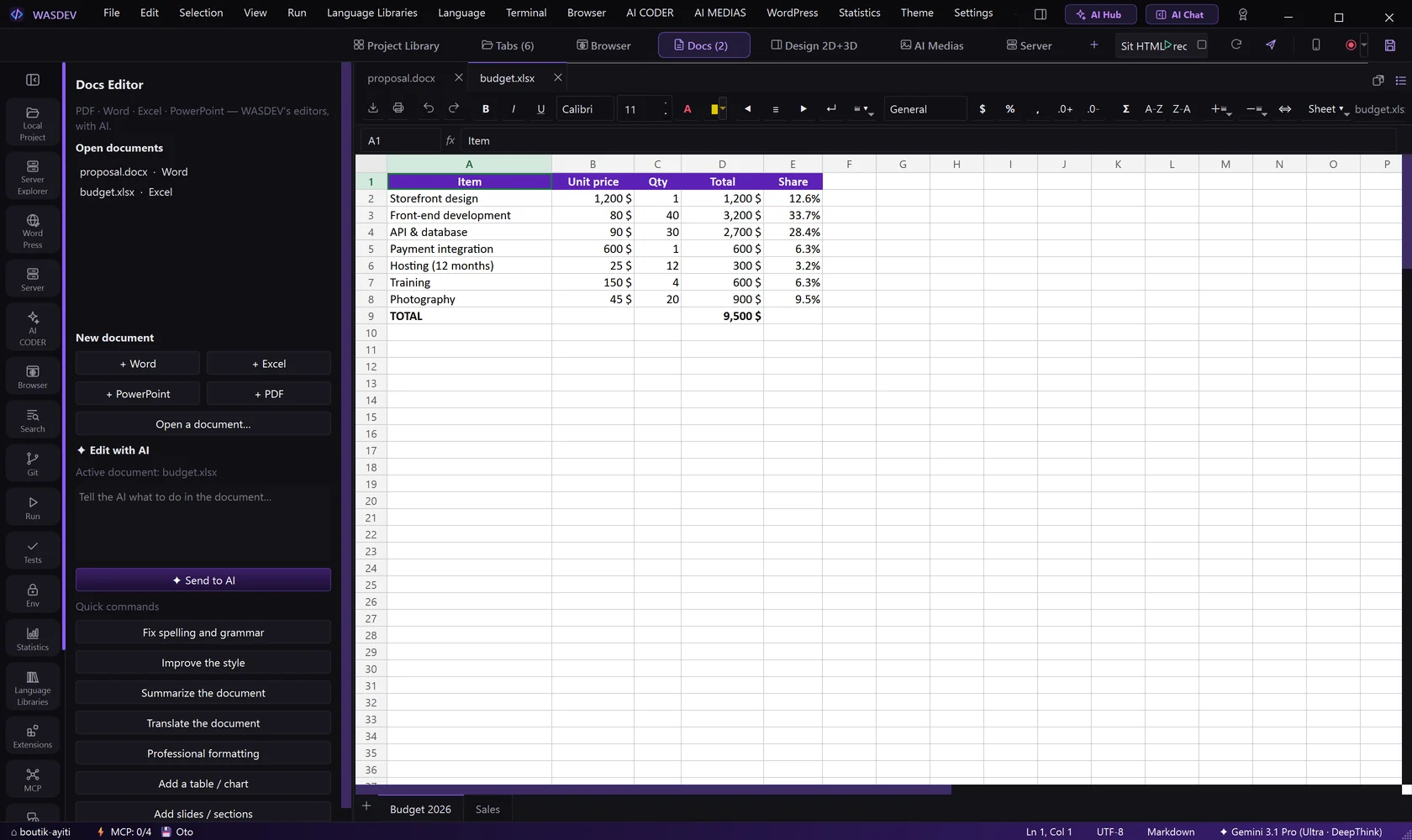
- Click a cell and type a value. Press
Enter. - Start a formula with
=, for example=SUM(B2:B10). The formula bar above the grid shows it. - Select a column of numbers and click AutoSum.
- Use Number format for Currency, Percent, Thousands separator and decimals.
- Use Fill color and Cell borders to shape the table; Merge / unmerge cells for titles.
- Sort A-Z and Sort Z-A order the selected column.
- Use the tabs at the bottom to change sheet; New sheet adds one.
Build a presentation
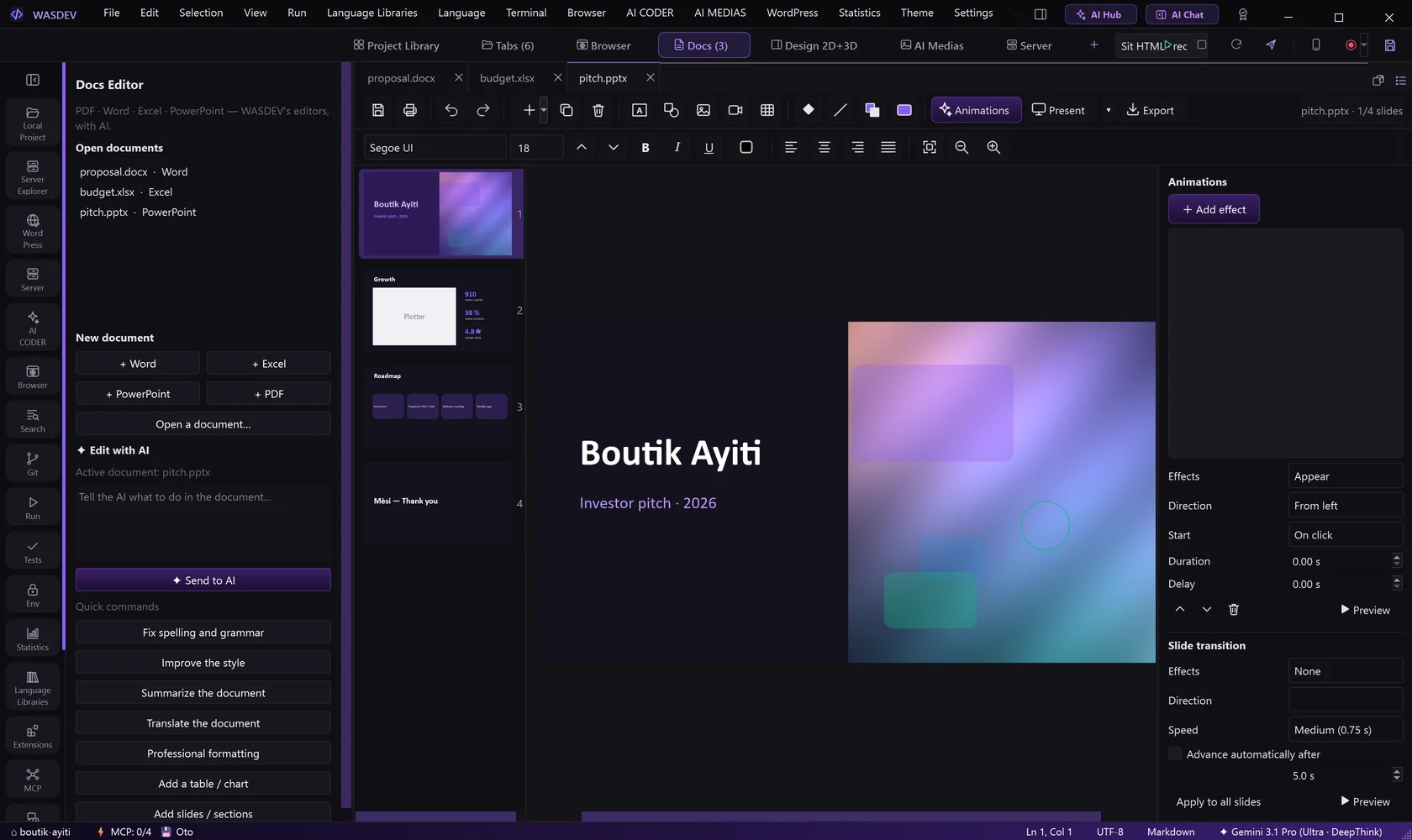
- Click New slide. Duplicate slide and Delete slide are next to it.
- Add content: Text box, Shapes, Picture…, Video… or Table.
- Select an object and use Shape fill, Outline, Arrange and Align shapes.
- Change the Slide background color.
- Open Animations and transitions: add an Entrance, Emphasis or Exit animation to an object, and a Slide transition to the slide.
- Press
F5for Present from beginning, or choose to present from the current slide.
- Phone as a remote control shows a QR code: scan it to change slides from your phone.
- Export saves all slides, or the current one, as PNG or JPEG, or the whole presentation as PDF.
Edit a PDF
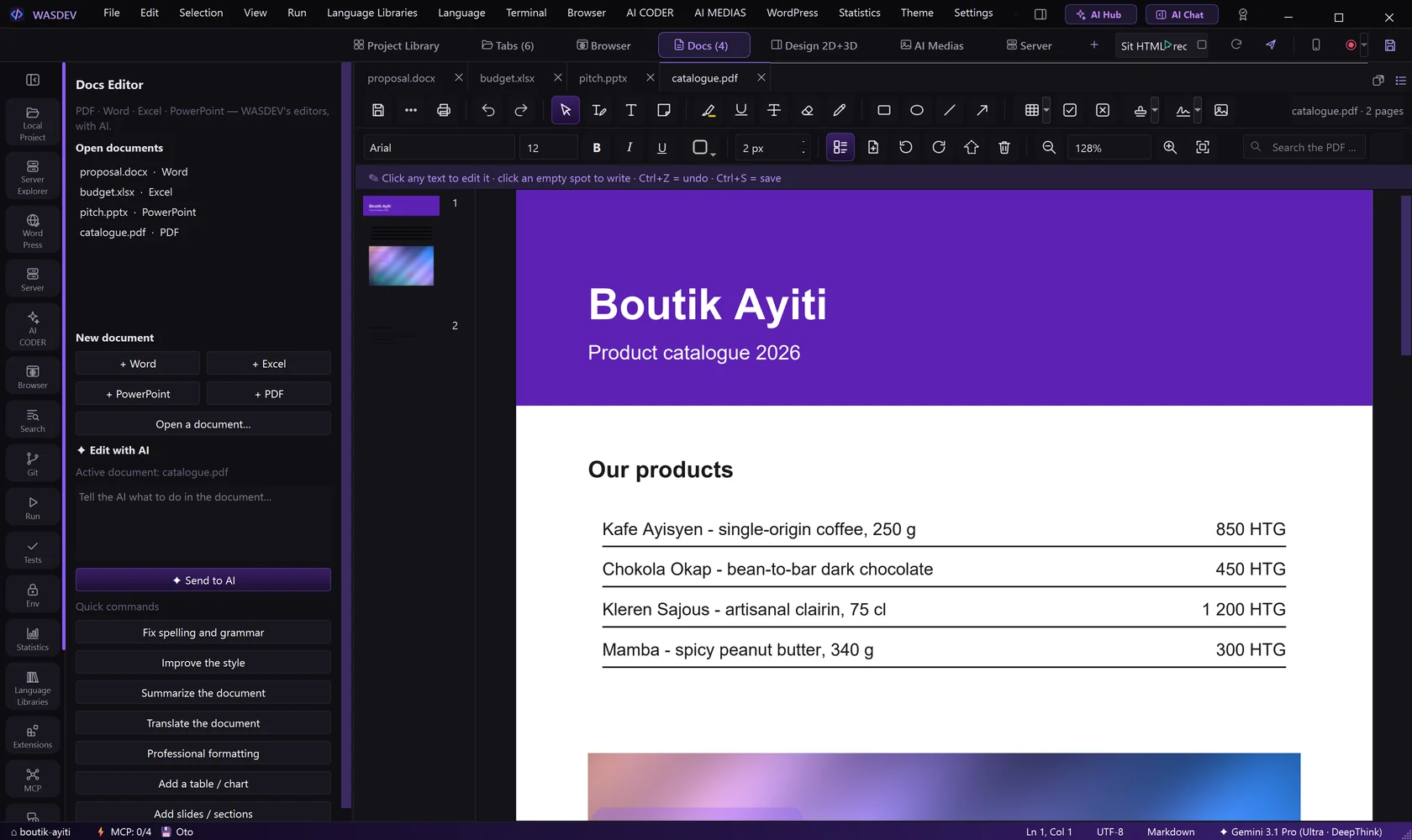
- Open a PDF. The pages are listed as thumbnails on the side.
- Click Edit text and click a line to correct it, or Add text to write somewhere new.
- Annotate with Highlighter, Underline, Strikethrough, Insert comment, Pen, shapes and arrows.
- Click White-out to hide something.
- Click Signature and choose Draw, Type Text, Stamp & Mark or Import, then place it on the page.
- Right-click a thumbnail to add a blank page, insert the pages of another PDF, move, extract, rotate or delete a page.
- Save with
Ctrl+S, or use Save as… to keep the original.
- Add watermark writes a text across every page. Search the PDF finds a word.
- Export this page as an image (PNG)… saves one page as a picture.
Ask the AI to work on a document
- In the side panel of the Docs Editor, type a request in the AI box and click Send to AI, or use a quick command: Fix spelling and grammar, Improve the style, Summarize the document, Translate the document, Professional formatting, Add a table / chart, Add slides / sections.
- To create a document from nothing, open the chat (
Ctrl+Alt+I) and ask, for example:Create a 10-slide pitch deck for an online shop. - The AI creates the real file in your project and opens it. Correct the details in the editor.
/check-docchecks the open document locally, without any AI.