

Chapter 2
Getting started
Install WASDEV, choose your language, learn the parts of the window and create your first project.
Install WASDEV
WASDEV runs on Windows 10 and Windows 11, 64-bit. The installer is an MSI file of about 860 MB and installs for the current Windows user, without an administrator password.
- Download the installer from the Download page of the website.
- Double-click the downloaded
.msifile and follow the installer. - Start WASDEV from the Start menu.
- The first 14 days are a free trial with every feature unlocked. Nothing has to be activated during the trial.
- WASDEV does not include an API key or a paid AI account. The chapter AI Hub and AI CLIs shows how to connect your own.
Windows SmartScreen and browser warnings
Because WASDEV is independent software distributed directly without an expensive enterprise certificate, Windows SmartScreen and web browsers may display a standard security notice on first download.
- In Google Chrome or Microsoft Edge: If the browser displays “This file is not commonly downloaded”, click the menu (···) next to the file, choose Keep, and select Keep anyway.
- In Windows Defender SmartScreen: If Windows displays a blue window saying “Windows protected your PC”, click More info.
- Click Run anyway: Click the Run anyway button at the bottom right. The installer launches immediately.
- WASDEV is a clean Windows Installer (
.msi) that installs strictly in your user profile (%LOCALAPPDATA%\Programs\WASDEV). - No administrator password is required and no system files are modified.
- Every release package is cryptographically signed with SHA-256 for tamper-proof verification.
Choose the interface language
WASDEV starts in Haitian Creole. Eight languages are available: Kreyòl, English, Français, Español, Português, Deutsch, Italiano and Русский.
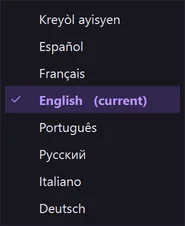
- In the title bar, open the Language menu (Lang when the interface is in Creole).
- Click the language you want.
- The whole interface changes at once. No restart is needed.
- The same choice exists in Settings → General → Language.
- The AI answers in the language of the interface unless you write to it in another one.
Understand the window
Every module of WASDEV lives in the same window, organised in six areas.
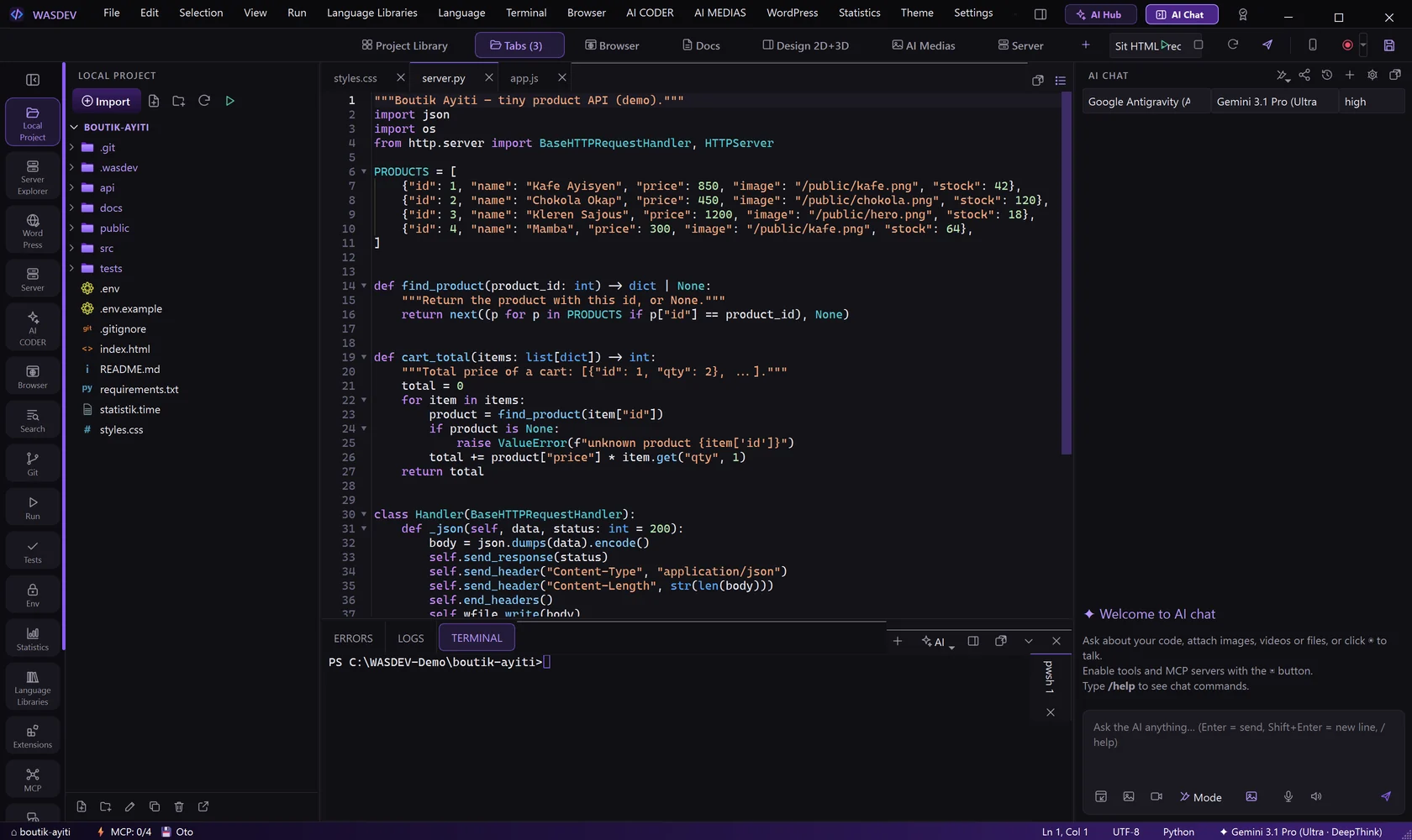
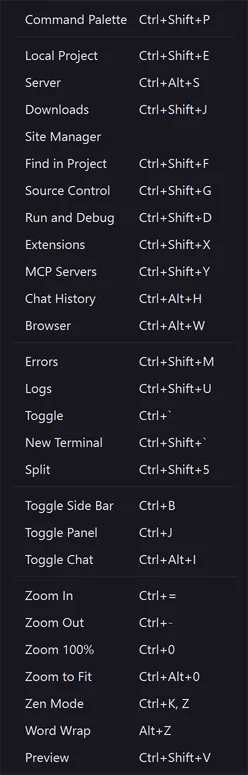
- Title bar (top): the menus File, Edit, Selection, View, Run, Language Libraries, Language, Terminal, Browser, AI CODER, AI MEDIAS, WordPress, Statistics, Theme, Settings, Workspace and Help, then the buttons AI Hub and AI Chat and the profile icon.
- Module bar (under the title bar): Project Library, Tabs, Browser, Docs, Design 2D+3D, AI Medias and Server. On its right: New project, the run configuration, Run, Stop, Restart, Deploy, the phone button and the record button.
- Activity bar (left edge): one icon per side view — Local Project, Server Explorer, WordPress, Server, AI CODER, Browser, Search, Git, Run, Tests, Env, Statistics, Language Libraries, Extensions, MCP, Chat History, Downloads — and at the bottom Profile and Settings.
- Side bar: shows the view chosen in the activity bar.
Ctrl+Bhides or shows it. - Centre: the open file, document, design or page.
- Right dock: the AI chat (
Ctrl+Alt+I). Bottom panel: ERRORS, LOGS and TERMINAL (Ctrl+J).
- The status bar at the very bottom shows the project folder, MCP, the cursor position, the file language, the AI model and the licence state.
Create your first project
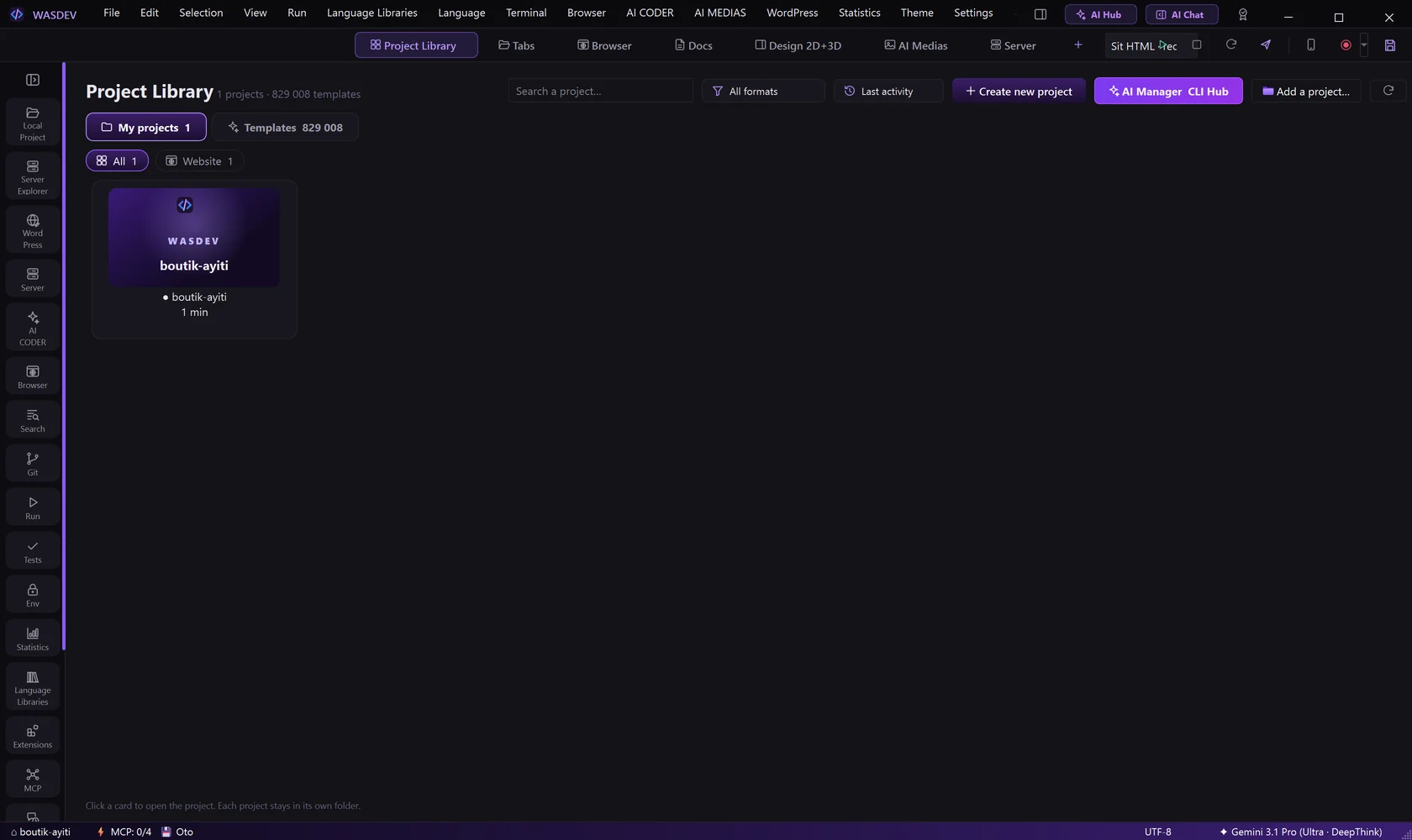
- Click Project Library in the module bar.
- Click Create new project.
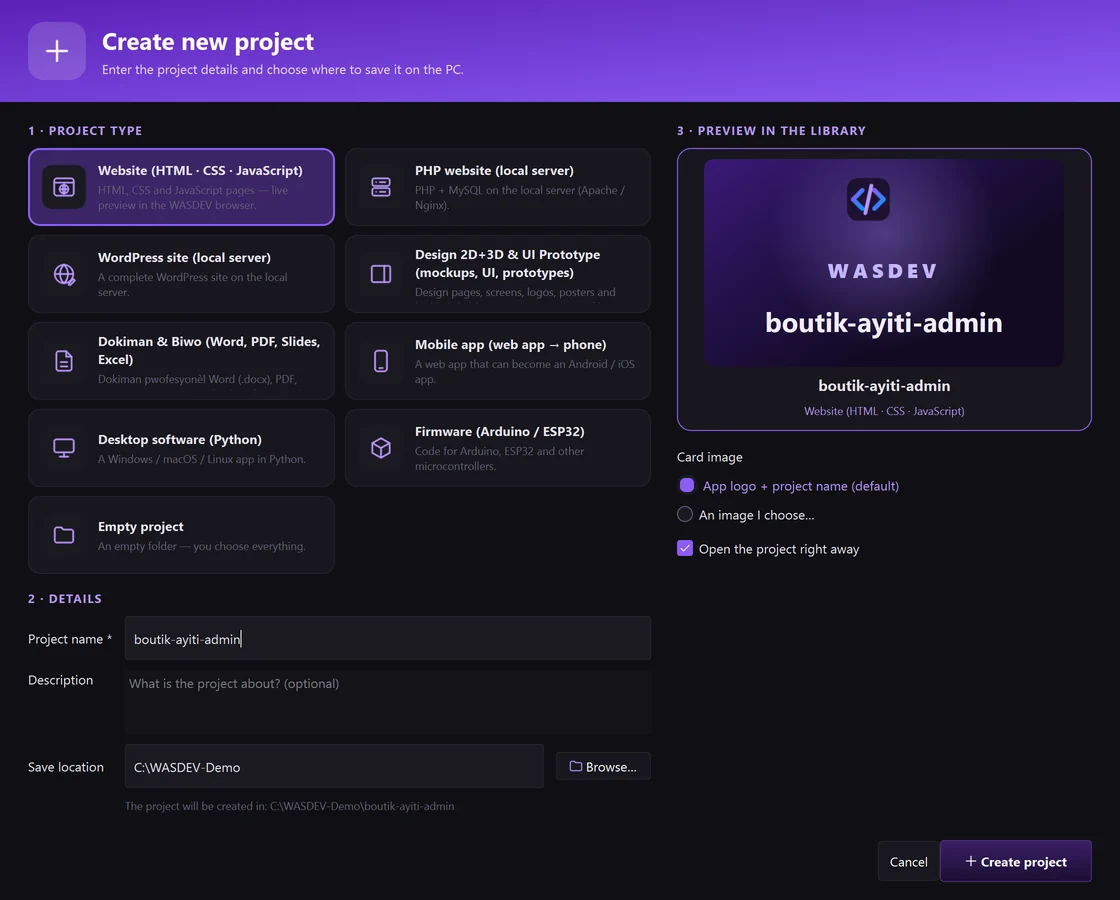
- Choose a Project type: Website (HTML · CSS · JavaScript), PHP website, WordPress site, Design 2D+3D & UI Prototype, Documents & Office, Mobile app, Desktop software (Python), Firmware (Arduino / ESP32) or Empty project.
- Type the Project name and, if you want, a Description.
- Check the Save location and choose a Card image if you want one.
- Leave Open the project right away ticked and click Create project.
- The project opens and every module — files, terminal, chat, browser, server — now works on that folder.
Open a project you already have
- Open the File menu and click Open Folder… (
Ctrl+KthenCtrl+O). - Select the folder of your project and confirm.
- The files appear in the Local Project view (
Ctrl+Shift+E).
- In Project Library, Add a project… adds an existing folder as a card without moving it.
- File → New Window (
Ctrl+Shift+N) opens a second project side by side.
Find any command
Two search boxes reach everything without the mouse.
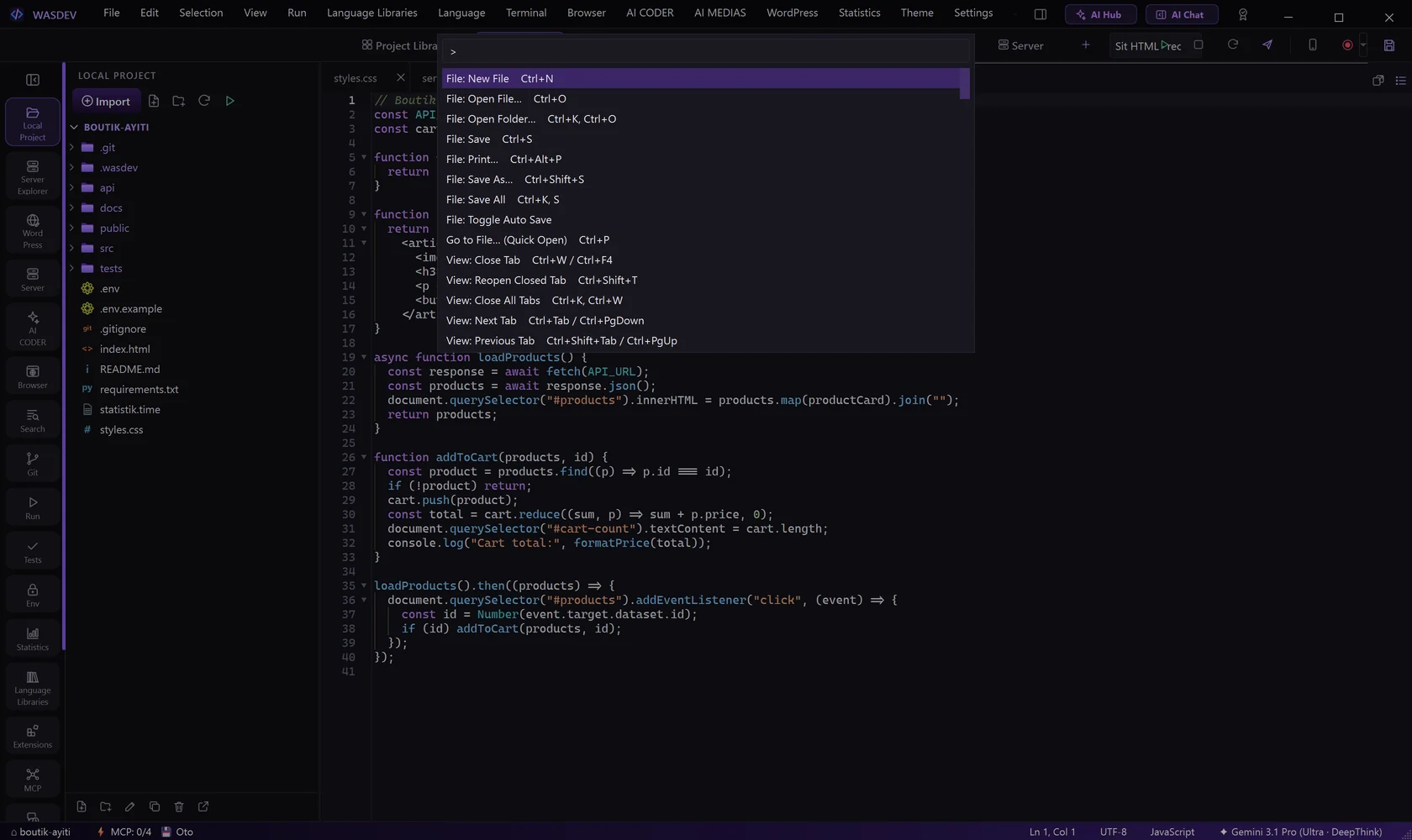
- Press
Ctrl+Shift+P(orF1) to open the Command Palette. - Type a few letters of what you want, for example
themeorterminal. - Press
Enterto run the selected command.
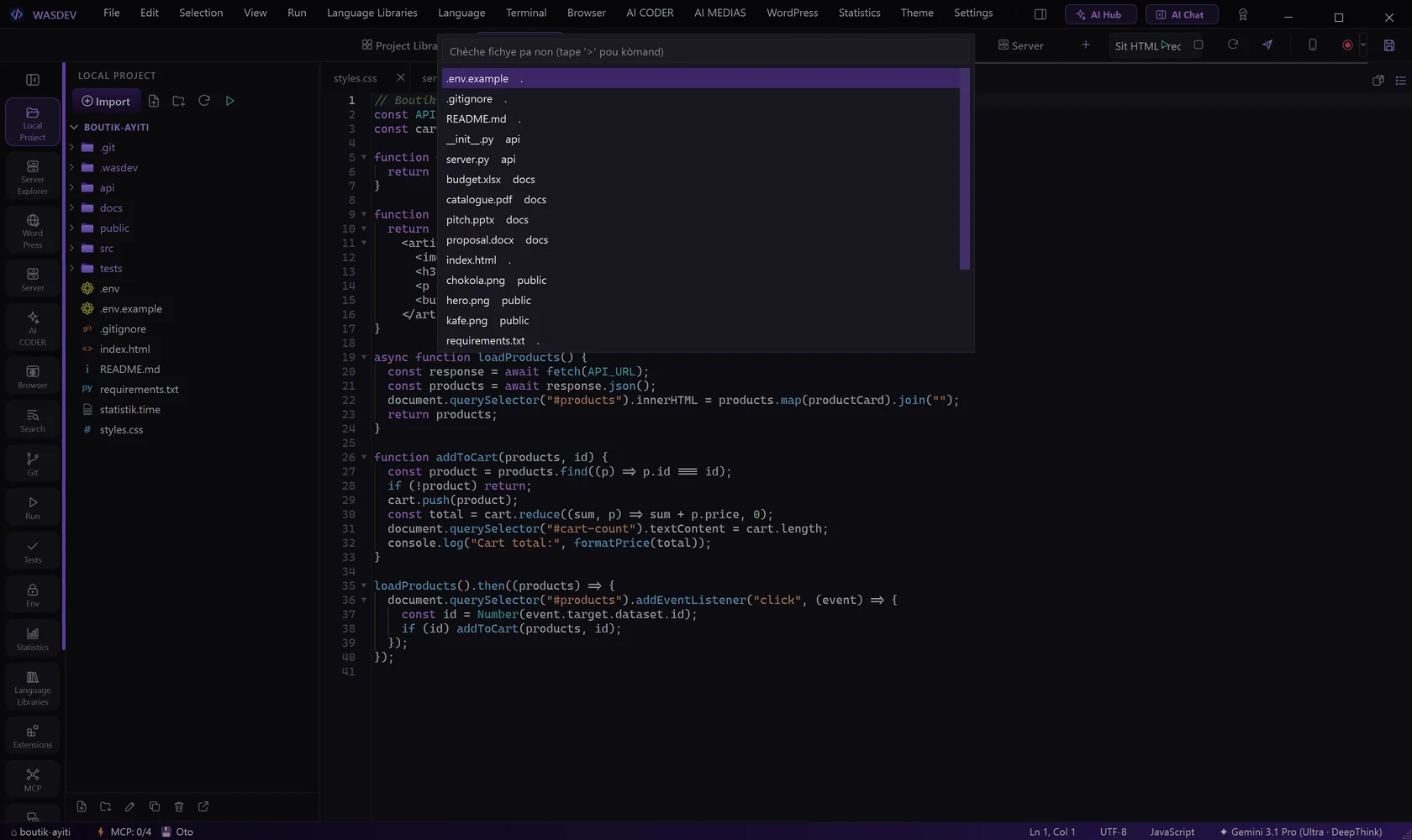
- Press
Ctrl+Pto open Quick Open, type part of a file name and pressEnterto open it.
- In Quick Open, type
>first to switch to commands.
Choose a layout and a theme
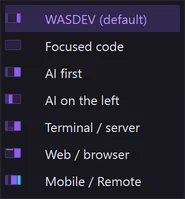
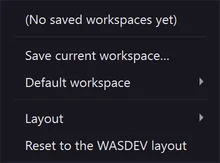
- Open the Workspace menu and point to Layout.
- Choose one of the seven layouts: WASDEV (default), Focused code, AI first, AI on the left, Terminal / server, Web / browser or Mobile / Remote.
- Open the Theme menu and click a theme to apply it immediately.
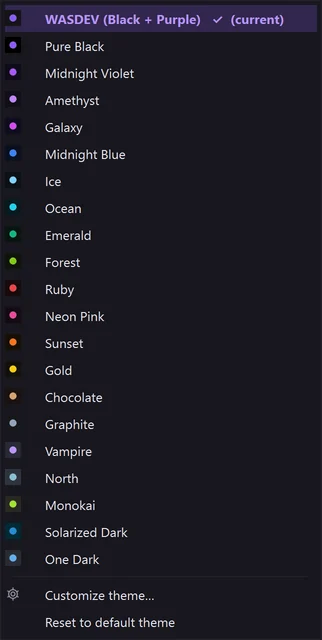
- Customize theme… opens the theme editor, where you can create your own colours.
- Workspace → Save current workspace… keeps the arrangement of panels under a name so that you can return to it later.
Ctrl+KthenZenters Zen Mode, which hides everything except the editor.