


Chapter 8
Git and GitHub
Keep the history of your project: commit, branches, synchronise with GitHub, pull requests and conflict resolution.
Start version control
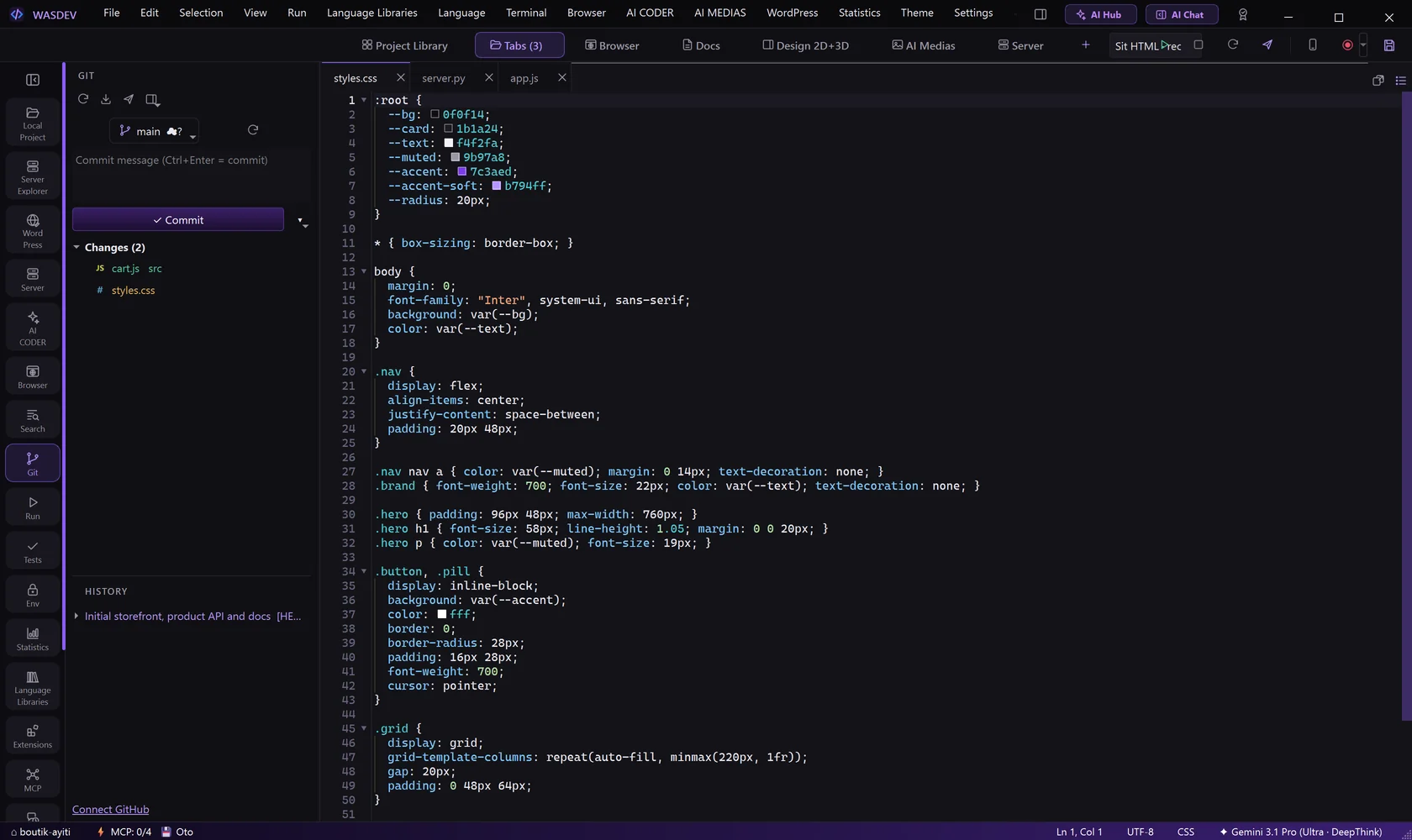
- Click the Git icon in the activity bar, or press
Ctrl+Shift+G. - If Git is not on the PC, click Install Git.
- Open More Git actions and click Initialize a Git repository.
- To copy an existing project instead, choose Clone a repository (GitHub / URL)… and paste its address.
Commit your changes
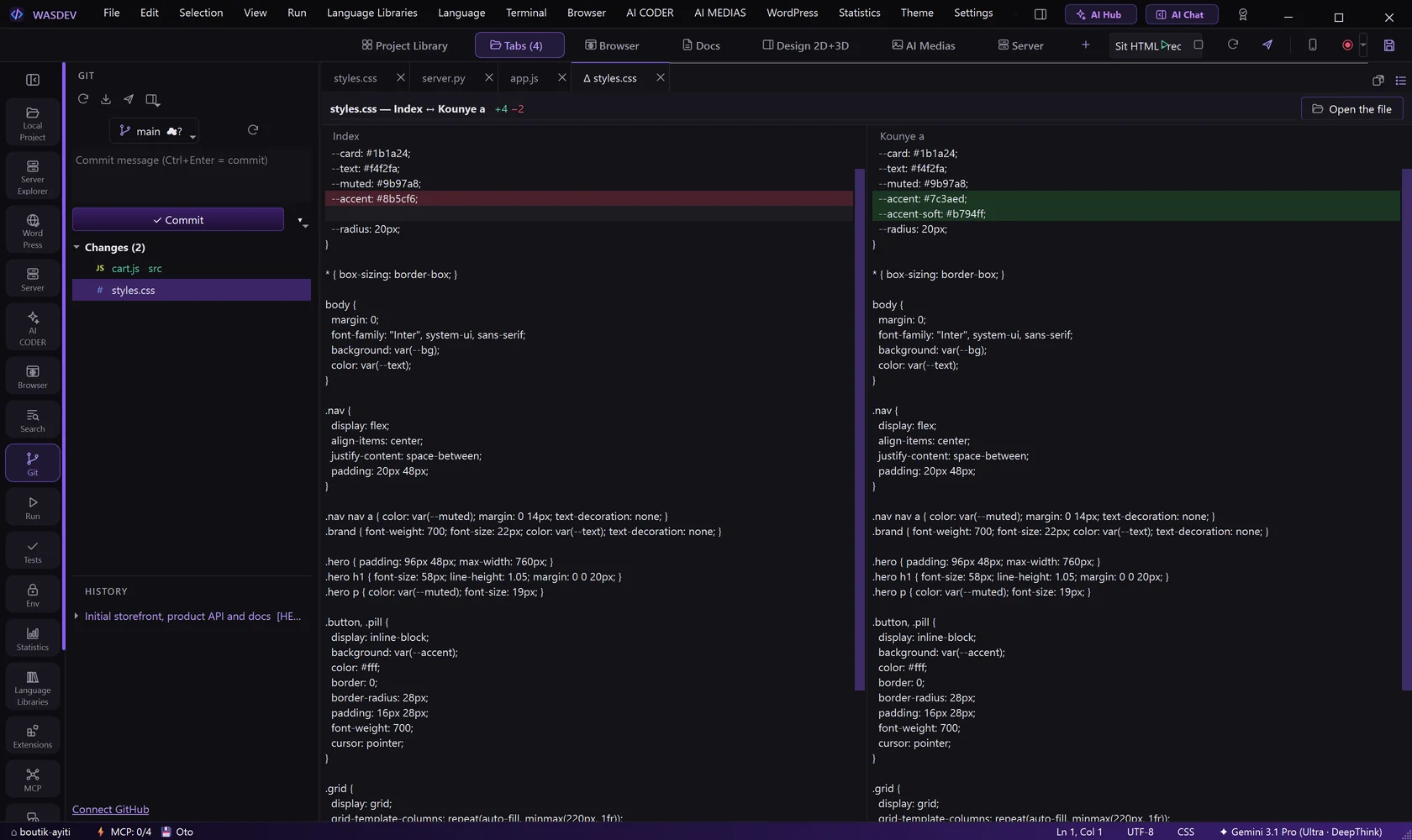
- In the Git view, look at the group Changes: every modified file is listed.
- Click a file to see what changed.
- Click Stage on each file to include, or stage everything. The files move to Staged changes.
- Type a message in the commit box, for example
Add the contact page. - Click Commit, or press
Ctrl+Enter.
- Commit & Push commits and sends to the server in one step.
- Amend last commit adds your changes to the previous commit.
- Discard changes… returns a file to its last committed state. This cannot be undone.
Work with branches
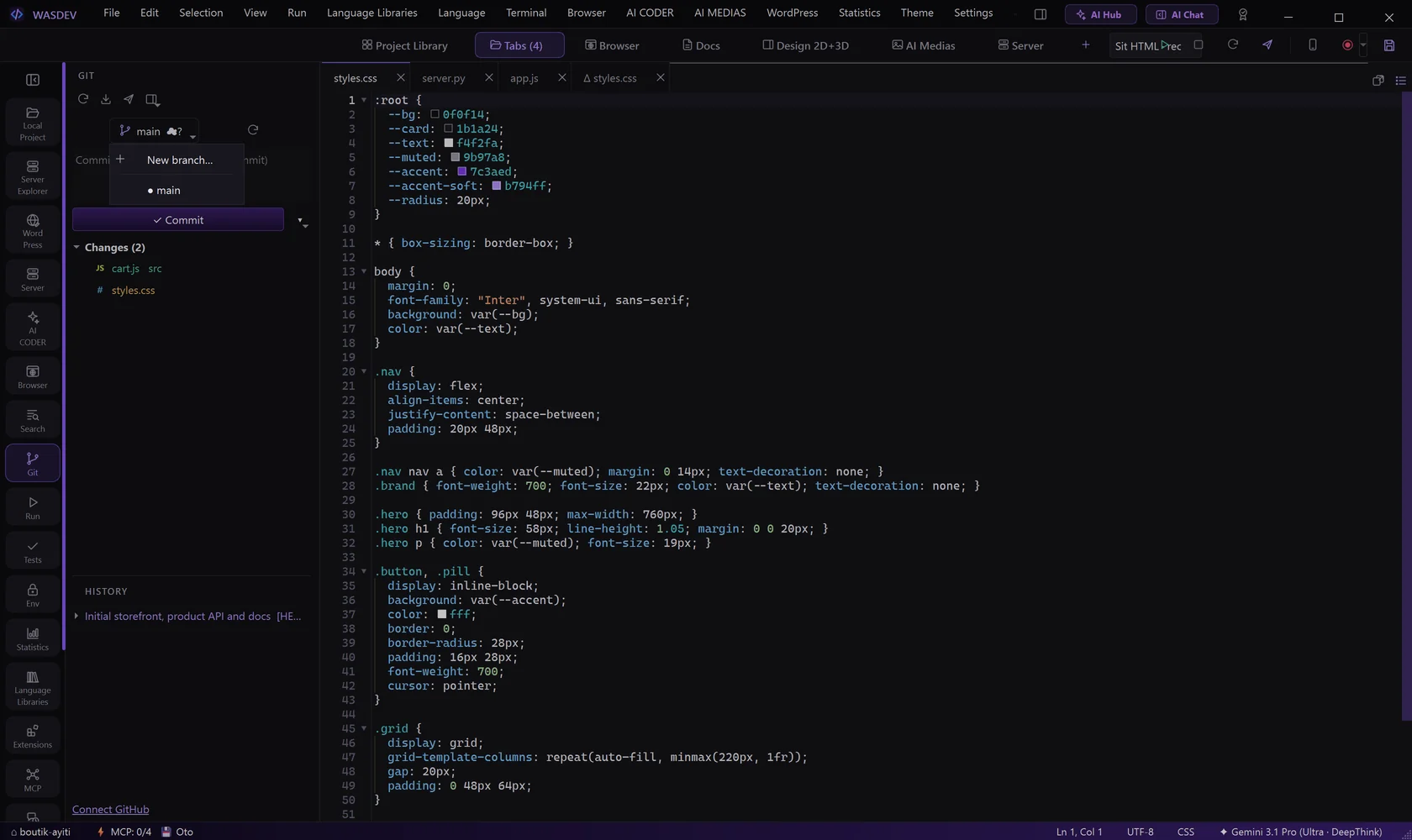
- Open the branch actions and click New branch…. Type a name.
- Work and commit on the branch.
- To bring the work back, switch to the main branch and click Merge into current branch.
- Delete a branch removes a branch you no longer need.
Synchronise with GitHub
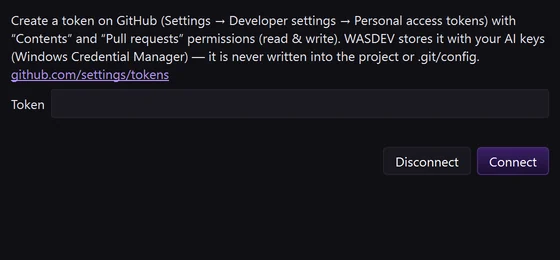
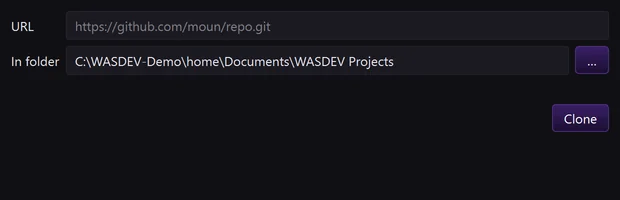
- Open More Git actions and click Connect GitHub (token)….
- Paste a personal access token created in your GitHub account settings.
- Click Sync (pull + push) to receive and send changes.
- Fetch only checks what is new on the server.
- Stash changes puts your unfinished work aside; Pop stash brings it back.
Create a pull request
- Push your branch.
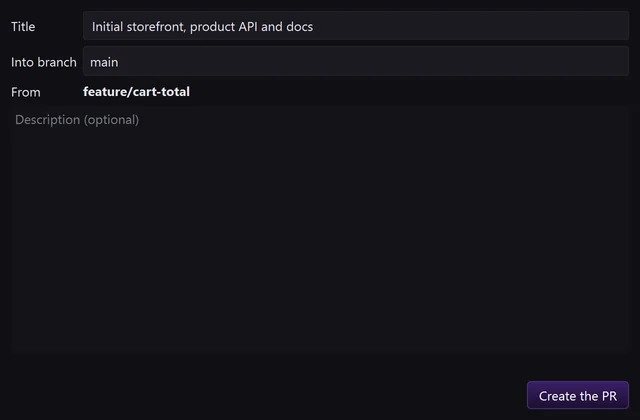
- Open More Git actions and click Create a Pull Request….
- Fill the title and the description, then confirm.
- View open PRs lists the pull requests of the repository.
Read the history
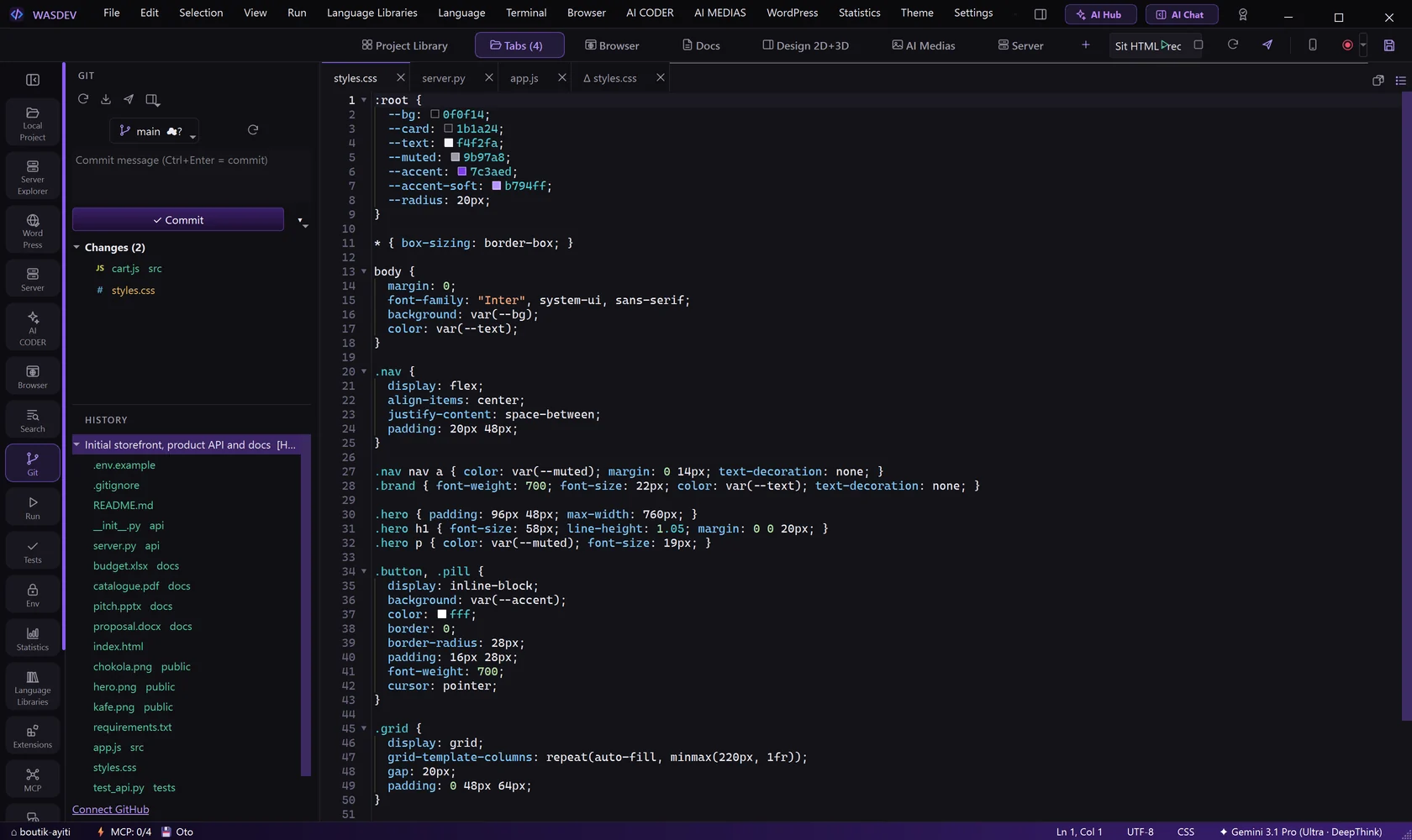
- Scroll to HISTORY in the Git view.
- Click a commit to see its changes.
- Right-click a commit for Copy SHA, Create a branch here…, Revert this commit and View on GitHub.
- File history on a file shows only the commits that touched it.
Resolve a conflict
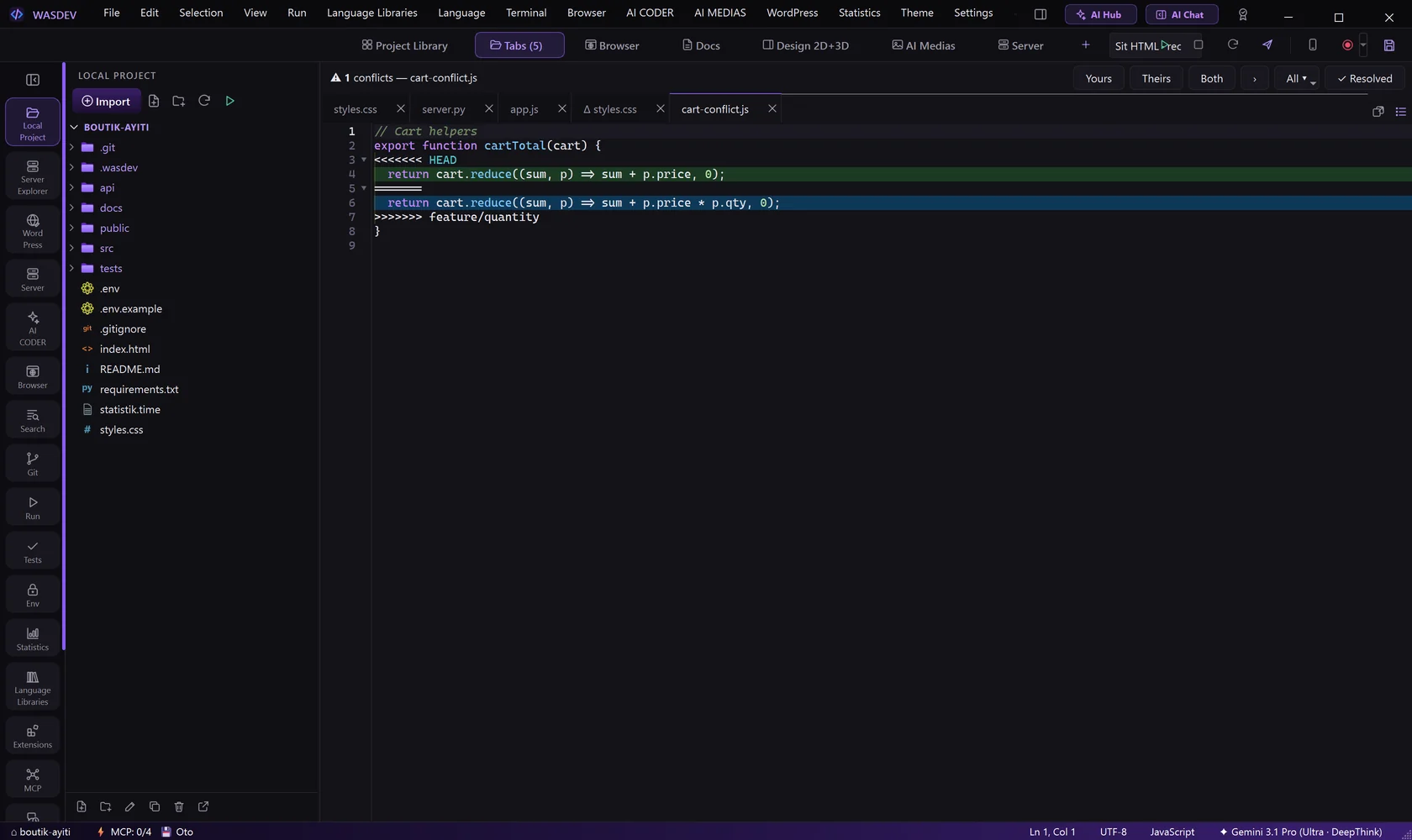
When two changes touch the same lines, the file appears under Conflicts.
- Click the file. A bar appears above the editor.
- For each conflict, click Yours, Theirs or Both.
- Click Next conflict to continue, or All to apply the same choice everywhere.
- Click Resolved, then commit.