

Chapter 18
Licence and updates
Activate your licence, understand the trial and offline use, update WASDEV and return to a previous version.
The free trial
- The trial lasts 14 days from the first start, with every feature unlocked.
- No credit card and no account are needed.
- The licence state is shown at the right of the status bar, at the bottom of the window.
- Your projects, documents and designs are ordinary files on your disk. They stay yours after the trial.
Activate a licence
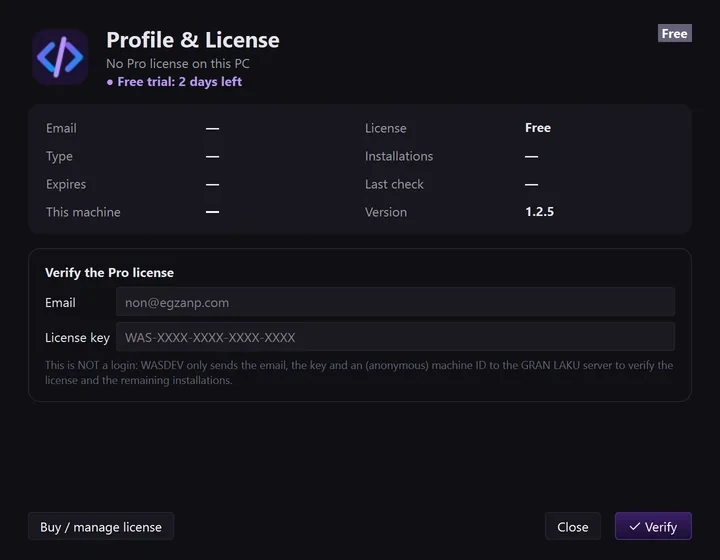
- Click the profile icon at the right of the title bar, or Profile at the bottom of the activity bar.
- In Email, type the e-mail address used for the purchase.
- In License key, type the key you received. It has the form
WAS-XXXX-XXXX-XXXX-XXXX. - Click Verify.
- The window shows your plan: Solo, Pro or Team.
- This is not a login: there is no password and no session. The key is checked online, then the application works on its own.
- Buy / manage license opens the Gran Laku Company website.
Use WASDEV without internet
- After activation, the licence is re-checked silently about once a week.
- If the PC is offline at that moment, WASDEV keeps working for 14 more days before it asks for a connection.
- The editors, the design module, the local server and local AI models all work offline. Online AI providers need internet.
Move the licence to another computer
- On the old computer, open Profile and Licence and click Remove the license from this PC.
- Contact Gran Laku Company so that the seat is released.
- Activate the licence on the new computer with the same e-mail and key.
Update WASDEV
- WASDEV checks for a new version automatically. When one exists, it proposes to install it.
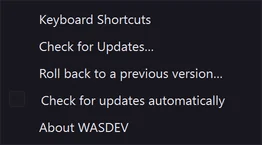
- To check yourself, open the Help menu and click Check for Updates….
- Accept the update. WASDEV downloads it, verifies it, installs it and restarts.
- Each download is verified by its size and its SHA-256 fingerprint before installation.
- Updates are downloaded securely from the official release server and installed silently via MSI without administrator prompts.
- Your settings and data are backed up before each update.
- Untick Check for updates automatically in the Help menu to update only when you decide.
Return to a previous version
- Open the Help menu and click Roll back to a previous version….
- Choose one of the versions kept on your PC (the last three).
- Confirm. WASDEV reinstalls that version and restarts.
What is sent over the network
- Licence check: e-mail, key, an anonymous identifier of the PC, the WASDEV version and the Windows version.
- Update check: the WASDEV version number.
- AI requests: go directly from your PC to the AI provider you chose, never through Gran Laku Company.