


Chapter 14
AI Medias, Project Library and Statistics
Find every image and video the AI made, organise your projects as cards, and read how much time and work each project represents.
Browse the AI Medias gallery
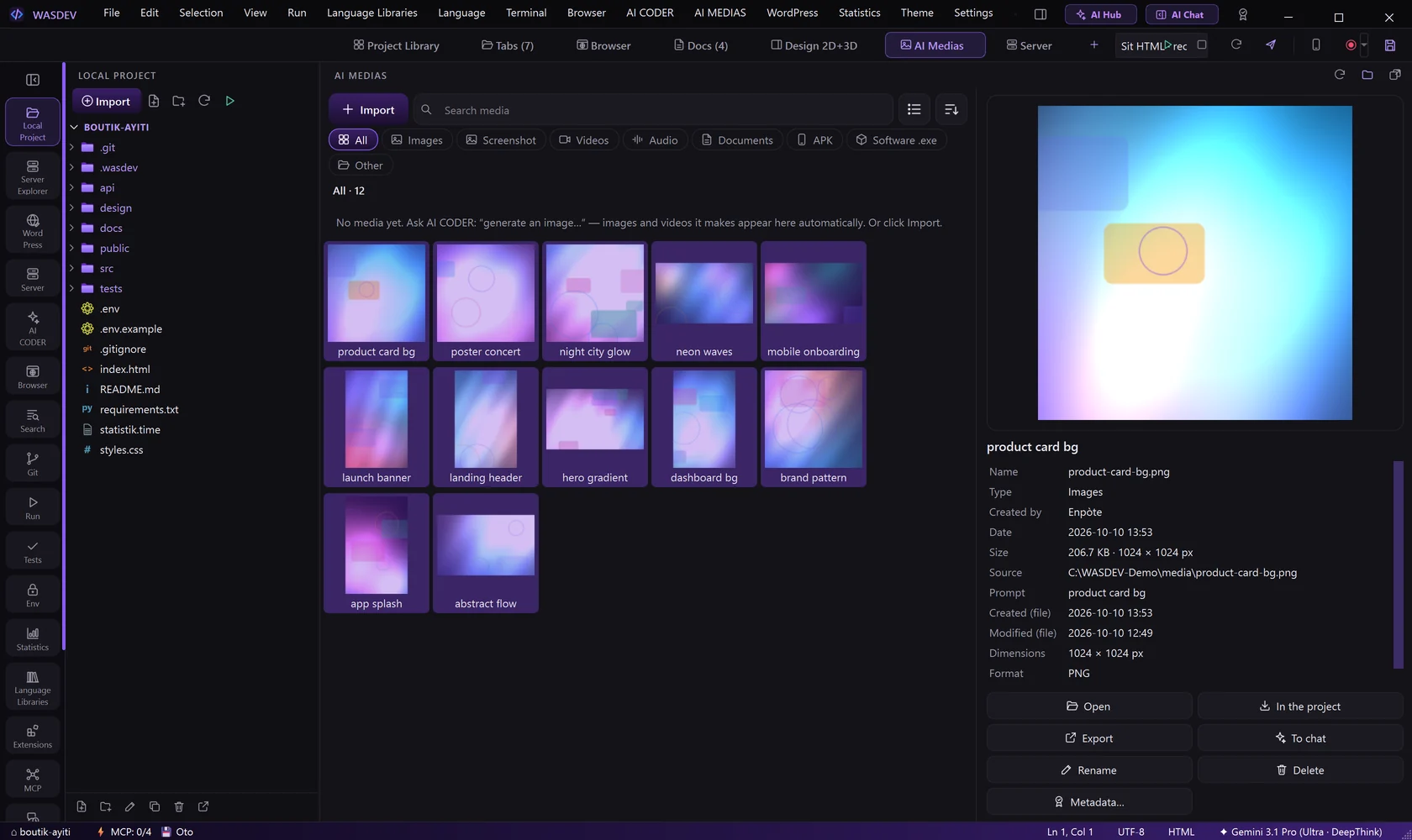
- Click AI Medias in the module bar, or press
Ctrl+Alt+G. - Every image and video generated by the AI is here, with imported files.
- Click an item: the details pane shows Name, Type, Created by, Date, Size, Source and the Prompt that produced it.
- Use Search media, Sort and the list / grid switch to find something.
- Import adds your own files to the gallery. Open the media folder shows where they are stored.
Reuse a media
- Right-click an item.
- Choose Save to project… to copy it into your project, or Export (Save as)… to save it anywhere.
- Choose Add to design to place it on the canvas, as an image or as editable layers.
- Choose Send to chat to give it back to the AI, for example to ask for a variation.
- Copy prompt copies the text that generated the image. Metadata… shows and edits the information stored in the file.
- Rename and Delete are in the same menu.
Organise your projects in the library
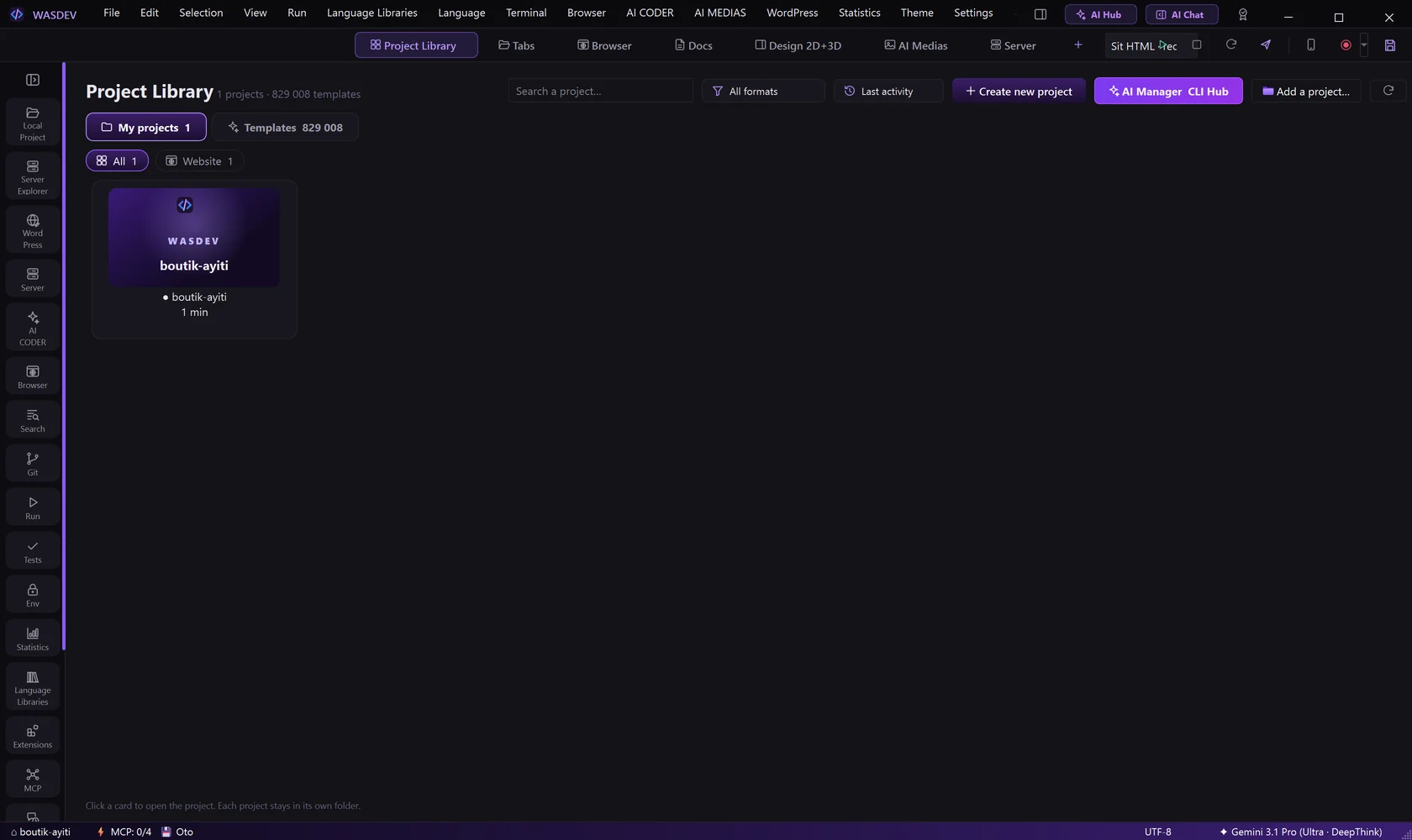
- Click Project Library in the module bar.
- Type in Search a project…, or use the filter: All formats, Projects only, Documents only, Pinned only, WordPress, Web (HTML/JS), Design 2D+3D.
- Sort by Last activity, Name, Most opened or Date created.
- Click a card to open the project.
- Right-click a card for Open in a new window, Show in Windows Explorer, Rename…, Pin to top, Category and Remove from library (folder stays).
- Save project as template… turns a project into a starting point for the next ones. The tab Templates lists them.
- To set the image of a card, right-click a picture in the explorer and choose Use as the project's main image (Library).
Read the statistics of a project
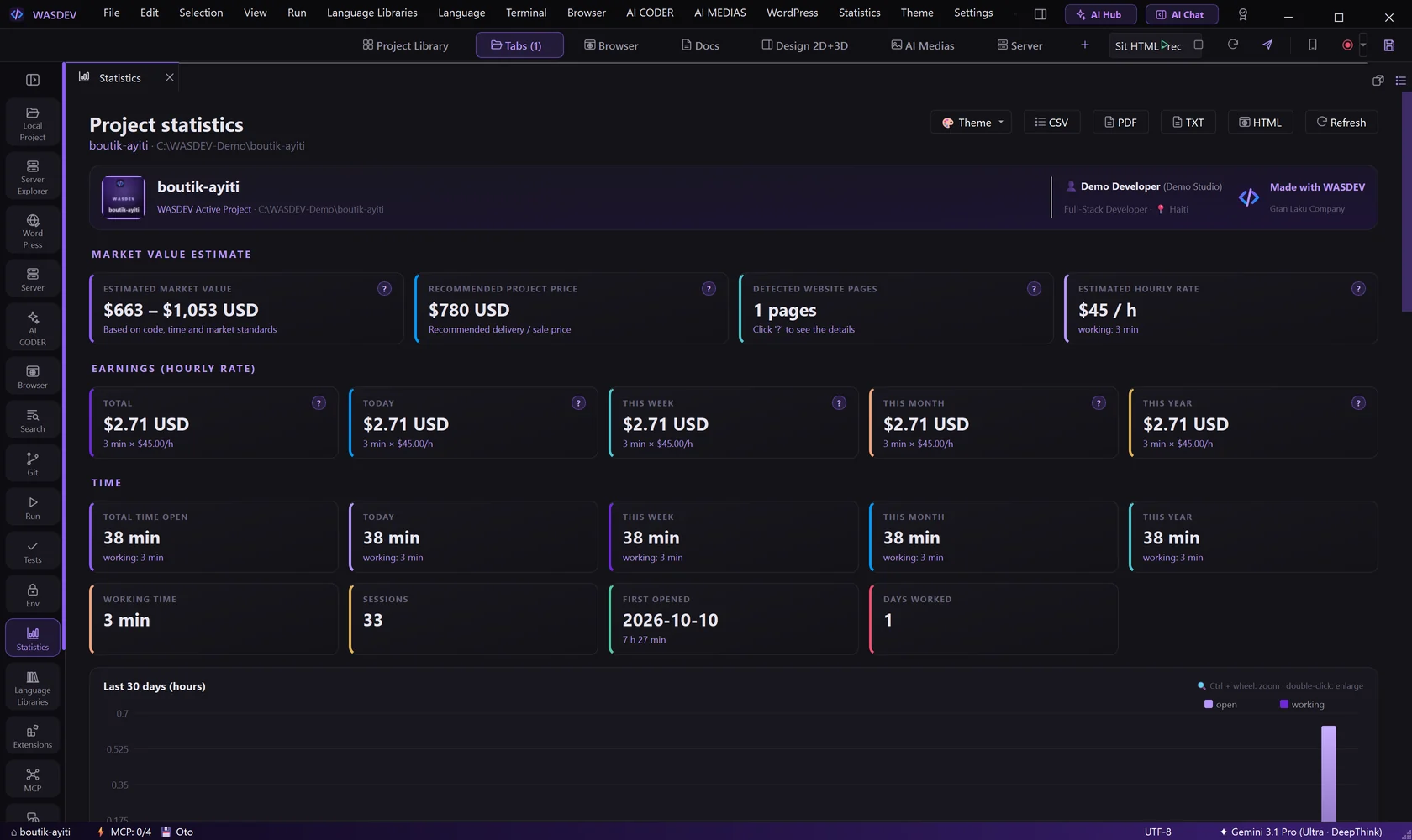
- Click Statistics in the title bar, or press
Ctrl+Alt+Shift+S. - Under TIME, read the total time open, the working time today, this week, this month and this year, the number of sessions, and a calendar of the last year.
- Under CODE AND FILES, read the number of files, lines of code, comments, the lines by language and the largest files.
- At the top, Market value estimate gives an estimated market value, a recommended project price and an hourly rate. Further down: plugins and dependencies, and errors met during development.
- Click Refresh to recount.
- The estimate is an indication calculated from the size of the project and the time spent, not a quotation.
How the time is counted
WASDEV counts the time in the background while the project is open. You start nothing and you stop nothing.
- The time open is all the time the project stays open in WASDEV.
- The active working time counts only when you really work: after two minutes without keyboard or mouse, the active time stops.
- The time is kept per project, in the file
statistik.timeat the root of the project. Only WASDEV can read this file.
Set your name and your hourly rate
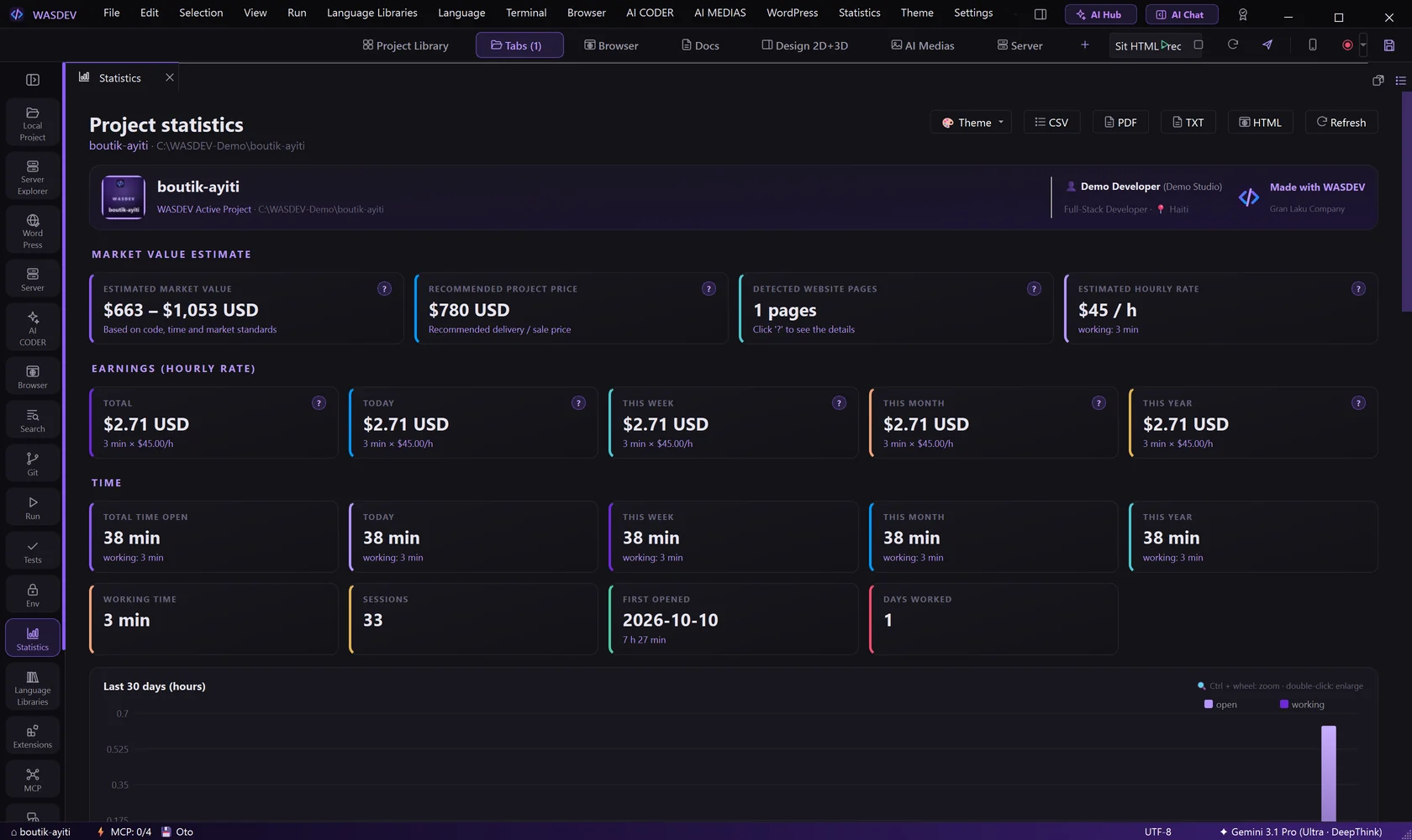
- On the Statistics page, click the name of the project, your name or the hourly rate card. The settings open directly on the tab Statistics.
- Type Your name, your Hourly rate and the currency.
- Close the settings. The page recalculates everything.
- Income = working hours × your hourly rate. The page shows it for the total, today, this week, this month and this year.
- You choose in the settings whether the hours are the active working time or all the time the project is open.
- The market value estimate also uses your rate. With no rate, WASDEV uses a market estimate.
Export a statistics report
- Open the Statistics page.
- At the top, click CSV, PDF, TXT or HTML.
- Choose where to save the report.