


Chapter 16
Phone and firmware
Connect an Android phone to mirror its screen, exchange files and install apps, and work with Arduino and ESP32 boards.
Open the Remote panel
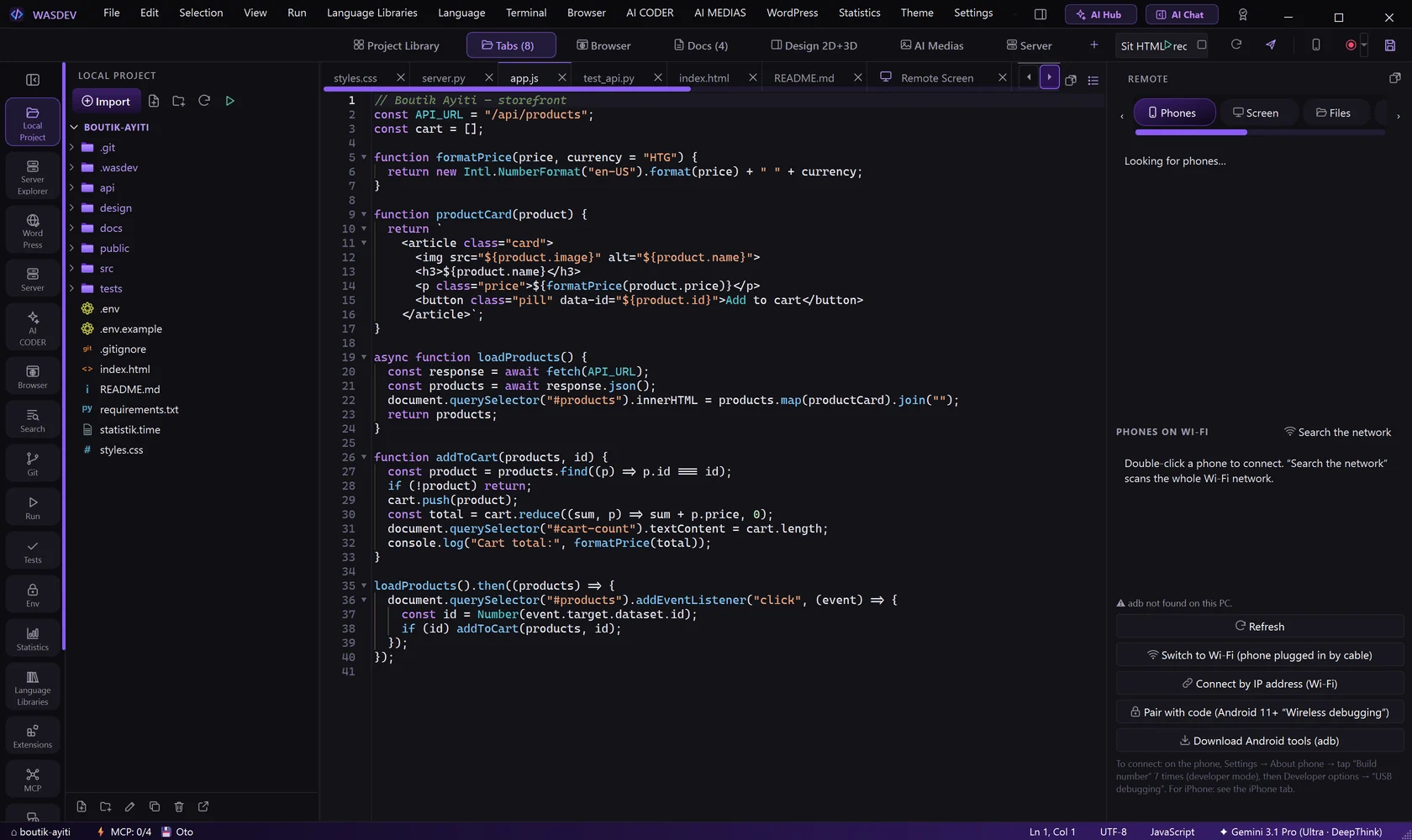
- Click the phone button Open Remote (phone) in the module bar, or press
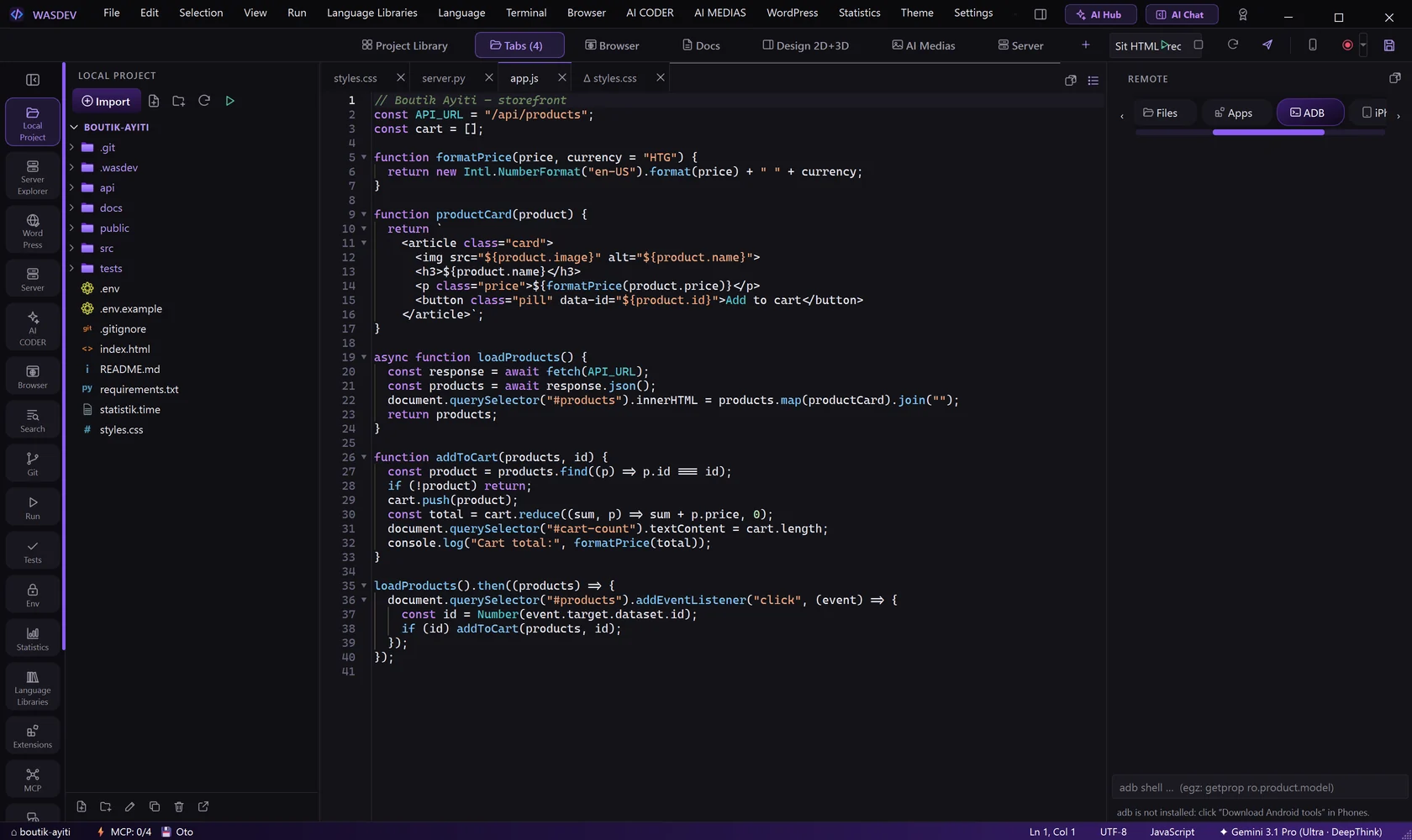
Ctrl+Alt+R. - The panel opens on the right with the sections Phones, Screen, Files, Apps, ADB, iPhone and Firmware.
- The first time, click Download Android tools (adb).
Connect an Android phone
- On the phone, open Settings → About phone and tap Build number seven times to unlock the developer options.
- In Developer options, turn on USB debugging (for a cable) or Wireless debugging (for Wi-Fi).
- With a cable: plug the phone into the PC and accept the question shown on the phone.
- Over Wi-Fi: in the section Phones, click Search the network, or Pair with code and type the code shown on the phone.
- The phone appears in the list. Click it.
- Connect by IP address (Wi-Fi) connects to a phone whose address you know.
- Switch to Wi-Fi lets you unplug a phone connected by cable and keep working.
- The phone and the PC must be on the same Wi-Fi network.
Mirror and control the phone screen
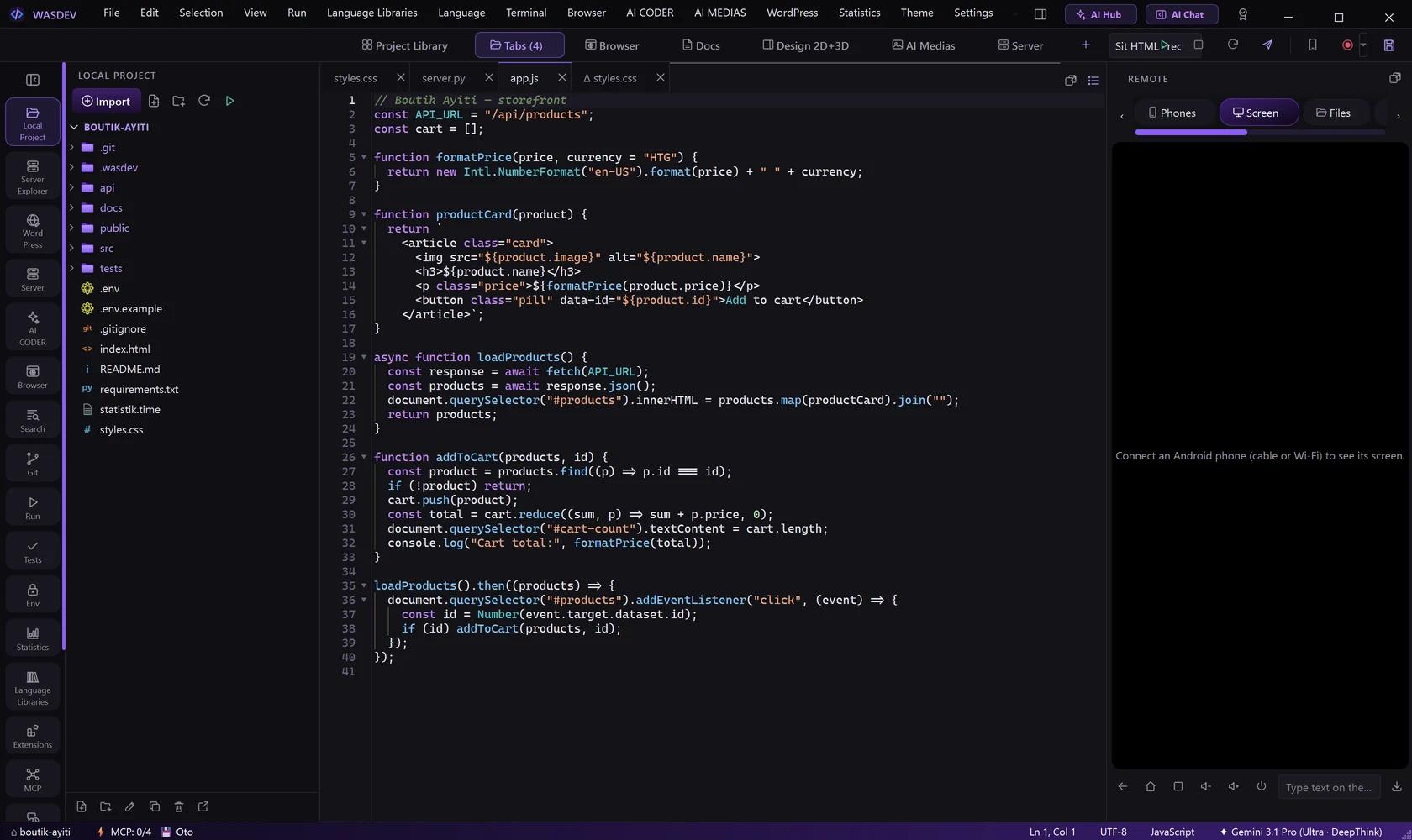
- Open the section Screen. The screen of the phone appears live.
- Click and drag in the image as you would touch the phone.
- Use the buttons Back, Home, Recent apps, volume and screen on / off.
- Type in the text box to send text to the phone.
- Save phone screenshot saves the current image of the phone.
Exchange files with the phone
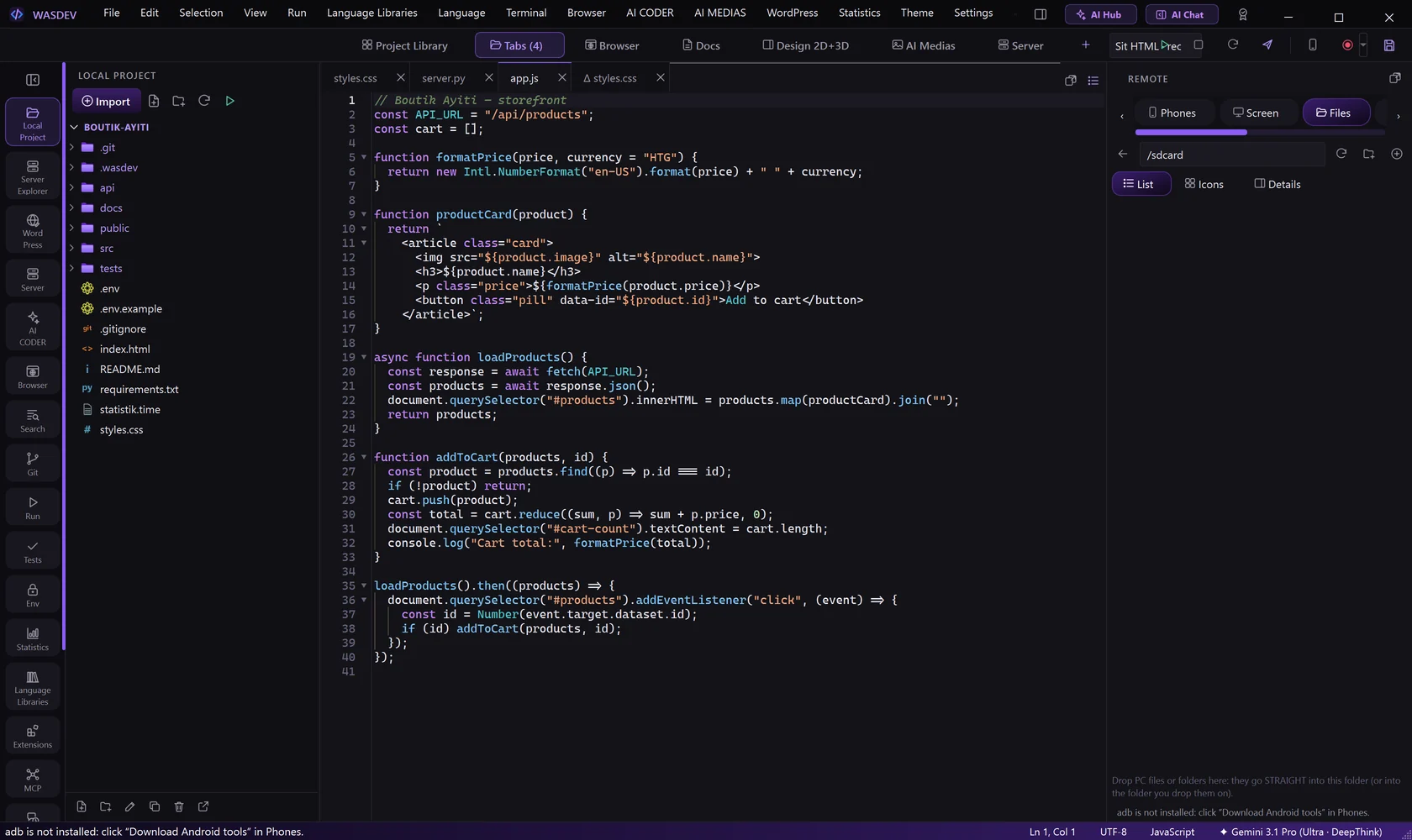
- Open the section Files and browse the folders of the phone.
- To send a file from the PC, use the send button and choose the file.
- To copy a file to the PC, select it and click Download to PC….
- Rename…, Delete and New Folder work on the phone's storage.
Install and manage apps
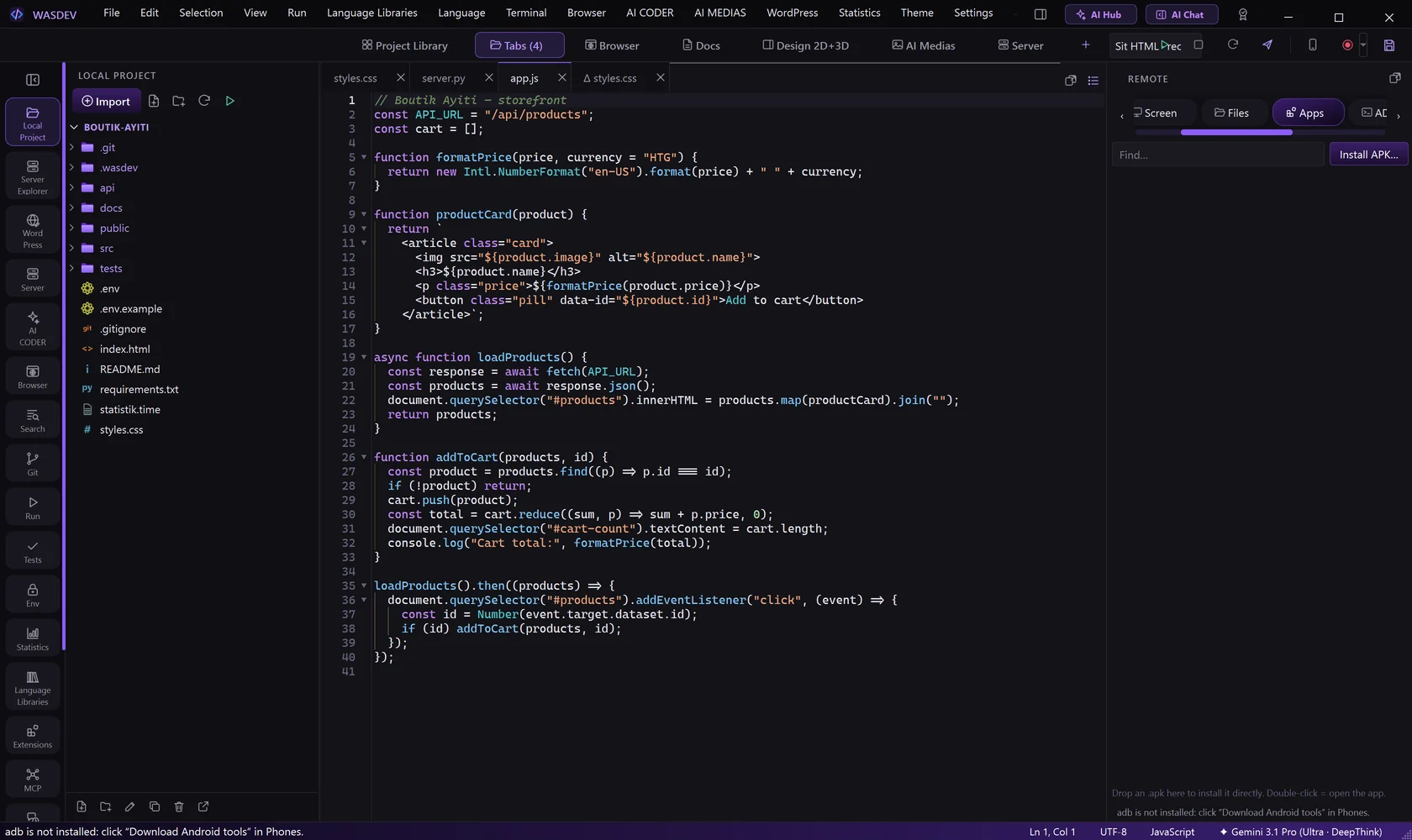
- Open the section Apps.
- Click Install APK… and choose the
.apkfile. - Select an installed app for Open, Force stop or Uninstall.
- When you press Run on a mobile project, WASDEV asks where to run it and can install it on the connected phone.
iPhone
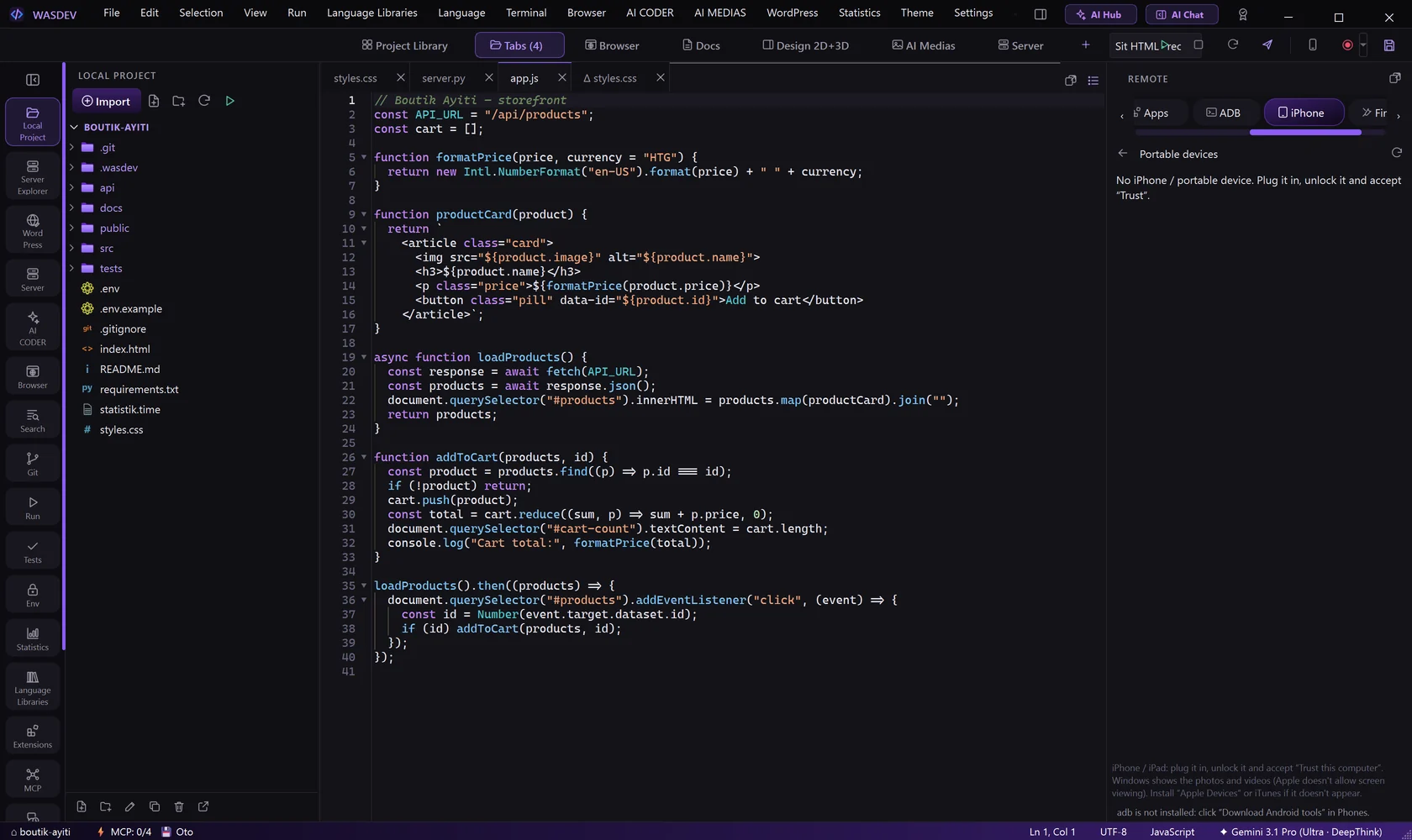
- The section iPhone gives access to the files of an iPhone connected by cable, through Windows. Screen mirroring and app installation are not available for iPhone.
Upload firmware to a board
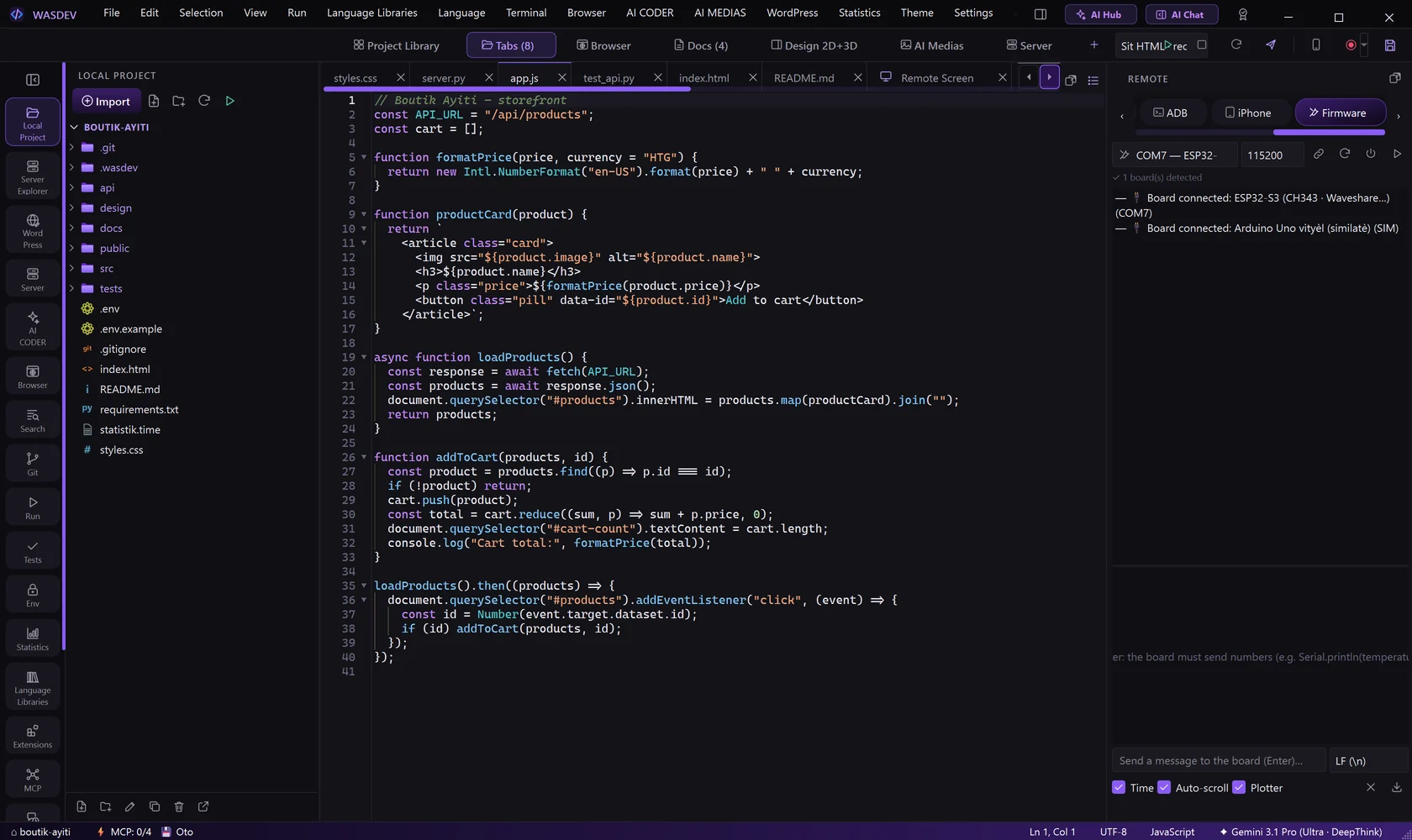
- Create a project of type Firmware (Arduino / ESP32), or open one.
- Connect the board by USB.
- Open the section Firmware in the Remote panel and choose the port of the board.
- Click Upload the project firmware (RUN).
- If an ESP32 does not start the upload, click ESP32 BOOT mode.
Read the serial monitor
- In the section Firmware, choose the baud rate that your program uses.
- Click Connect. The messages of the board appear.
- Type in the send box and choose the line ending to send a command to the board.
- Tick Time to show the time of each line and Auto-scroll to follow the last one.
- Click Plotter to draw numeric values as a curve.
- Restart the board resets it. Clear empties the screen. Save the log (.txt) keeps the messages in a file.