


Chapter 10
Photo tools
Correct colours with Camera Raw, resize up to 12K, convert batches of photos, retouch portraits, remove backgrounds and apply colour grading.
Where the photo tools are
The photo tools belong to the Design module. Each one opens on a full page and returns to the design with Back to the design.
- Open Design 2D+3D (
Ctrl+Alt+D). - Place a photo on the canvas with Images (
I) or File → Place an image…, and select it. - Open a tool from the right panel of the image, from the floating toolbar, or by right-clicking the image.
- The tools are: Camera Raw…, Resize (up to 12K)…, Convert photos…, Portrait retouch…, Remove background, LUT / Color grading, Vectorize…, Expand with AI… and Split into editable layers.
Correct a photo with Camera Raw
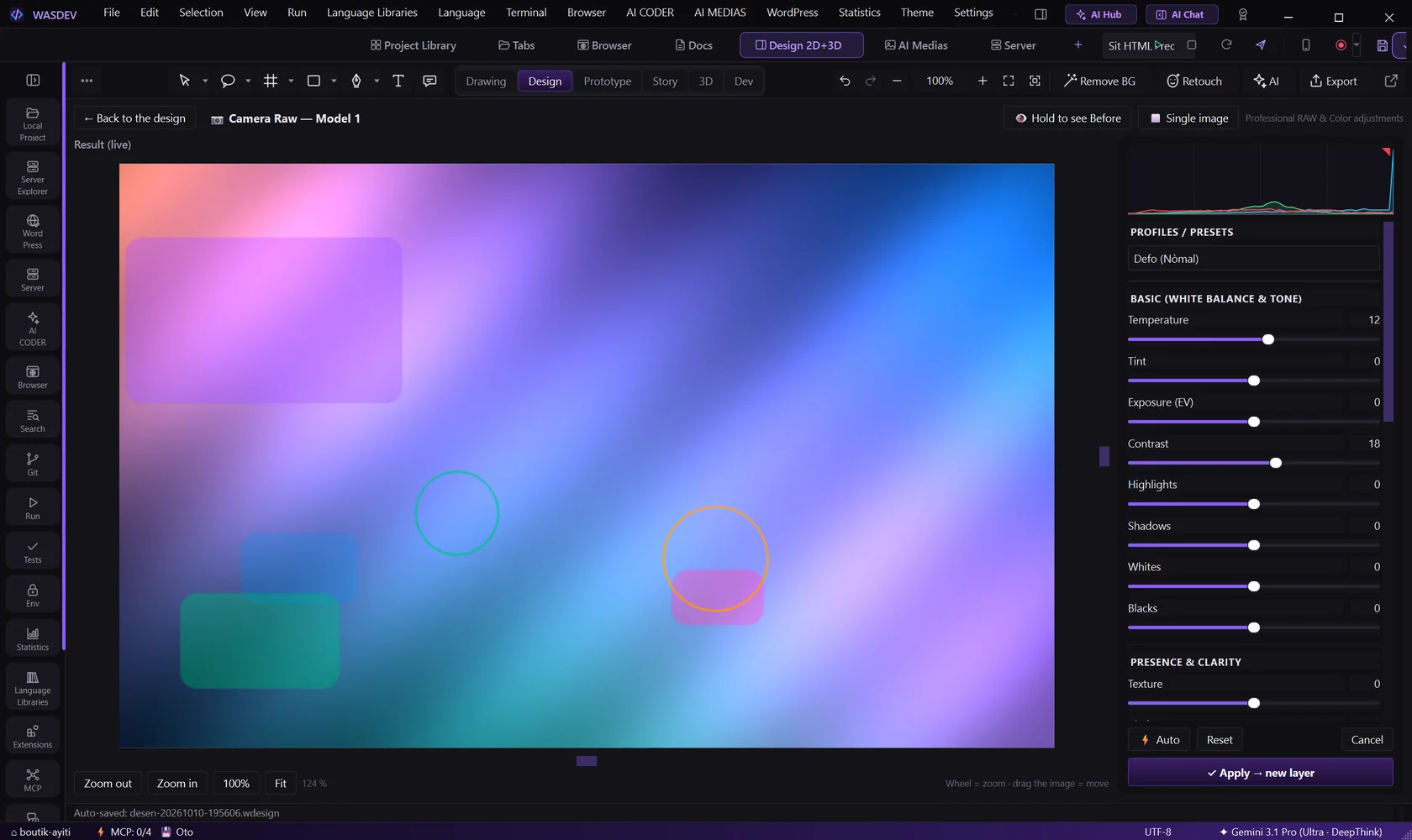
- Select the photo and click Camera Raw….
- Click Auto for a balanced starting point.
- In Basic, adjust Temperature, Tint, Exposure, Contrast, Highlights, Shadows, Whites and Blacks.
- In Presence & Clarity, adjust Texture, Clarity, Dehaze, Vibrance and Saturation.
- Open Tone Curve, Detail, Color Grading and Optics & Effects (vignette) for finer work.
- Compare with the view buttons: Single image, Side by Side or Half-Half.
- Click Apply → new layer. The corrected photo is added above the original.
- Profiles / Presets applies a complete look in one click. Reset returns every slider to zero.
- Camera RAW files (CR2, CR3, NEF, ARW, DNG and others) open directly.
Resize an image
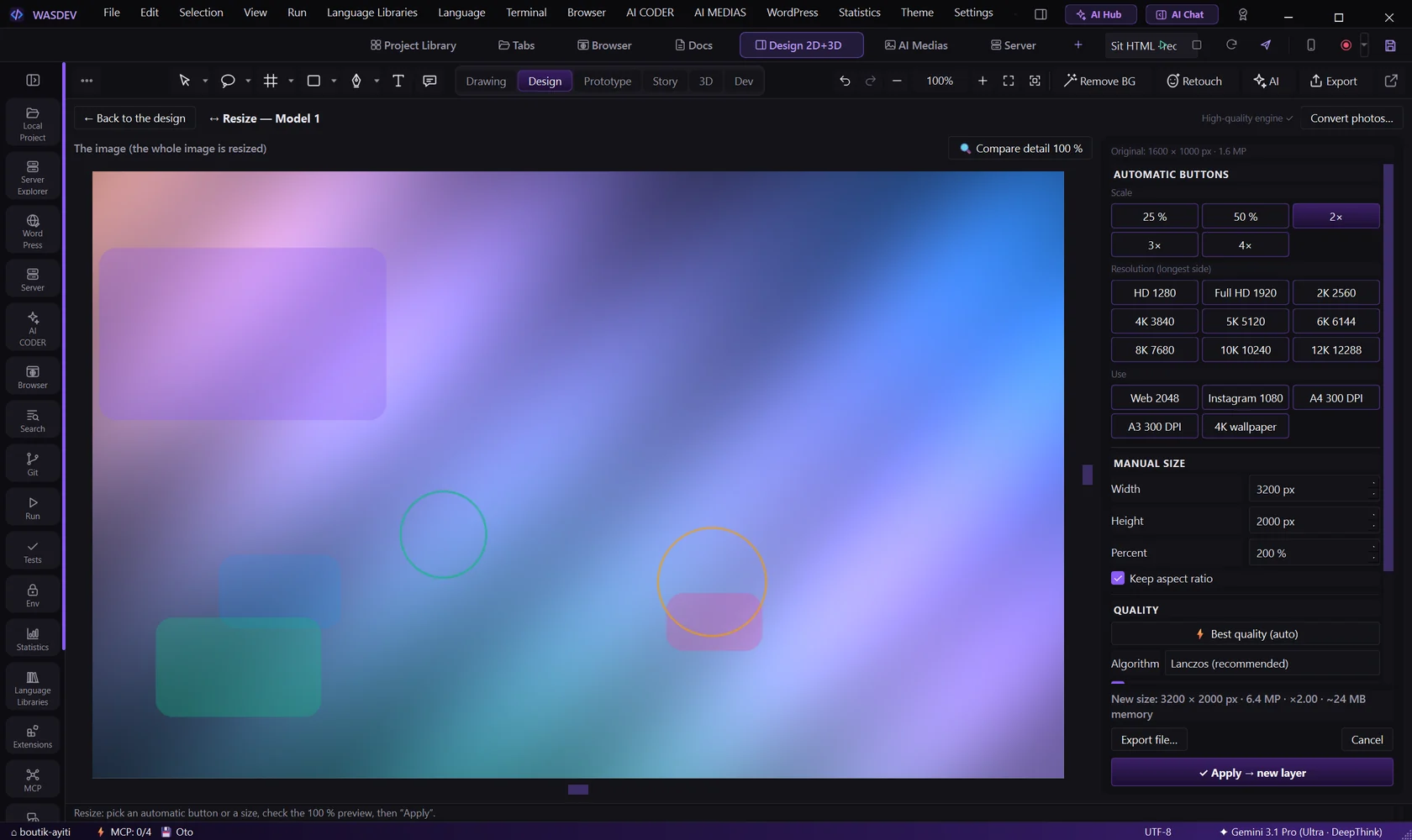
- Select the image and click Resize (up to 12K)….
- Click an automatic size: 25 %, 50 %, 2×, 3×, 4×, or a named size from HD up to 12K (12 288 px).
- Or type a Manual size. Keep Keep aspect ratio ticked to avoid distortion.
- If the proportions differ, choose Crop to center or Stretch.
- Choose the Algorithm and tick Sharpen after if you enlarge.
- Click Compare detail 100 % to check the quality.
- Click Export file… to save as PNG, JPG, WEBP or TIFF, or apply the result as a new layer.
- Install the high-quality engine adds an optional engine for cleaner enlargements.
- Quality goes from 1 to 100 % for JPG and WEBP. PNG and TIFF are lossless: their quality is always 100 %.
Convert many photos at once
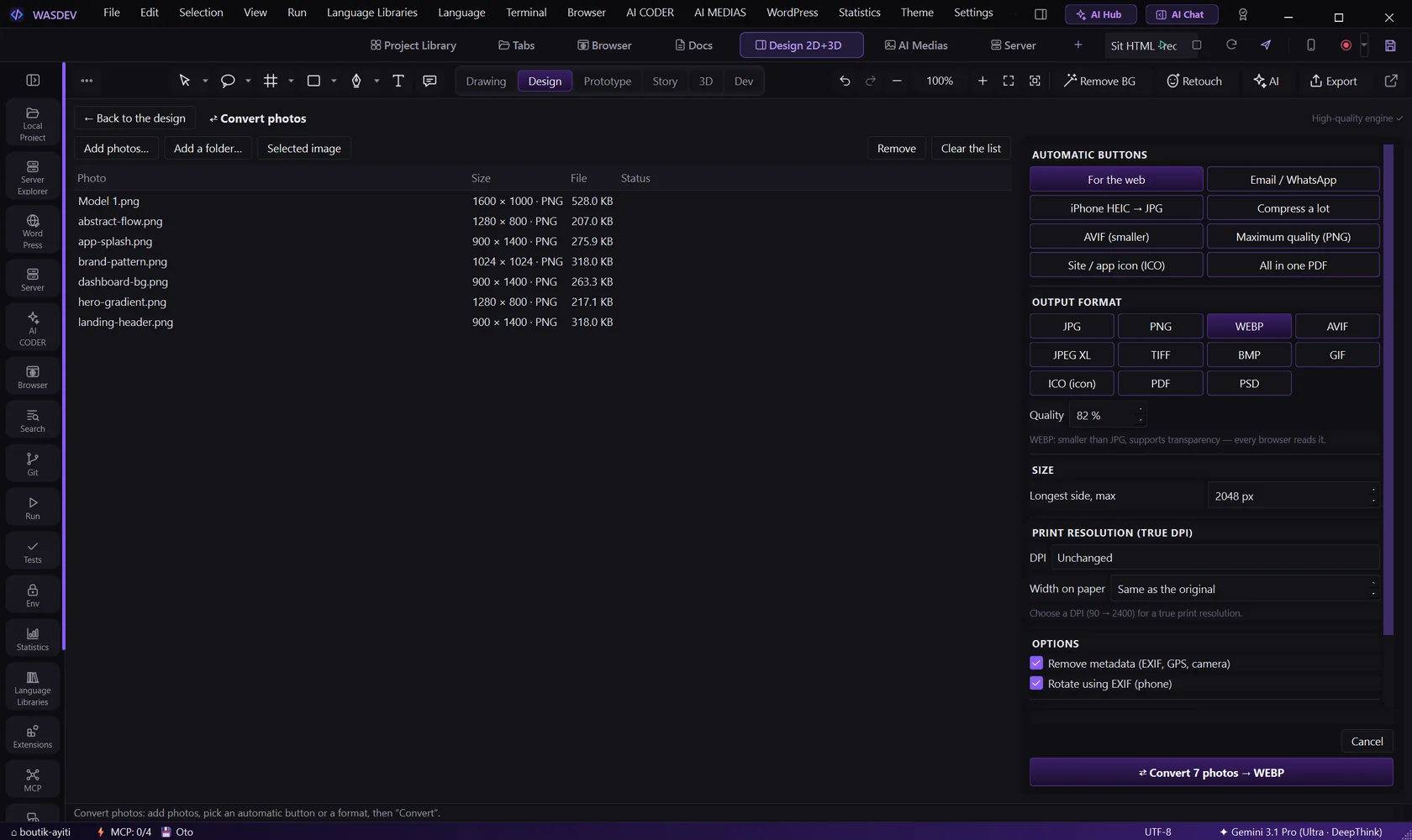
- Click Convert photos….
- Click Add photos… or Add a folder…. Selected image adds the image selected on the canvas.
- Choose a preset — Web, Email / WhatsApp, iPhone HEIC → JPG, heavy compression, AVIF or maximum-quality PNG — or choose the output format yourself.
- Output formats: JPG, PNG, WEBP, AVIF, JPEG XL, TIFF, BMP, GIF, ICO, PDF and PSD.
- Tick Remove metadata to delete the location and camera data, and Rotate using EXIF to straighten the photos.
- Choose the destination and start the conversion.
- One PDF with all the photos builds a single PDF document from the list.
Convert to a true print resolution (DPI)
A true DPI recalculates the pixels, so the image really has that many dots per inch on paper. Writing only a DPI number in the file changes nothing in the image.
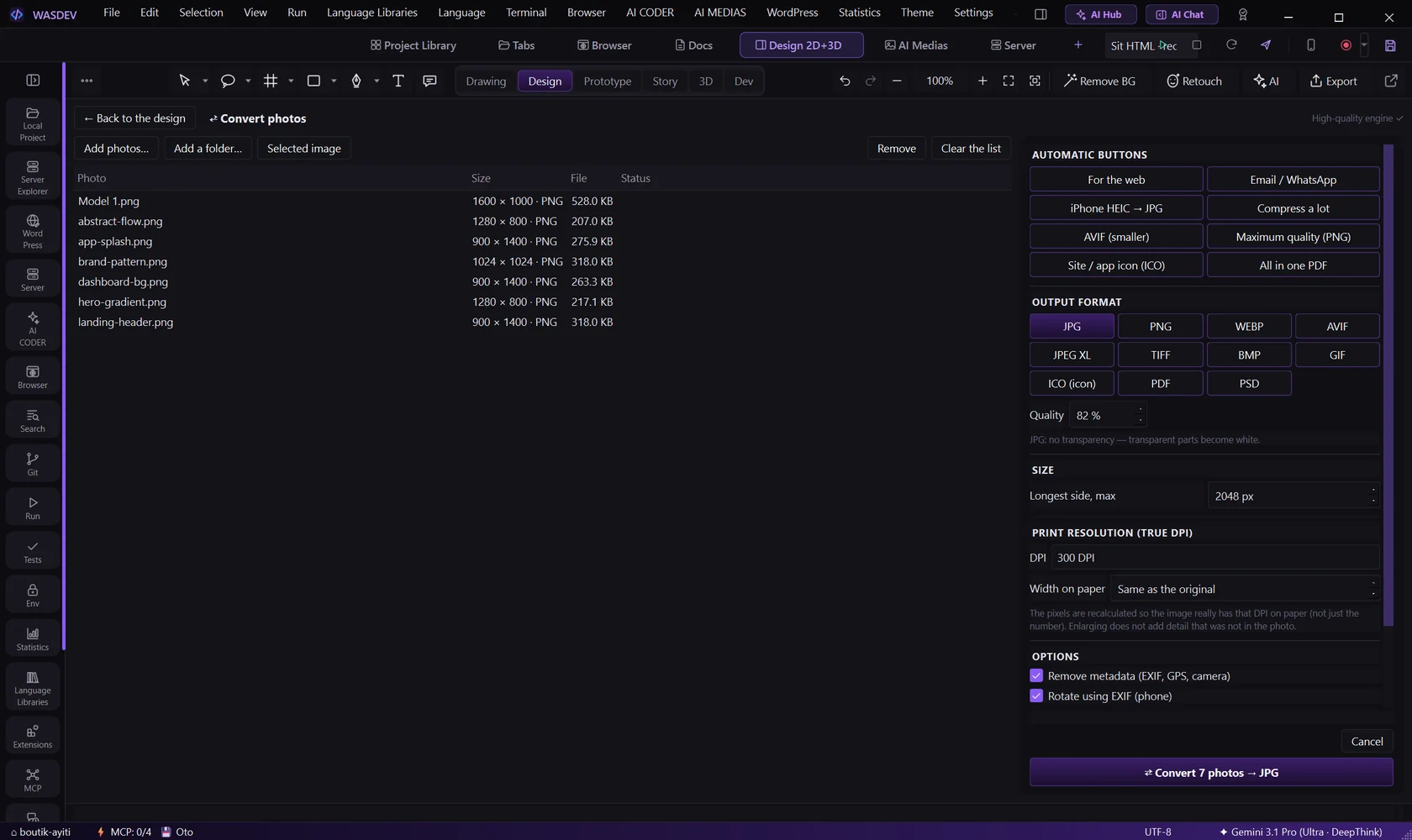
- Click Convert photos… and add the photos.
- Choose the output format, for example JPG, PNG or TIFF.
- Under Print resolution (true DPI), choose a value from 90 to 2400 DPI.
- Leave Width on paper on Same as the original to keep the paper size of the file, or type the width in millimetres.
- Start the conversion. The Status column shows the real result: the pixels and the DPI of the new file.
- Example: a photo of 1200 pixels at 72 DPI becomes 5000 pixels at 300 DPI.
- Enlarging does not add detail that was not in the photo.
- The longest side cannot exceed 12 288 pixels. A large photo at a very high DPI comes out smaller on paper.
- WEBP, AVIF, GIF and ICO do not store the DPI in the file. The pixels are recalculated anyway.
Retouch a portrait
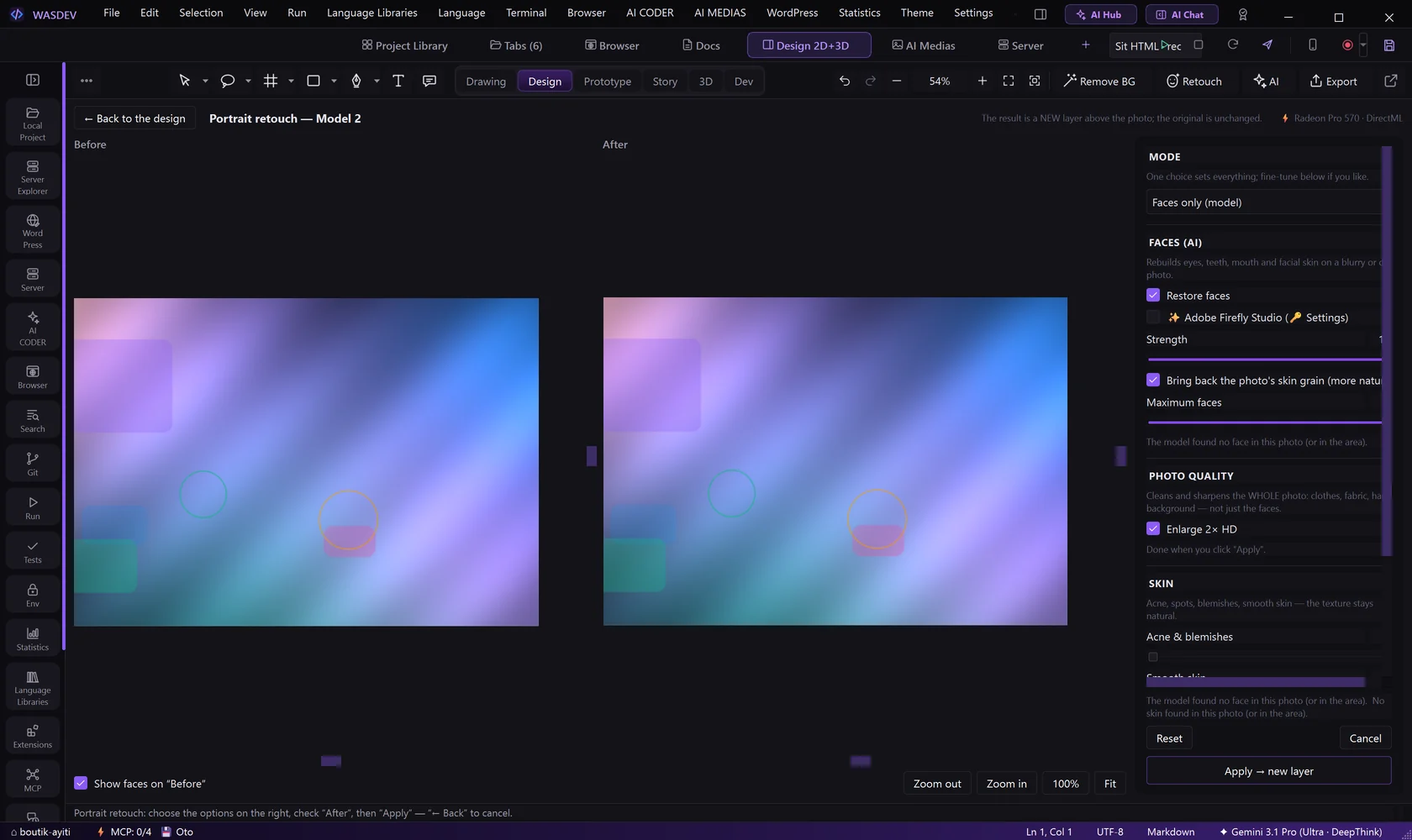
- Select the portrait and click Portrait retouch… (
Ctrl+Alt+U). - Under Skin, set Acne & blemishes and Smooth skin, and keep some Keep texture so the skin stays natural.
- Under Photo quality, use Enlarge 2× HD if the photo is small.
- Toggle Before / After to compare.
- Click Apply → new layer.
- Restore faces repairs blurred or damaged faces with a local AI model (a download of about 340 MB the first time).
- Reset cancels the settings; Cancel leaves without changing the image.
Remove a background
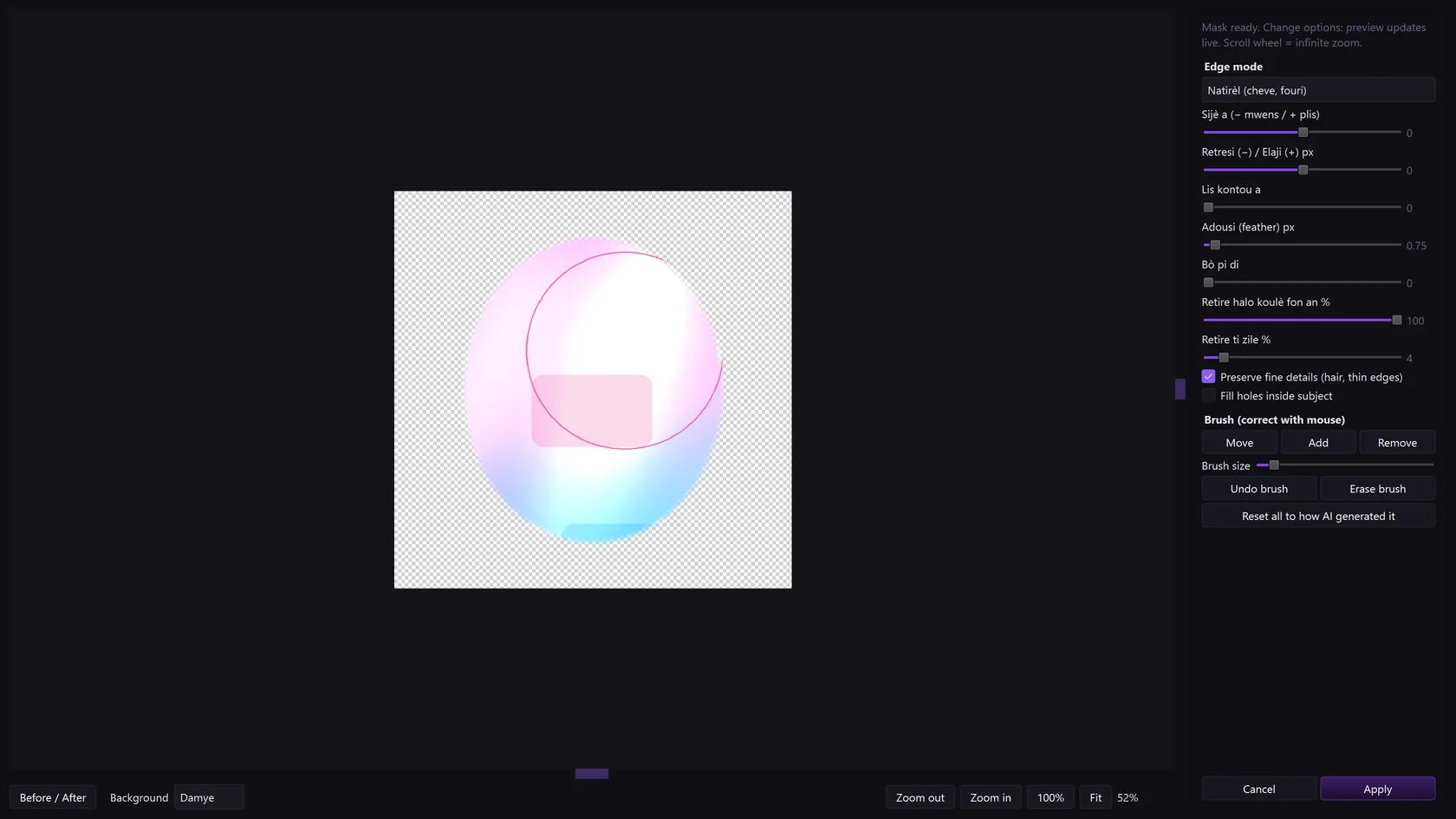
- Select the image and click Remove background (
Ctrl+Alt+X). - Wait for the cutout. The background becomes transparent.
- Open Cutout — refine edges to correct hair and fine details.
Select and fill with the lasso
- Press
Qfor the lasso,Shift+Qfor the polygonal lasso,Mfor a rectangular selection. - Draw around the area.
- In the lasso panel, choose Copy → new layer, Fill, Stroke, Invert selection or Deselect.
- Fill with AI… replaces the selection with what you describe; Remove object · AI erases it. Both need an AI image service you have connected; Local works on the PC.
Apply colour grading with a LUT
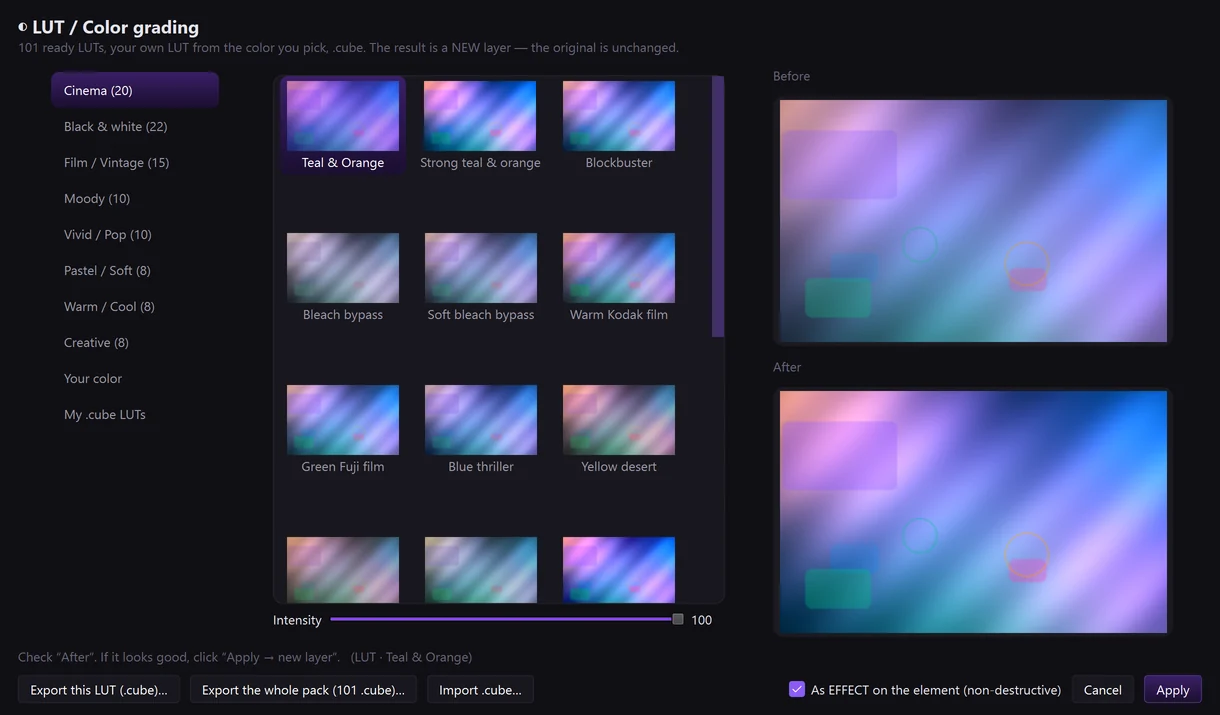
- Select the image and click LUT / Color grading (
Ctrl+Alt+Y). - Click one of the 101 supplied LUTs to preview it.
- Adjust Intensity and click Apply.
- You can import your own
.cubefile and export one.