


Chapter 15
Screen recorder
Record the WASDEV window, the screen or an area as an MP4 video, with microphone and a camera card, and take screenshots.
Record your first video

- In the module bar, click the record button. Its tooltip reads “Record the screen as an MP4 video (click again to stop)”.
- If a countdown is set, wait for it to finish.
- Do what you want to show.
- Click the record button again, or Stop on the recording bar.
- The video is an MP4 file, ready immediately. Open the last video plays it.
- The video is encoded while you record, so even a recording of several hours needs no waiting at the end.
Choose what to record
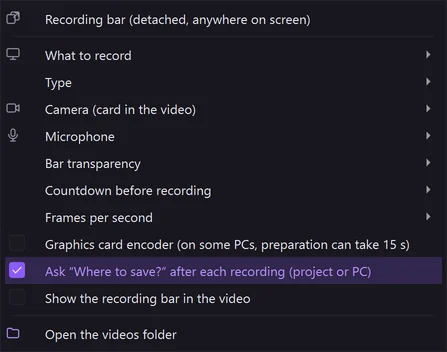
- Click the small arrow next to the record button.
- Under What to record, choose The WASDEV window (default), WASDEV's screen, or Draw an area… and drag a rectangle.
- Choose the Frames per second.
- Choose the Graphics card encoder if your PC has more than one graphics card.
Add your microphone and your camera
- Open the recorder menu.
- Under Microphone, choose the microphone to record your voice.
- Under Camera (card in the video), choose a camera: your image appears in a small card inside the video.
- Adjust the card with Card style, Background, Border color, Mirror and Image settings.
- Windows may ask you to allow access to the microphone and the camera the first time.
Set a countdown and the saving folder
- Open the recorder menu and choose Countdown before recording.
- Tick Ask “Where to save?” after each recording if you want to name each video, or leave it off to save in the default folder.
- Open the videos folder shows the recordings.
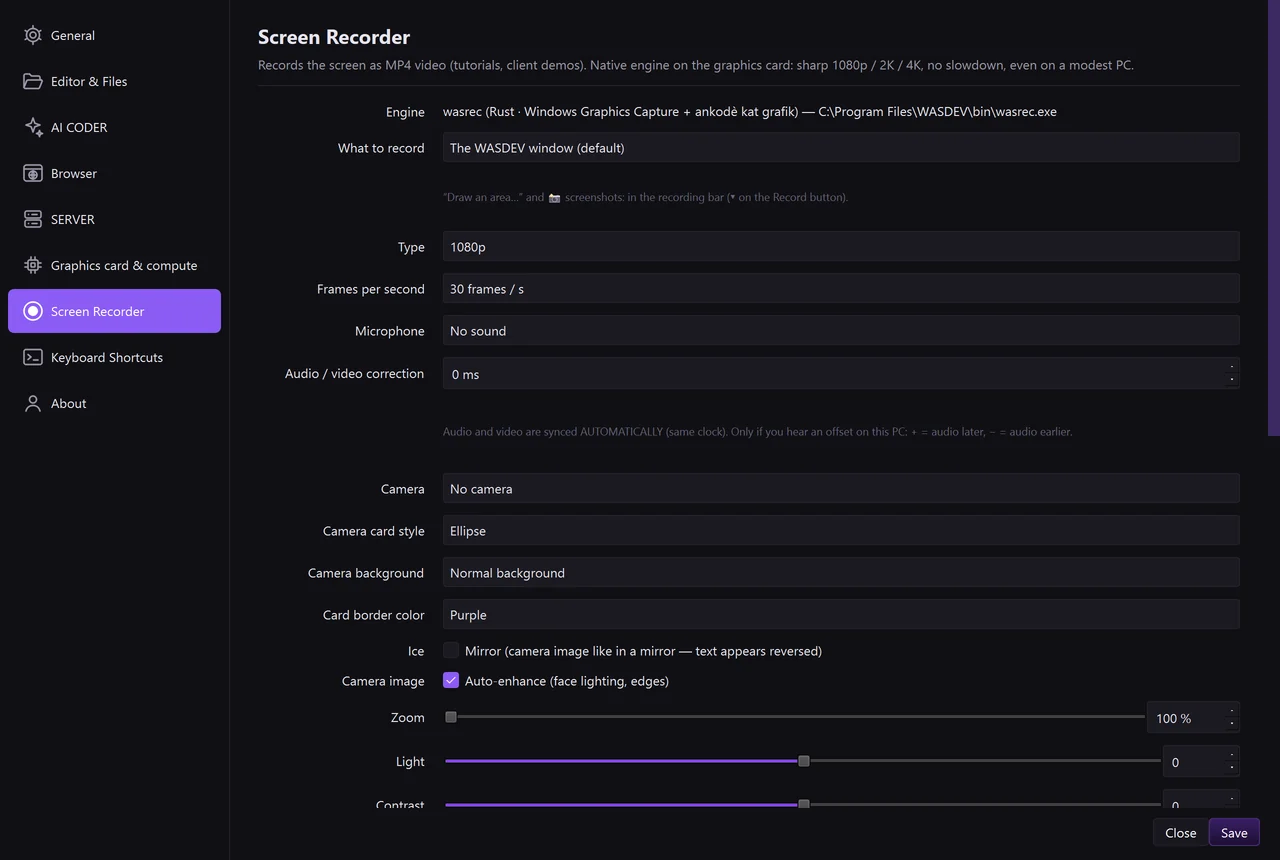
- All these options, and the Default folder, are also in Settings → Screen Recorder.
- Show the recording bar in the video decides whether the bar itself is visible in the recording.
Take a screenshot
- Open the recorder menu and click Recording bar (detached, anywhere on screen) to show the bar.
- On the bar, click Screenshot for the whole window, or Area and drag a rectangle.
- The picture is saved with your recordings.
Let the AI record or capture
- In the chat, ask for example:
Take a screenshot of the window and tell me what is wrong with the layout. - The AI uses the WASDEV tools to capture the screen and reads the image.