


Chapter 17
Settings
Every tab of the Settings window: language and theme, editor, AI keys, browser, server, graphics card, recorder and keyboard shortcuts.
Open the settings
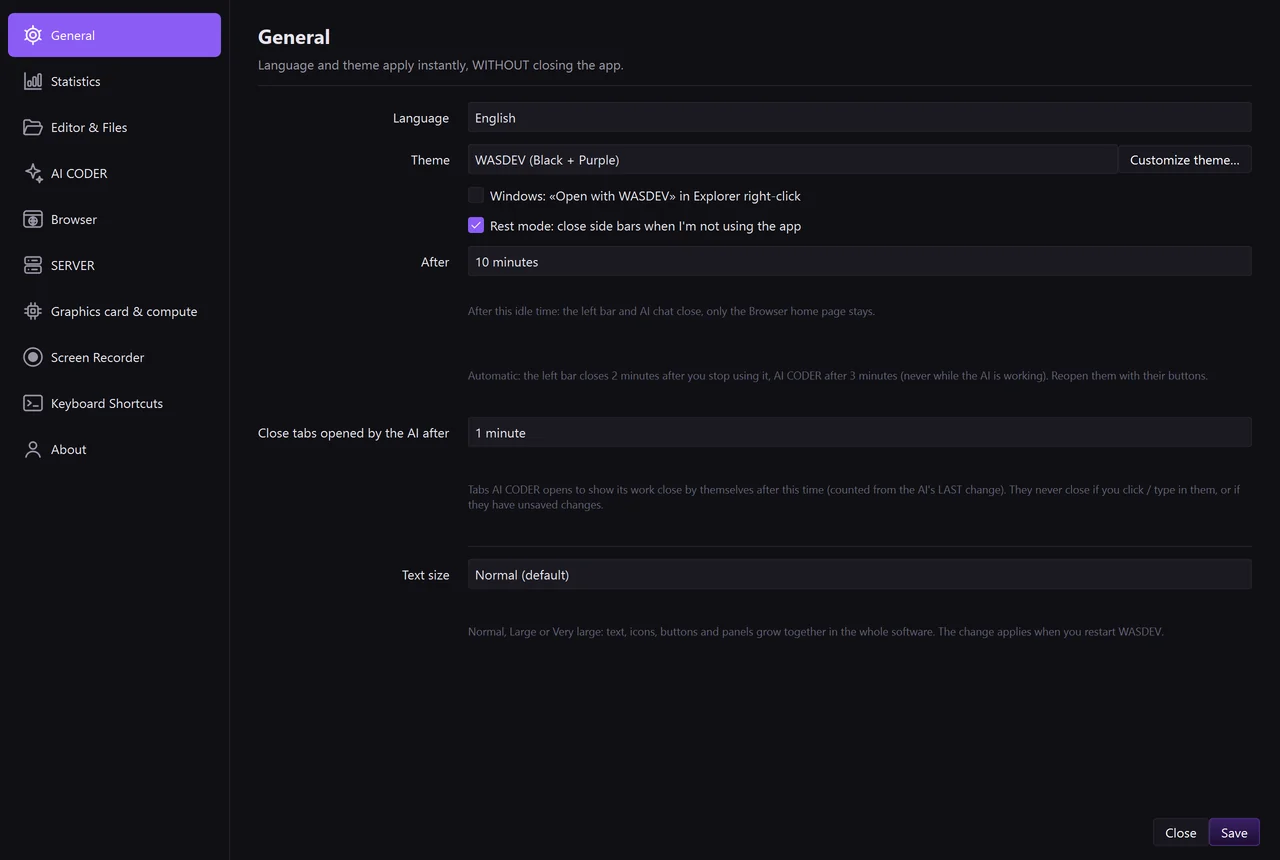
- Click Settings in the title bar, or the gear at the bottom of the activity bar, or press
Ctrl+,. - Choose a tab on the left: General, Statistics, Editor & Files, AI CODER, Browser, SERVER, Graphics card & compute, Screen Recorder, Keyboard Shortcuts, About.
- Change what you need and click Save. Close leaves without saving.
General
- Language: choose the language of the interface.
- Theme: choose a theme, or click Customize theme… to create your own.
- “Open with WASDEV” in the Explorer right-click: adds WASDEV to the Windows right-click menu of files and folders.
- Rest mode: after the chosen time without activity, the side bars close and return when you come back. They never close while an AI is working.
- Close tabs opened by the AI after…: closes automatically the files the AI opened.
- Text size: choose Normal (default), Large or Very large. Text, icons, buttons and panels grow together in the whole software.
- The new text size applies the next time you start WASDEV.
Statistics
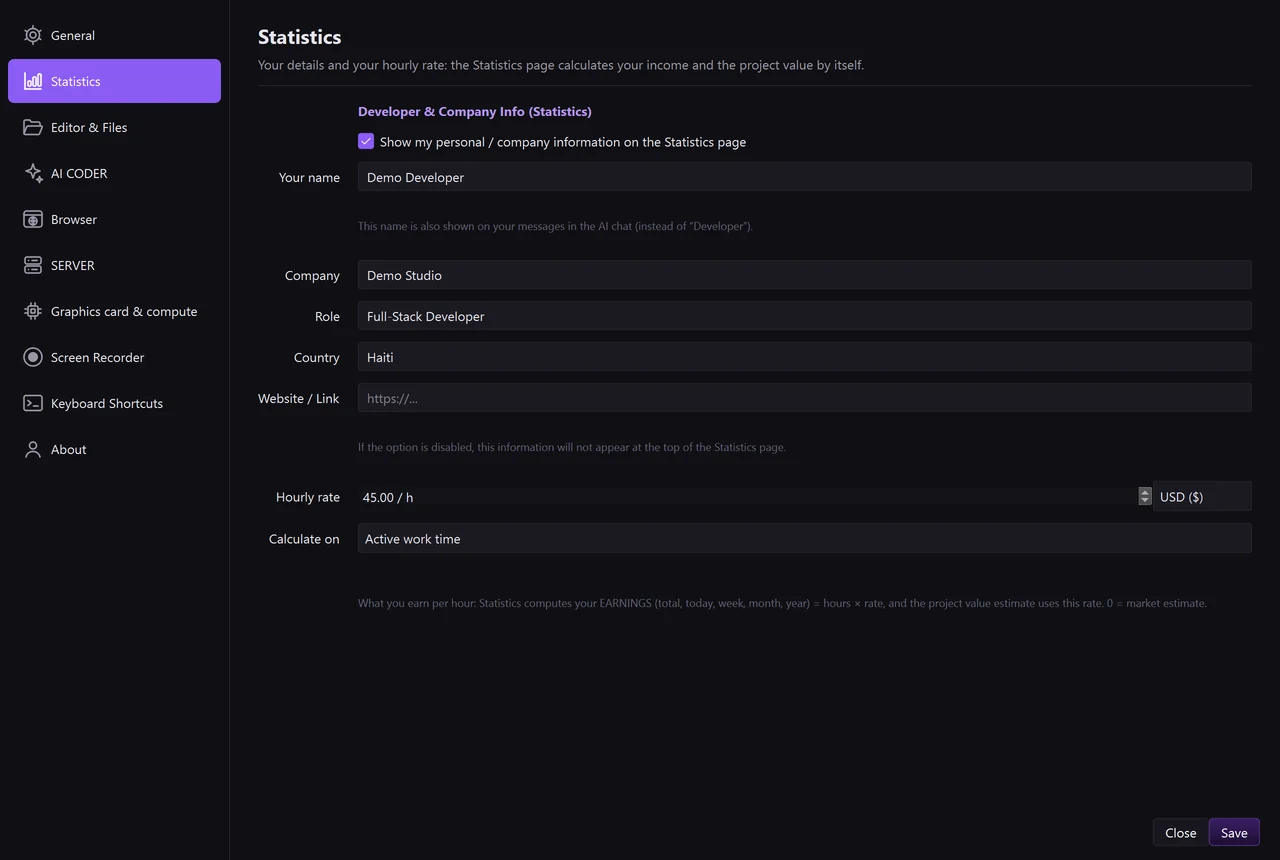
- Open the tab Statistics.
- Type Your name. This name is shown on the Statistics page, and on your messages in the AI chat.
- Fill Company, Role, Country and Website / Link if you want them on the Statistics page and in its reports.
- Type your Hourly rate and choose the currency.
- Under Calculate on, choose Active work time or All time the project is open.
- With an hourly rate, the Statistics page calculates your income: hours × rate, for the total, today, this week, this month and this year.
- Leave the rate at zero to let WASDEV estimate a market rate.
- Untick Show my personal / company information on the Statistics page to hide these details.
Editor & Files
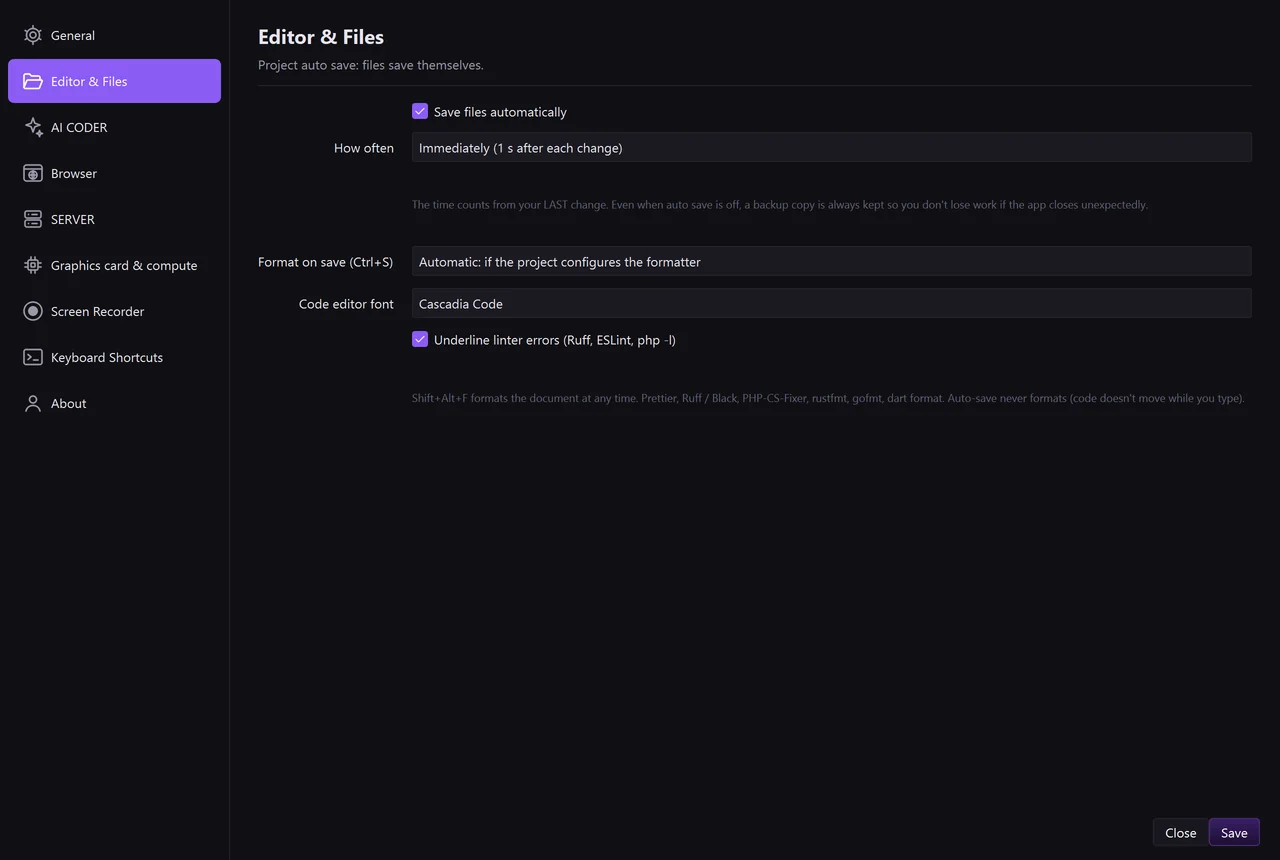
- Save files automatically and How often: turns auto save on and sets the delay.
- Format on save: formats the code each time you save.
- Code editor font: chooses the font and its size.
- Underline linter errors: shows problems directly in the code.
AI CODER
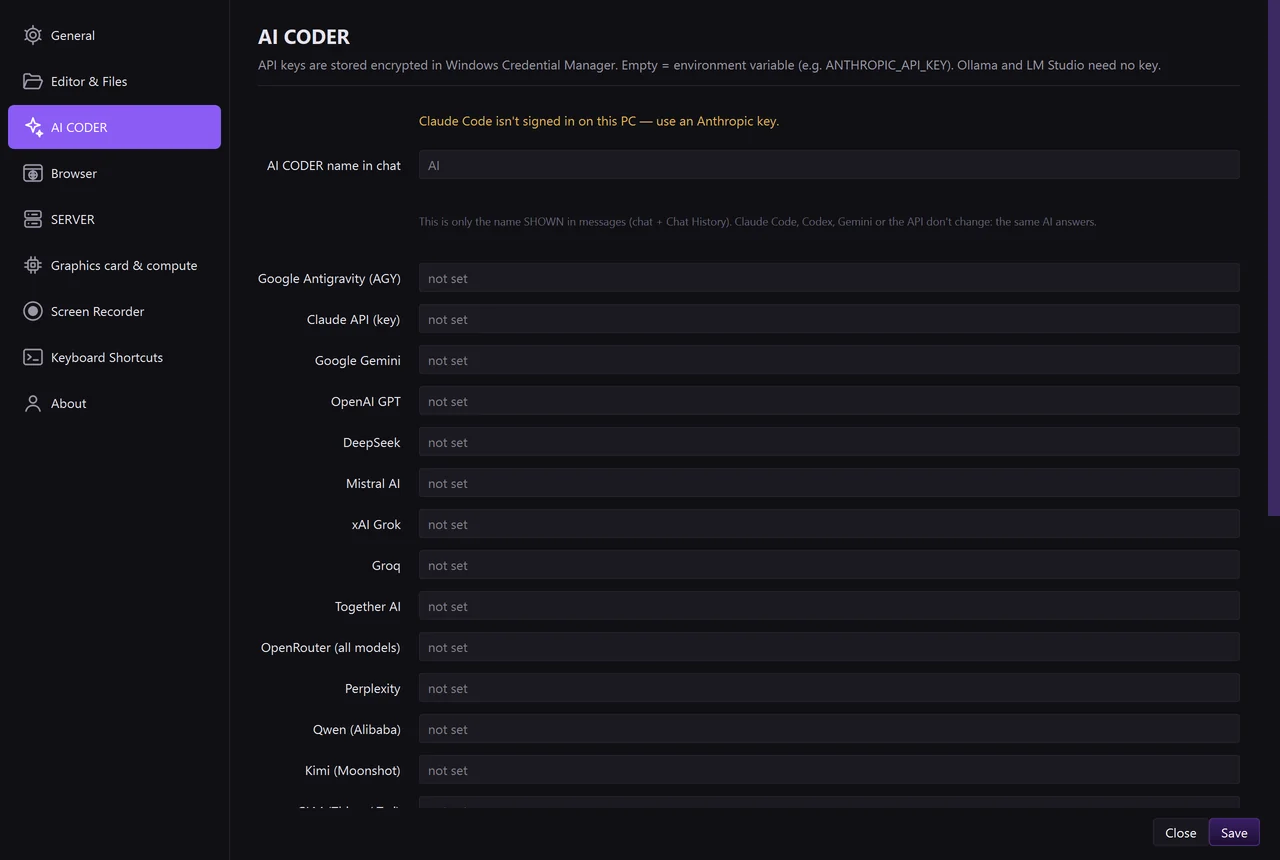
- API keys: one field per provider. Paste your key and save. Keys are stored encrypted in Windows Credential Manager.
- The status line of Claude Code shows the plan detected on your account.
- AI CODER name in chat: the name shown for the AI in the conversation.
- Adobe Firefly: Client ID, Client Secret, Import from ~/.claude.json and Test Connection.
Browser
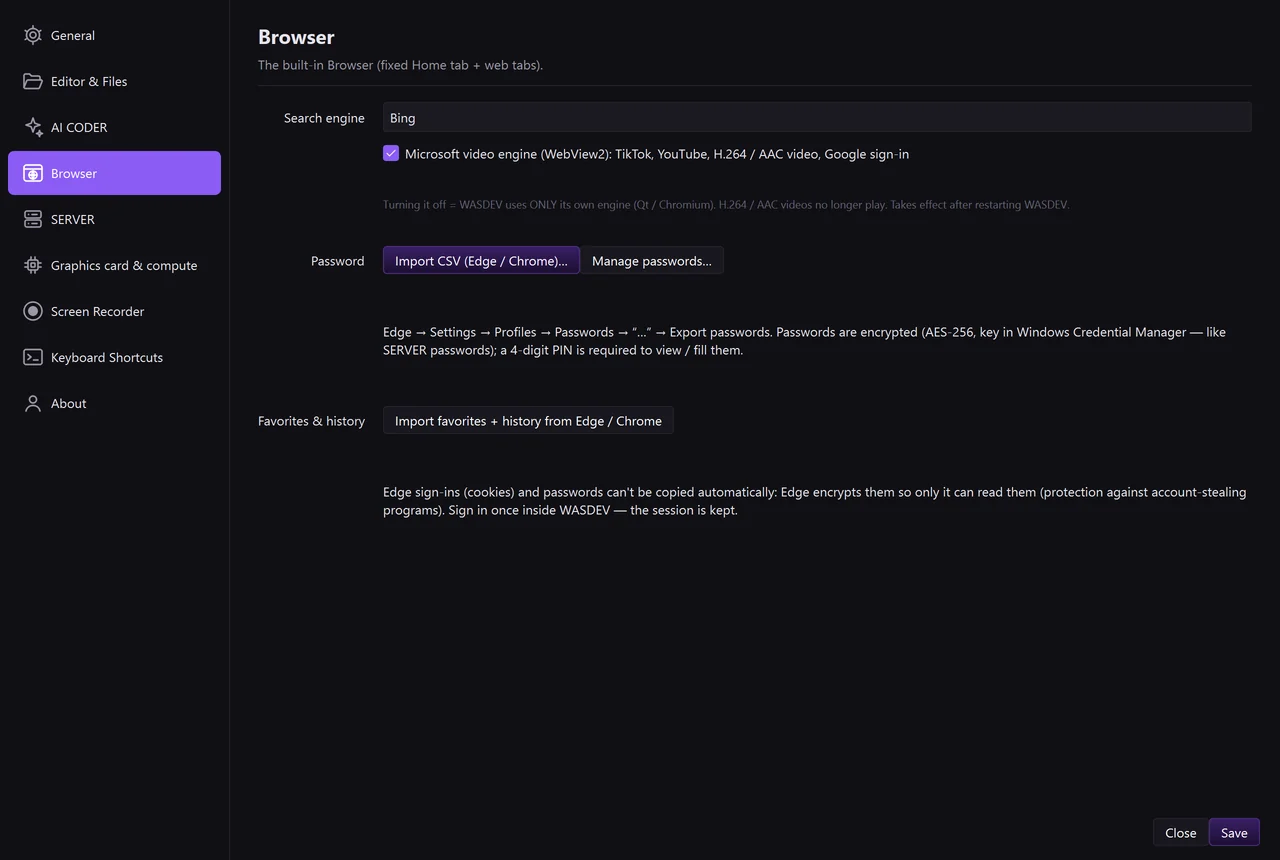
- Search engine: the engine used by the address box.
- Microsoft video engine (WebView2): install it for sites with protected video.
- Import CSV and Manage passwords…: open the password manager.
- Import favorites + history: from Edge or Chrome.
SERVER
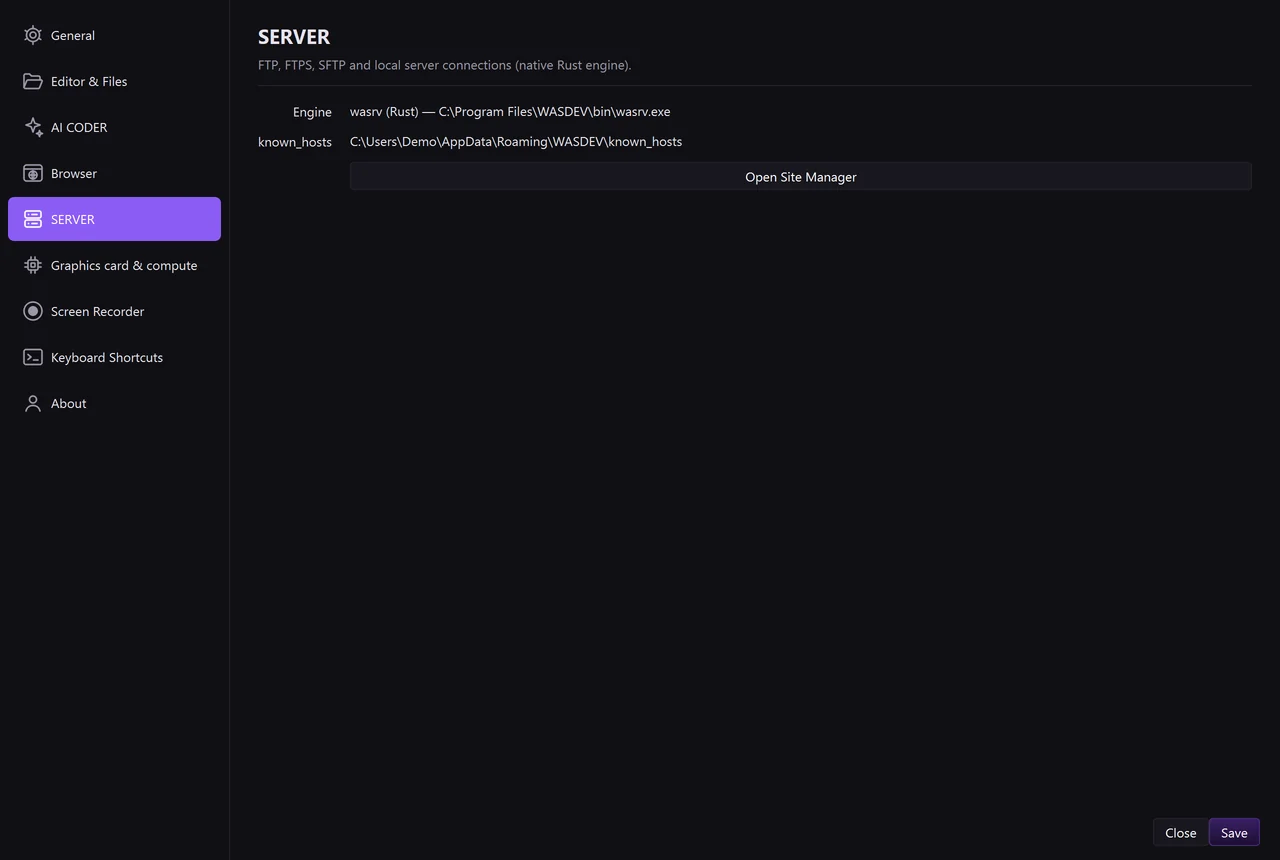
- Read the status of the transfer engine.
- known_hosts: the list of servers whose fingerprint WASDEV remembers.
- Open Site Manager: goes to your saved connections.
Audio, Voice & Microphone
- Official Audio IN (Microphone): choose which microphone (built-in, USB, headset or audio interface) WASDEV uses for voice commands, AI chat dictation, screen recording (
RecBar) and Kadans Video. - Official Audio OUT (Speakers / Headset): choose which output device (speakers, headphones or studio monitors) plays AI speech, video previews and timeline audio.
- Any change here synchronizes instantly across all modules in real time.
Graphics card & compute
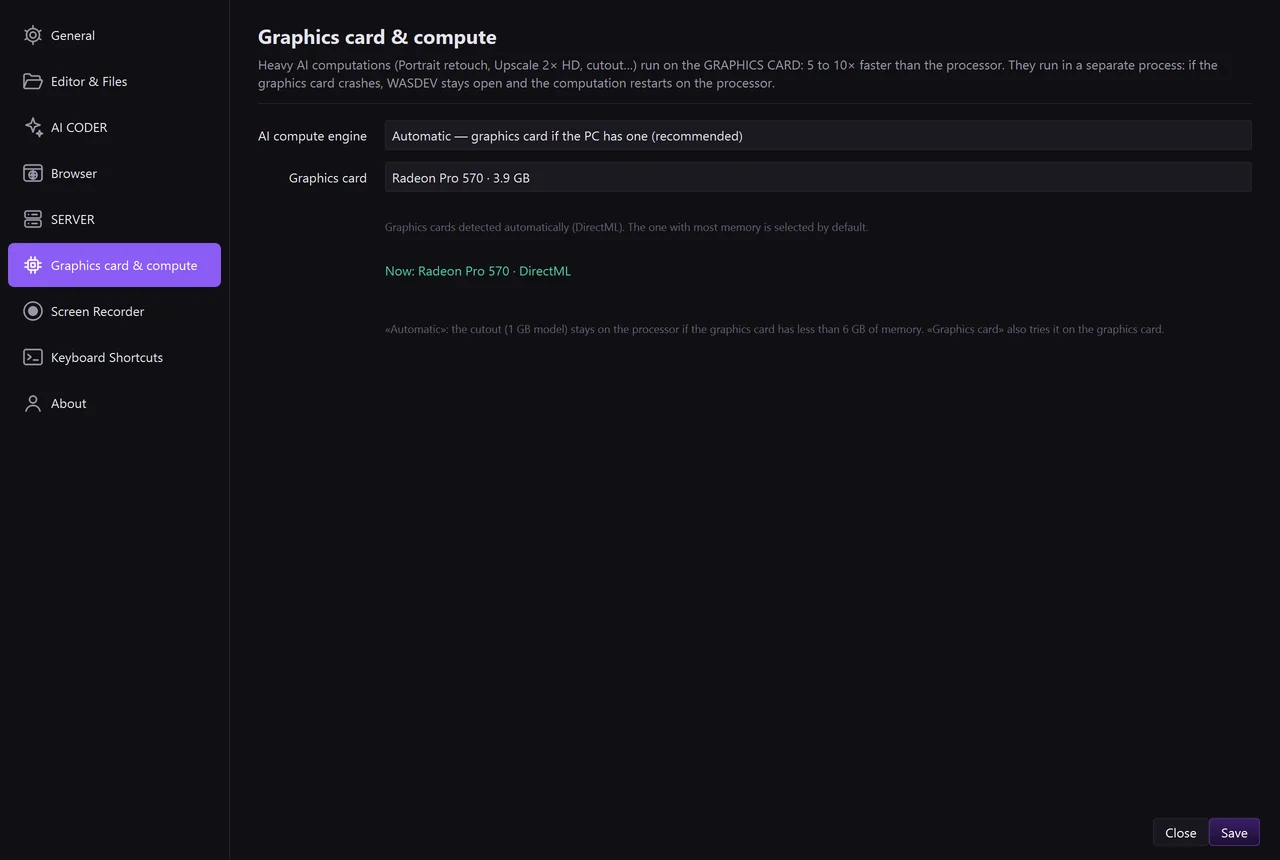
- AI compute engine: choose Automatic, GPU or CPU for the AI models that run on your PC.
- Graphics card: choose which card to use if the PC has more than one.
Keyboard Shortcuts
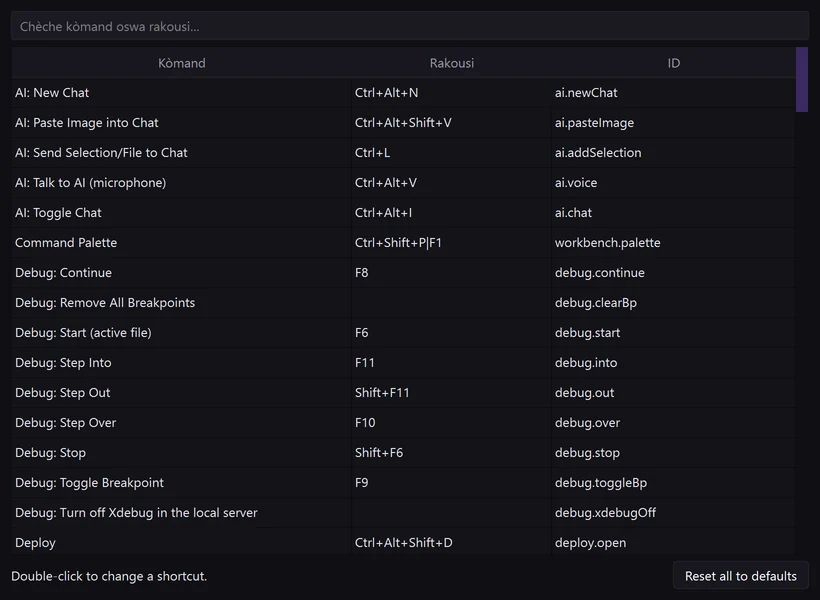
- Open the tab Keyboard Shortcuts and click Open shortcut editor…, or press
Ctrl+KthenCtrl+S. - Search the command you want to change.
- Double-click it, press the new key combination and confirm.
- Every shortcut listed in this documentation is the default one and can be changed here. Reset all to defaults restores them.
Create your own theme
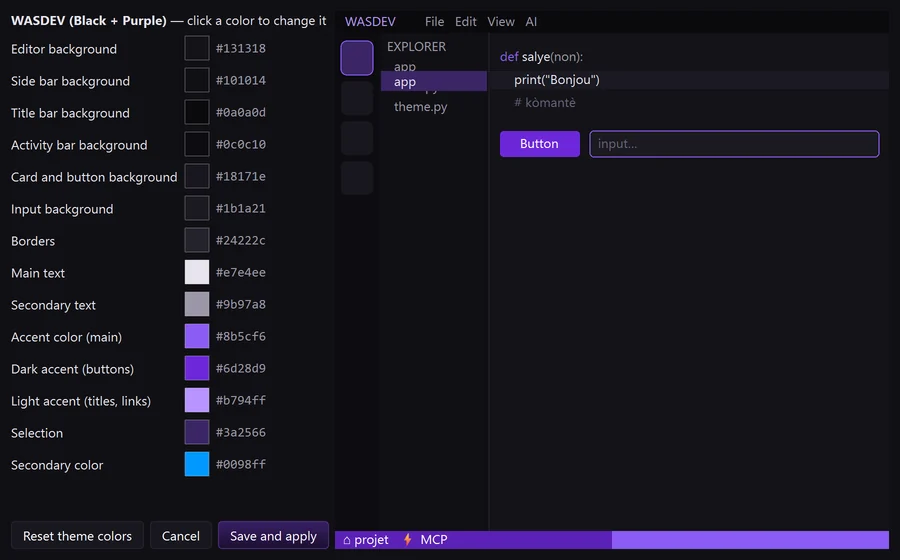
- Open the Theme menu and click Customize theme….
- Change the colours of the interface and of the code.
- Click Save and apply. The preview on the right shows the result before you save.
- Reset theme colors returns to the original colours.
About
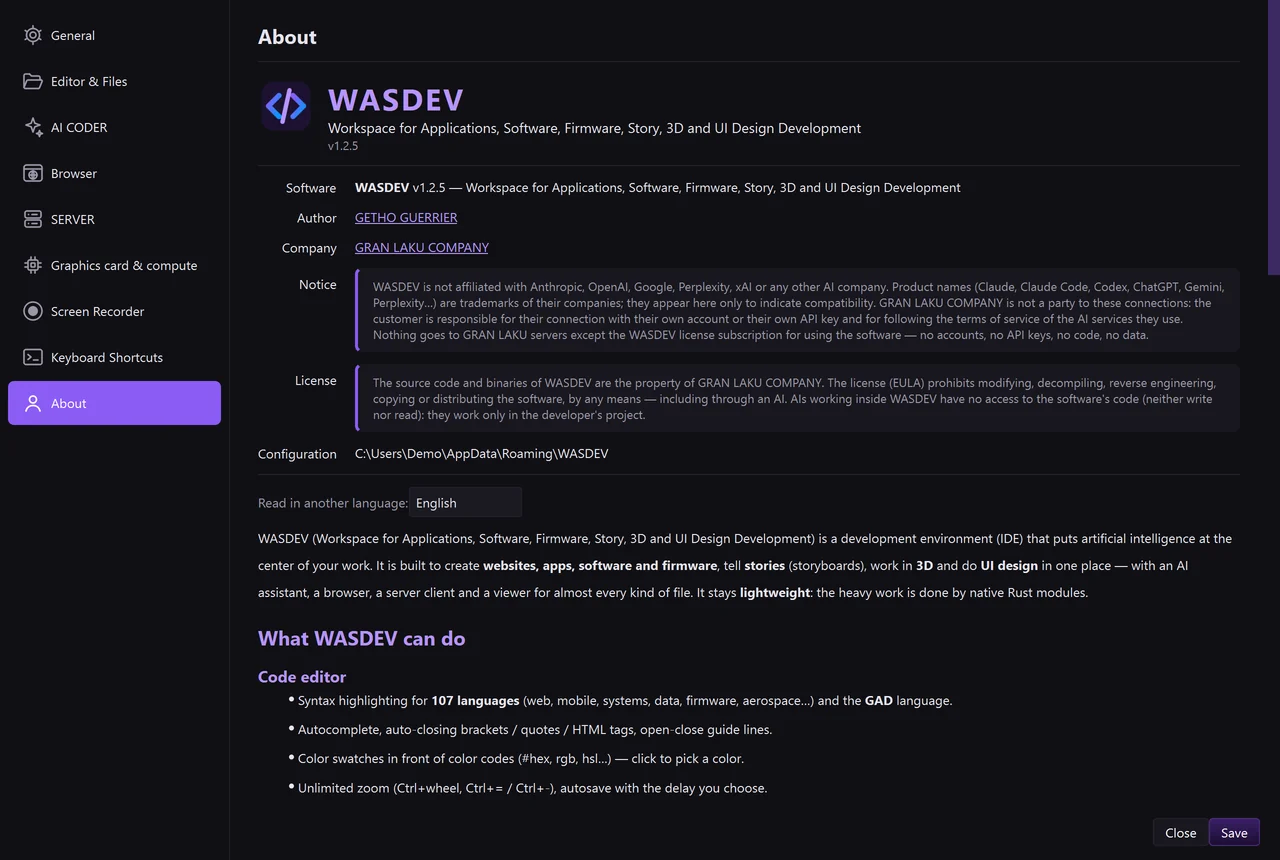
- Open the tab About to read the version of the software, the author, the licence notices and your configuration.
- Give this version number when you ask for support.